
Managing Users
Managing Users
Wristband allows you to invite users to your tenant so they can access the Wristband Dashboard and manage your tenant's resources. Each user is assigned a role that determines which actions they can perform within the tenant.
User Roles
When adding users to your Wristband tenant, you must assign them one of the following roles:
- Owner: Provides full access to all tenant resources and settings, including user management, tenant settings, and billing.
- Admin: Provides access to manage tenant resources but restricts access to user management, tenant settings, and billing.
The following table outlines the permissions available to each role:
| Permission | Owner | Admin |
|---|---|---|
| Manage tenant resources | ✅ | ✅ |
| Add or remove tenant users | ✅ | ❌ |
| Change user roles | ✅ | ❌ |
| Manage tenant settings | ✅ | ❌ |
| Manage billing settings | ✅ | ❌ |
Choosing the Appropriate RoleAssign the Owner role to users who need full administrative control over your Wristband tenant, including user management, tenant configuration, and billing.
Assign the Admin role to users who need to manage Wristband resources but should not have permission to manage tenant users or modify tenant-level settings.
Inviting Users
To invite users to your tenant:
- Click your profile icon in the top-right corner of the Wristband Dashboard.
- Select Tenant Settings from the dropdown menu.
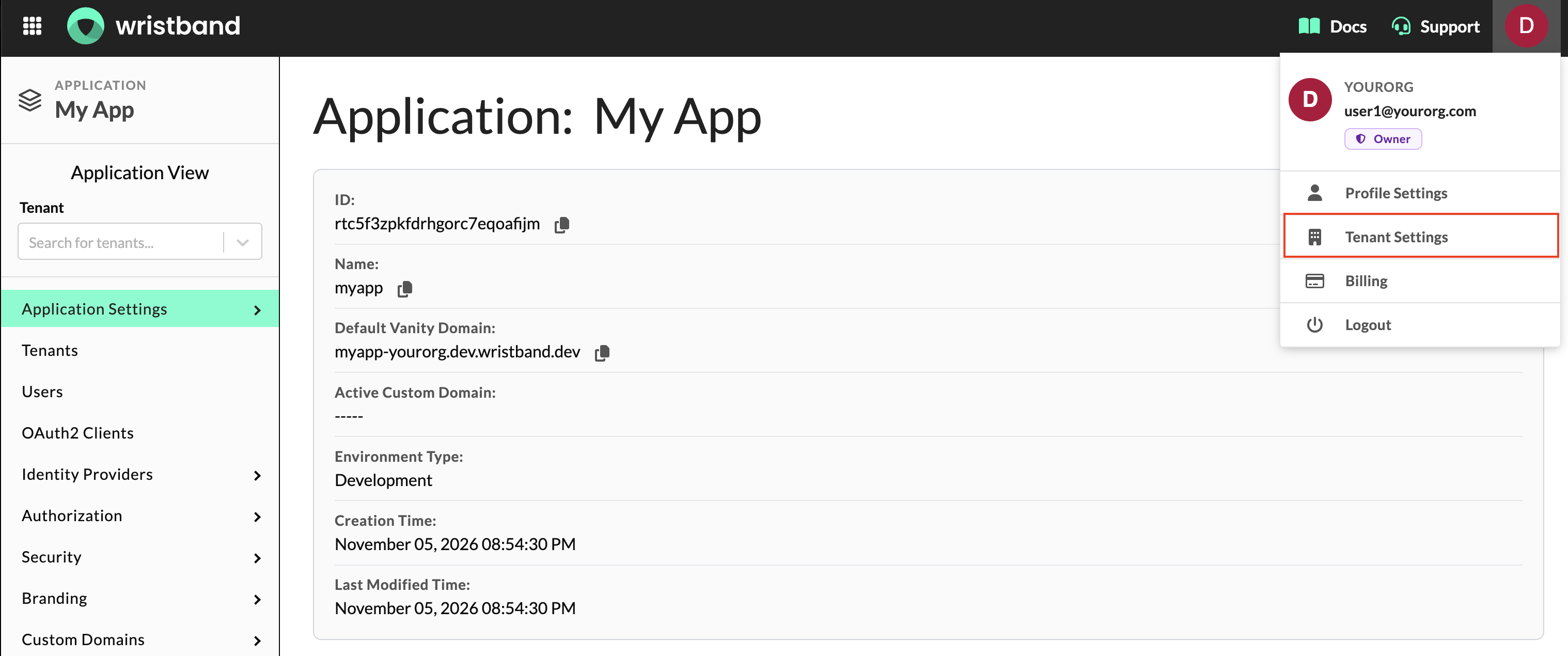
Figure 1: Accessing Tenant Settings.
- Select Tenant Settings from the left navigation menu, then select Users.
- Scroll down to the Invite Users to Your Tenant section.
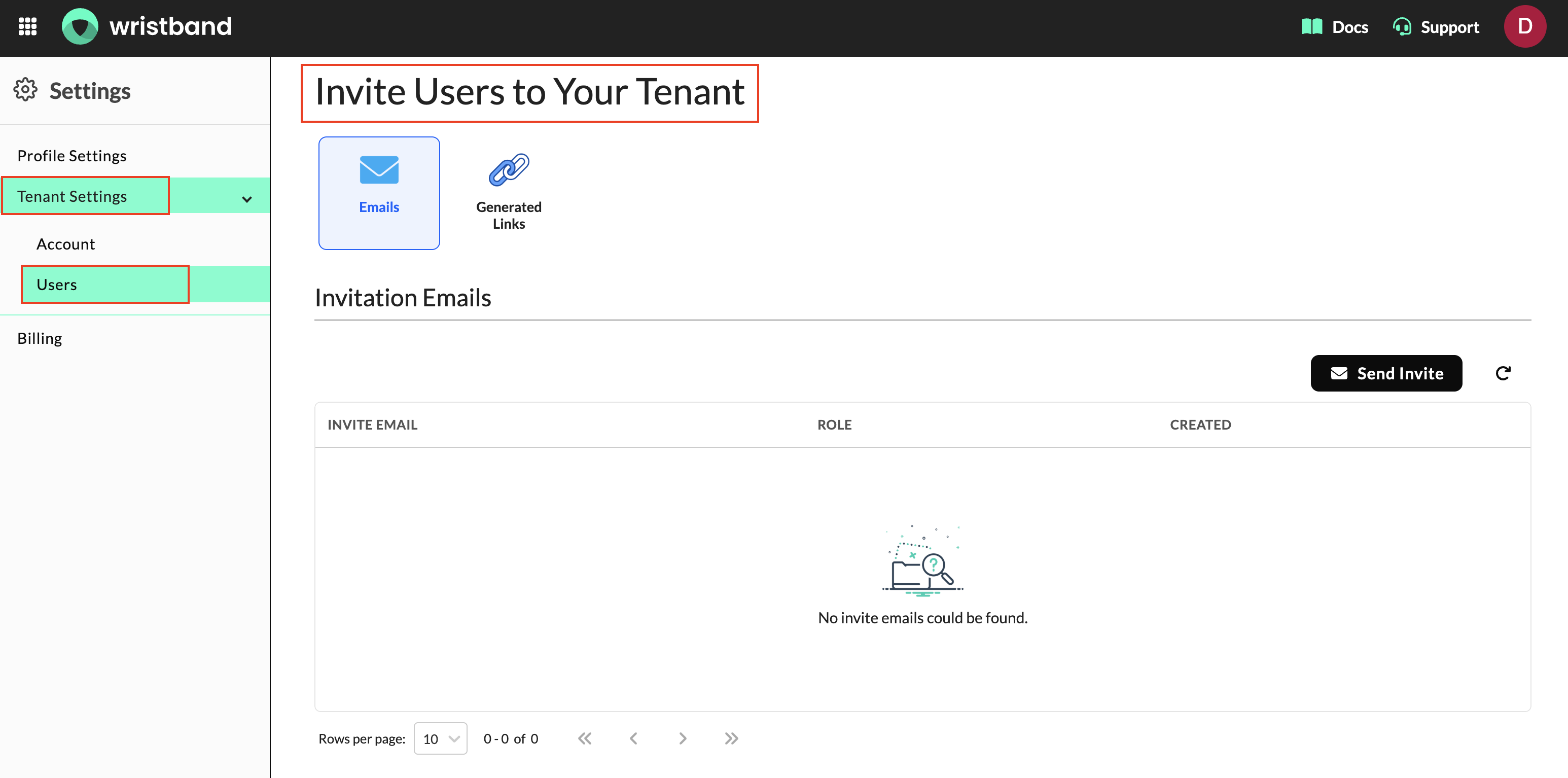
Figure 2:
Sending an Email Invite
To send an email invite:
- Select the Emails tab.
- Click the Send Invite button.
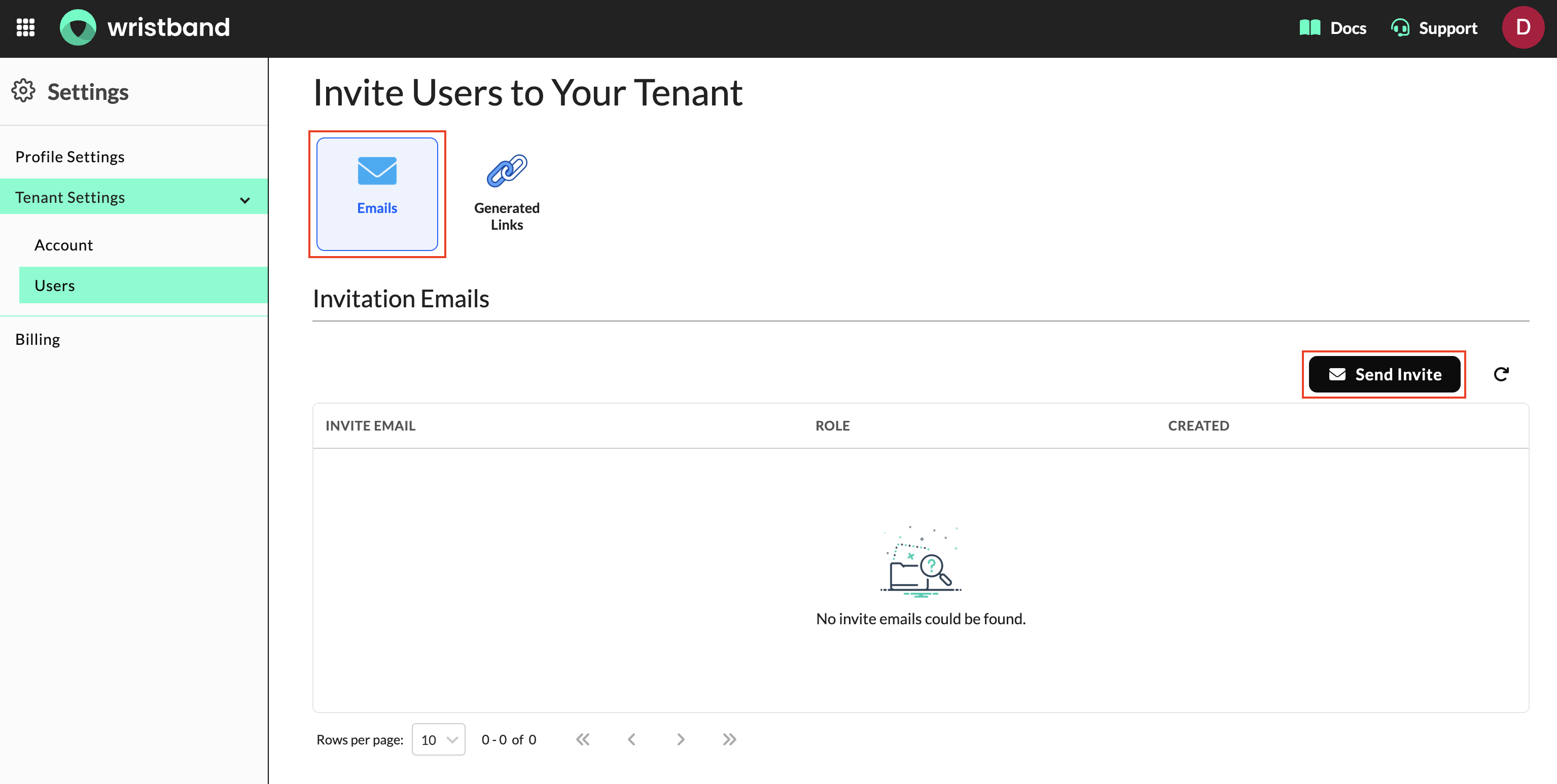
Figure 3:
- In the Send New User Invite Modal, fill in the following fields:
- Email: The email address that the invite should be sent to.
- Role to Assign: The role that the user should be assigned after they accept the invite.
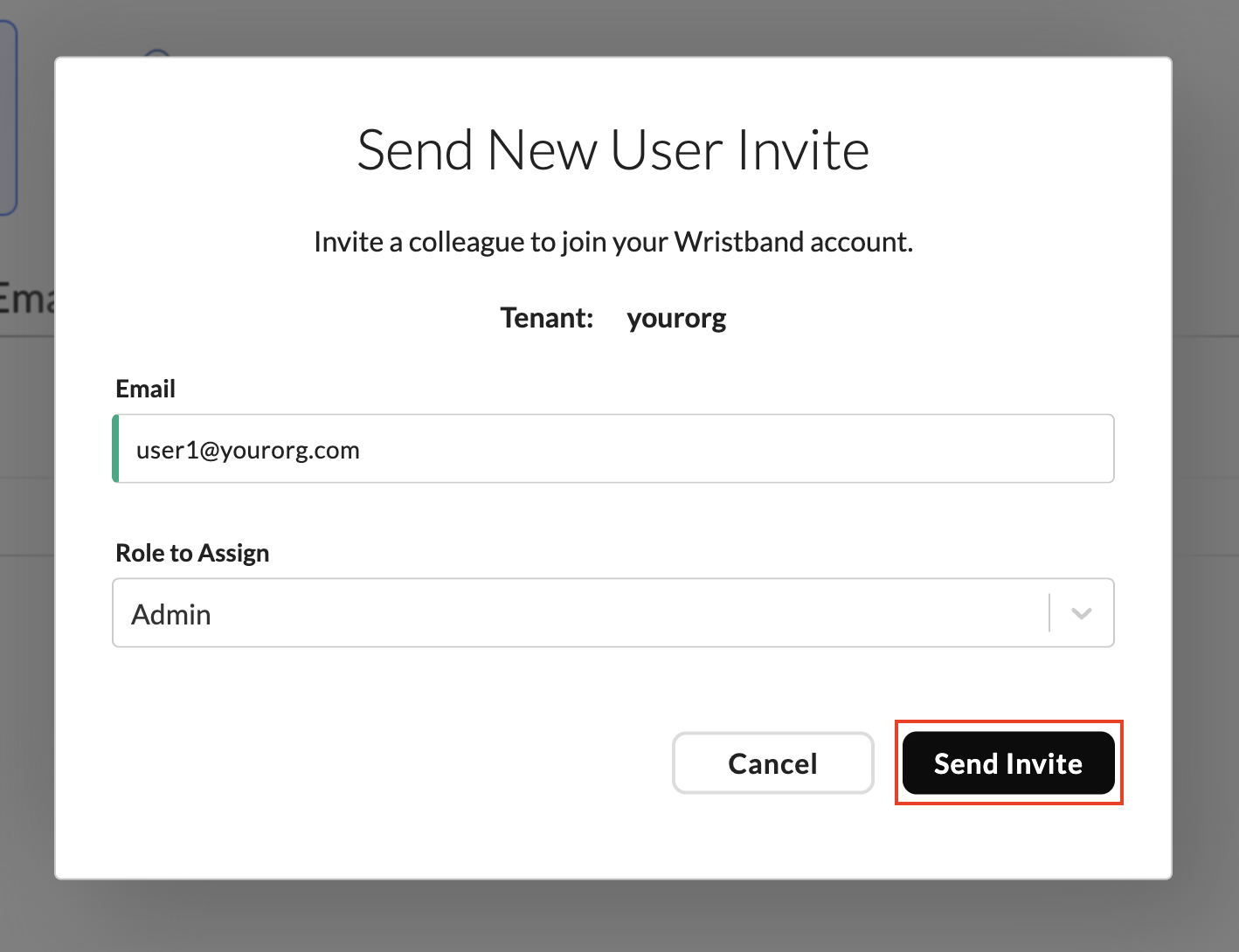
Figure 4:
Creating an Invite Link
To create an invite link that can be sent to people through direct communication channels such as Slack:
- Select the Generated Links tab.
Updated about 7 hours ago