
Configuring Tenant Overrides
Use the Wristband Dashboard to view, configure, and activate tenant-level overrides.
Before you beginTo configure tenant overrides, you must be in Tenant View. See Navigating Between Apps and Tenants for how to switch into Tenant View for a specific tenant.
Override Configurations Panel
When in Tenant View, the Tenant Settings page provides an "Override Configurations" panel that shows all available tenant-level overrides in one place. Each toggle controls whether the tenant's own configuration is active for that policy. This is the quickest way to see the current override state across all policies for a given tenant.
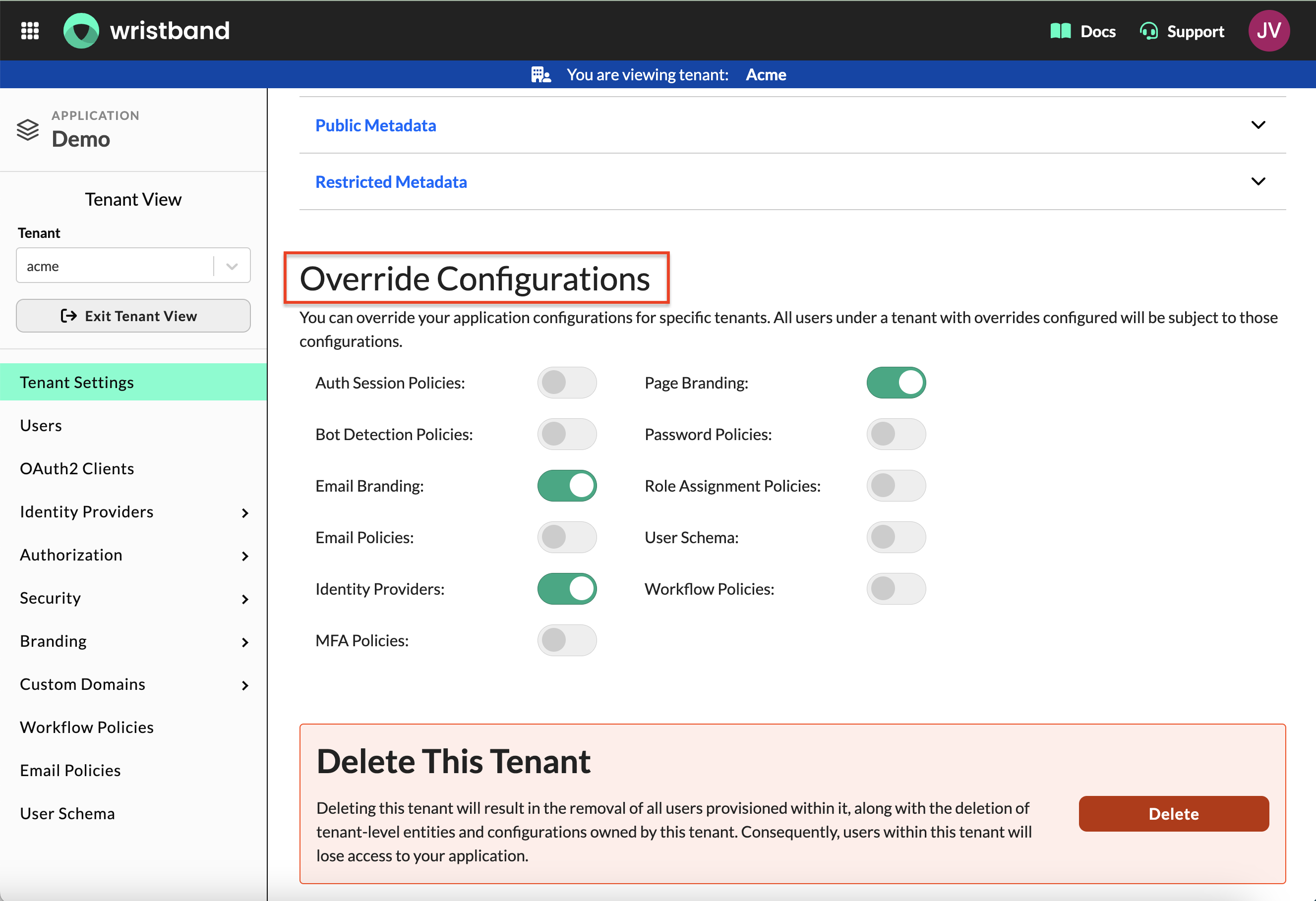
The Override Configurations panel in Tenant Settings showing all override toggles for a tenant.
Alternatively, each individual page in Tenant View that supports overrides includes its own override toggle and a two-tab control for viewing and editing configurations. The sections below describe how that works.
The Override Tab Control
When you open any page in Tenant View that supports tenant-level overrides, a segmented tab-button control appears at the top of the page. Two tabs are:
- Values in Effect: A read-only view showing the configuration currently active for the tenant.
- Edit Tenant Config: An editable view showing the tenant's own saved configuration, regardless of whether the override is currently active.
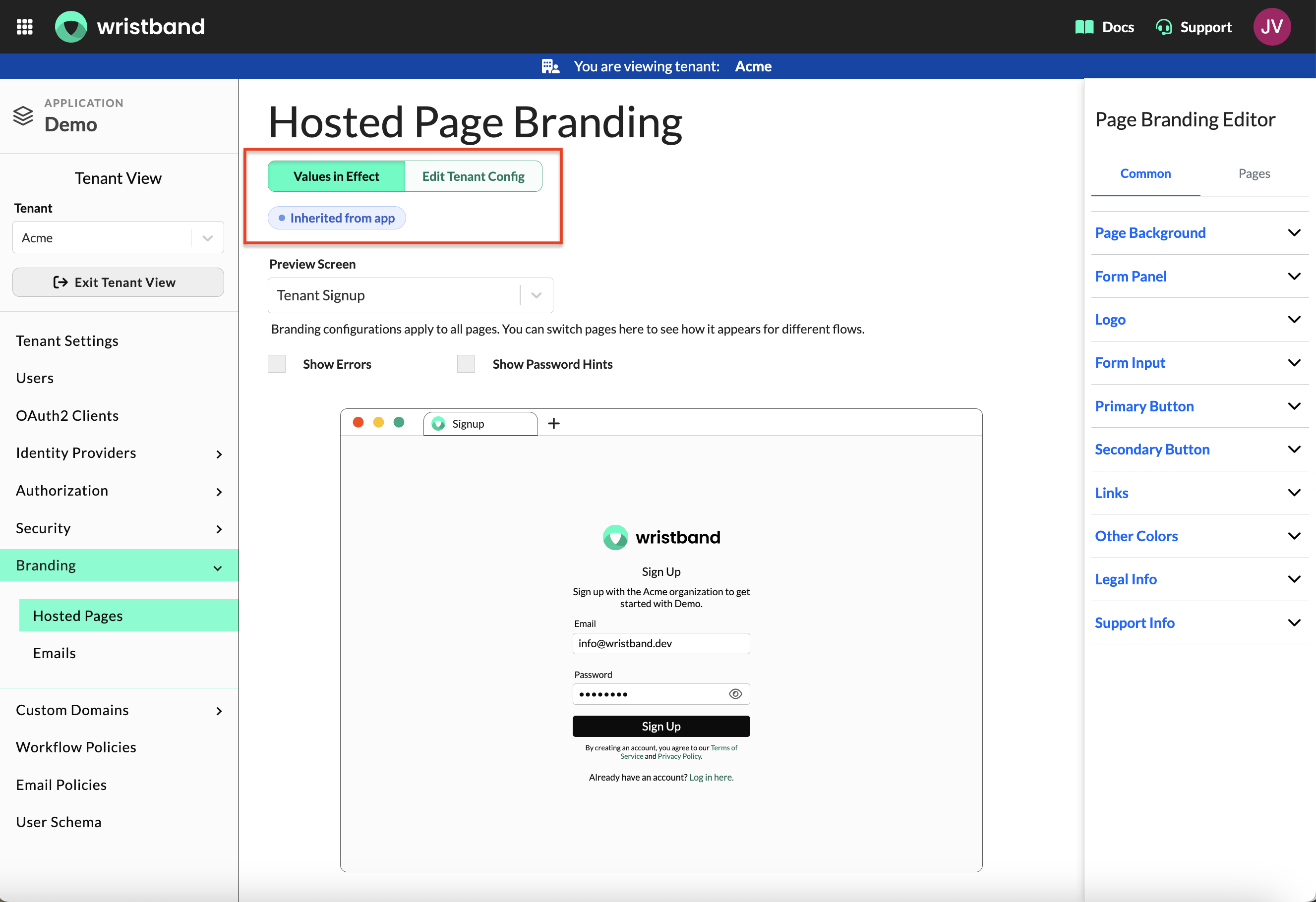
The override tab control appearing at the top of the Hosted Page Branding page in Tenant View, with the Values in Effect tab active and showing the tenant is inheriting from the application.
Values in Effect Tab
The Values in Effect tab gives you a read-only snapshot of what is driving the tenant's current behavior. This tab is useful for quickly auditing a tenant's current state without cross-referencing application settings manually.
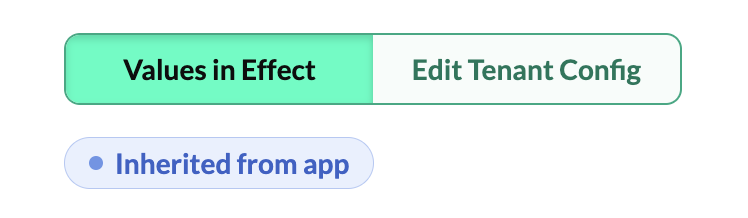
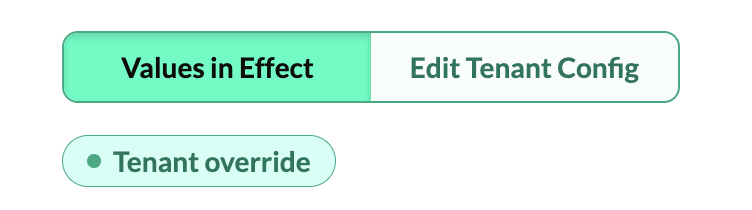
A badge at the top of the tab indicates the source of the active configuration:
-
Inheriting from Application: No override is active. The tenant is using the application-level settings.
-
Tenant Override: The tenant's own configuration is in effect.
Edit Tenant Config Tab
The Edit Tenant Config tab is where you define what values the tenant will use when its override is activated. Changes saved here are stored as the tenant's configuration but do not go live until the override toggle is turned on. This separation lets you prepare a tenant's configuration in advance and activate it when ready, without disrupting the tenant's current experience in the meantime.
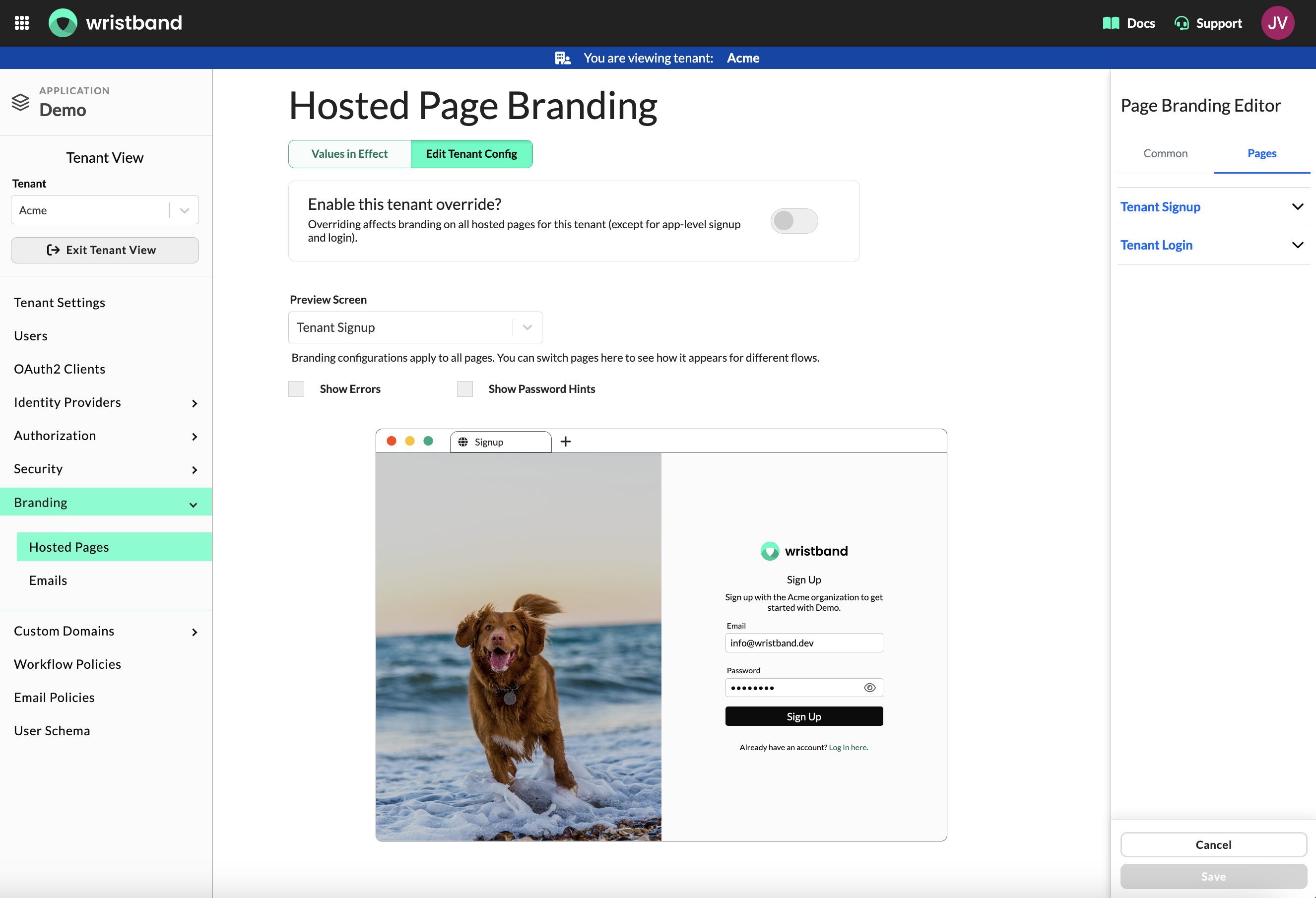
The Edit Tenant Config tab on the Hosted Page Branding page, showing the override toggle and the tenant's own saved configuration.
Activating a Tenant Override
Each settings page in Tenant View includes an override toggle that controls whether the tenant's configuration is active. When the toggle is:
- Off: The tenant inherits the application-level settings. Any configuration saved in the Edit Tenant Config tab is stored but not in effect.
- On: The tenant's own configuration is active and takes precedence over the application-level settings.
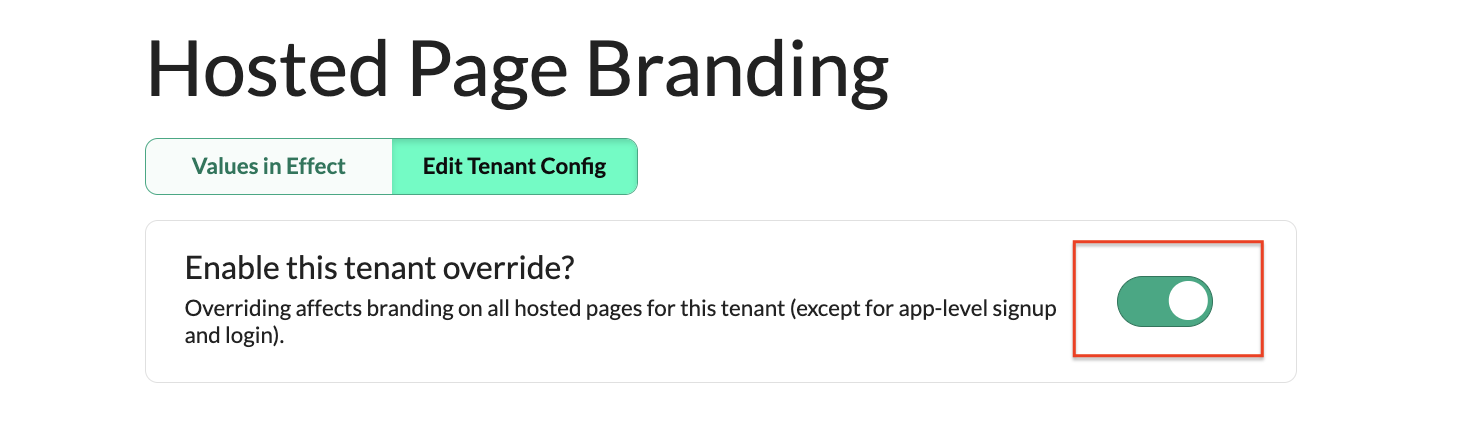
The override toggle enabled on the Edit Tenant Config tab, activating the tenant's own configuration.
To activate an override:
- Navigate to the relevant settings page in Tenant View.
- Switch to the Edit Tenant Config tab and confirm the tenant's configuration is correct.
- Enable the override toggle.
- The Values in Effect tab will now reflect the tenant's own configuration.
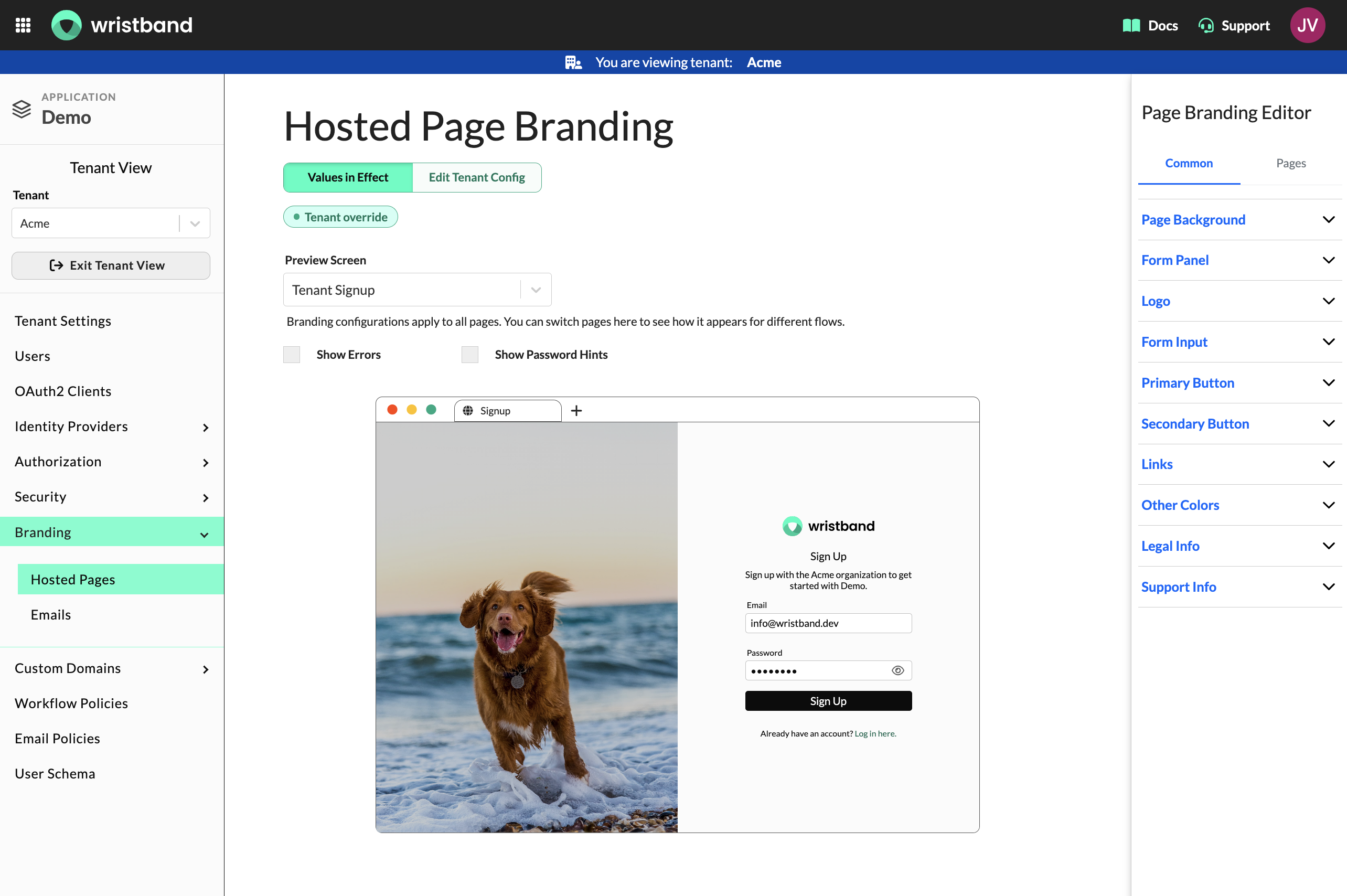
The Values in Effect tab on the Hosted Page Branding page, showing the tenant's own configuration is now active.
To revert a tenant back to inheriting from the application, disable the override toggle. The tenant's saved configuration is preserved and can be re-activated at any time.
Updated 3 months ago