
Live Hosted Demo
Discover how Wristband auth looks to end users and powers tenant management.
Multi-tenant Auth Demo

What is it?
Meet Perk Party, our fictional B2B employee benefits app showcasing tenant isolation and custom branding.
What is being shown?
This app showcases Wristband's multi-tenant auth experience for end users. Test multi-tenant signup, login, and invite flows while configuring settings powered by Wristband APIs.
How was it integrated with Wristband's platform?
It handles auth via the NextJS SDK and API communication using standard fetch/axios calls.
How do I interact with it?
This app shows a B2B auth experience in action. It connects to Wristband APIs via our NextJS SDK as a backend integration example.
-
Visit the Perk Party website, click "Try Sign Up Flow," and follow the instructions to sign up.

Figure 1: Start the signup flow from the Perk Party home page.
-
Once signed up, explore your new tenant settings via the Admin menu in the top navigation bar, or try out the mock perks on the home screen.

Figure 2: Explore your tenant's admin settings after signup.
-
Interact with forms powered by Wristband's APIs. Every form features a button linking directly to the relevant API documentation. Use them to:
- Invite new users to your Perk Party tenant with an assigned role.
- View all active users in your tenant.
- View all pending invitations to your tenant.
- Resend or cancel any pending invitations to your tenant.
- Configure an External Identity Provider with Okta Enterprise SSO.
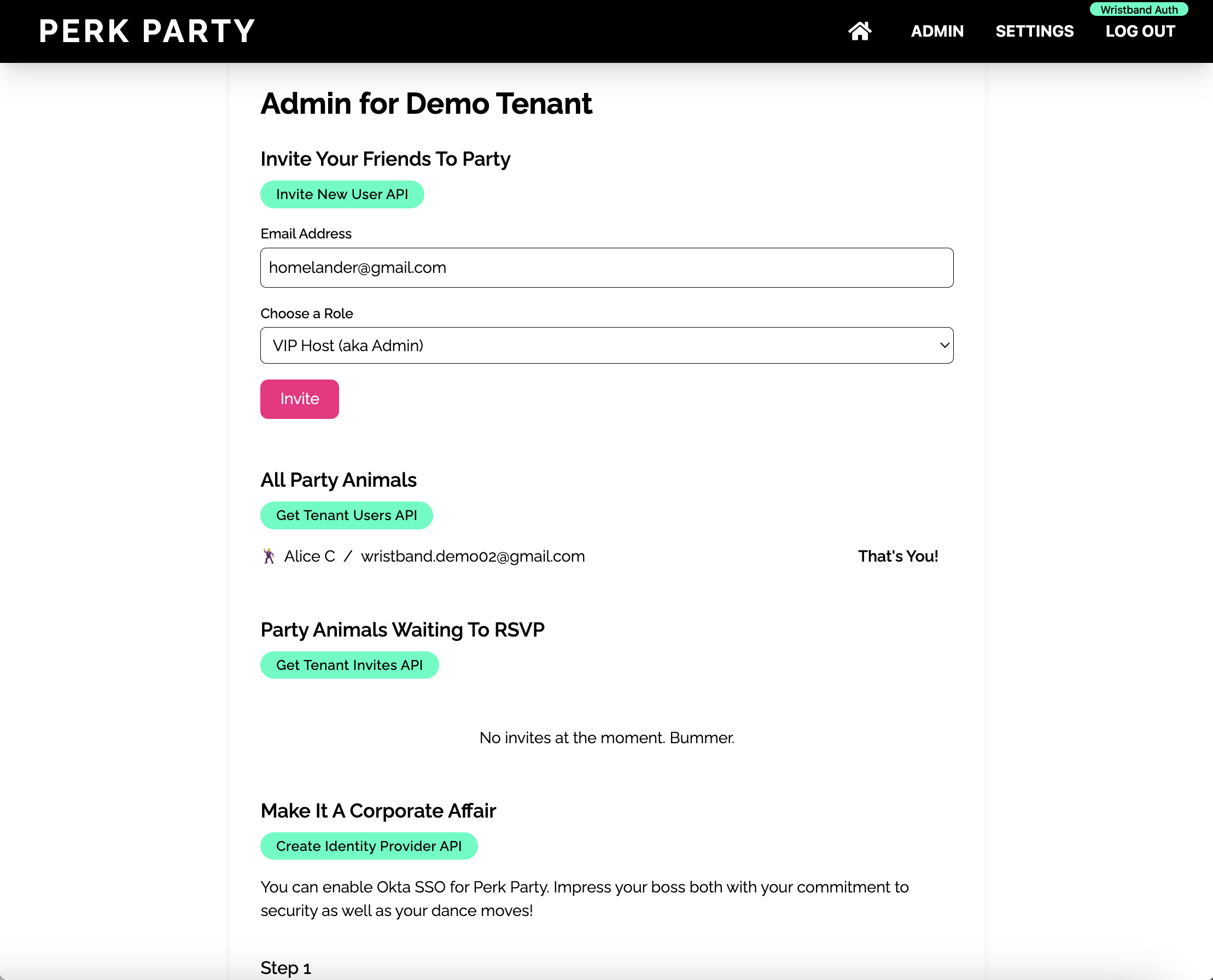
Figure 3: Manage tenant users, invitations, and identity providers from the Admin page.
-
Update your profile settings for the currently logged-in user by clicking Settings in the top navigation bar. Similar to the Tenant Admin page, these forms use Wristband APIs to manage user data. You can perform the following actions:
- Update the user's full name profile field.
- Change the user's password.
- Send a change email request (initiate the Change Email Workflow).
- Resend or cancel any pending change email request.
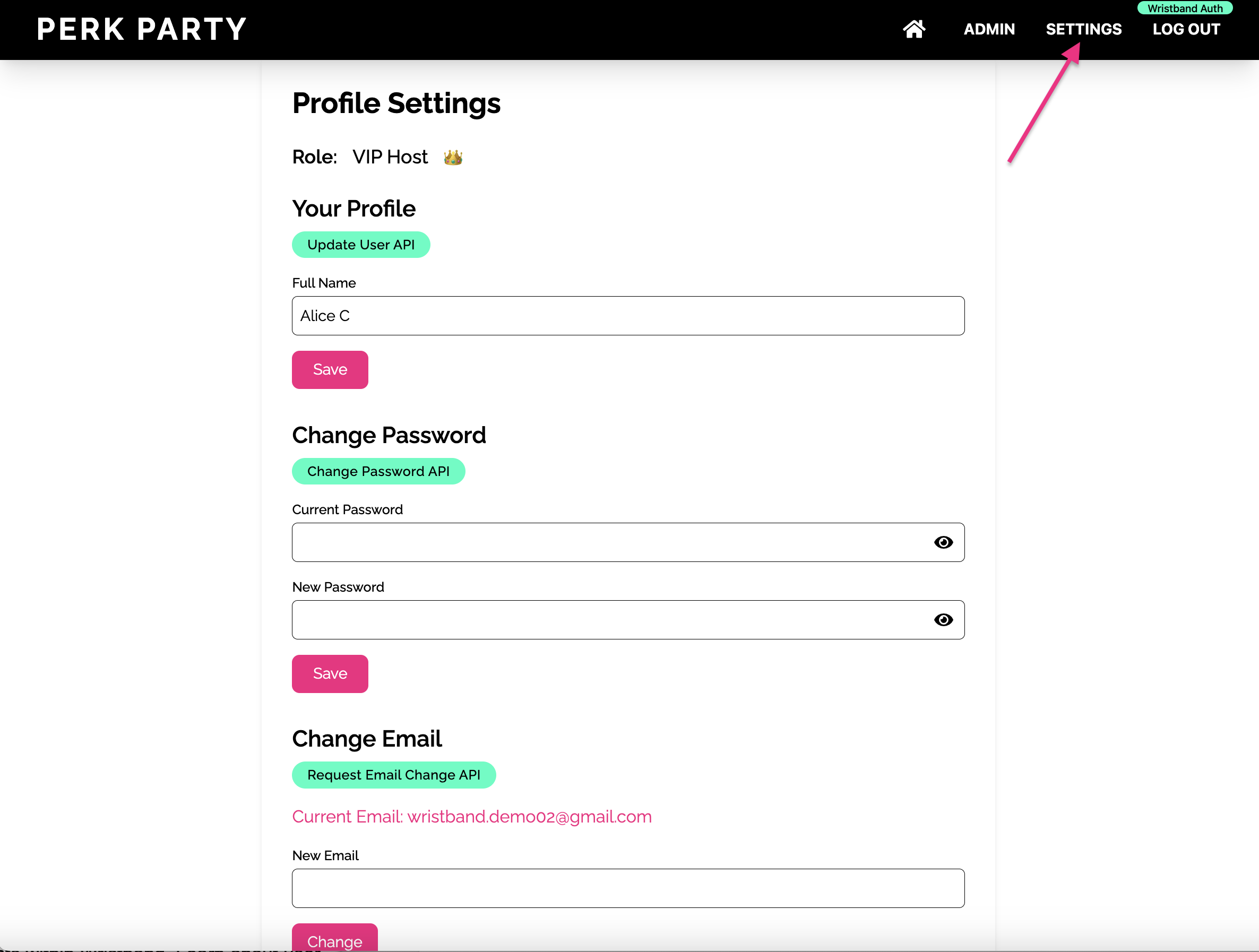
Figure 4: Update the signed-in user's profile, password, and email from the Settings page.
Updated 2 months ago