
Password Reset Workflow
Allow users and admins to reset passwords through Wristband's password reset flow.
The Password Reset Workflow can be initiated in several ways:
- Forgot Password: The user clicks the "Forgot Password" link on the Tenant-level Login Page, enters their email address, and Wristband sends a Password Reset email.
- Admin email: An admin sends a Password Reset email directly to the user from the Edit User Page in the Wristband Dashboard.
- Admin-generated link: An admin generates a shareable reset link from the Edit User Page, which can be distributed through any channel.
In all cases, the user follows the link or code to complete the reset. Upon completing the workflow, Wristband sends a Password Updated confirmation email to the user as a security measure.
Note: This workflow only applies when the Wristband Identity Provider is enabled for the tenant and the Password auth factor configured.
Workflow Policies
Several policies control how Wristband handles the password reset flow and what happens after a user successfully resets their password. They are configured under Workflow Policies in the Application View of the Wristband Dashboard. Individual tenants can override these application-level settings.
- Immediate Login: Controls whether users are automatically logged into the application immediately after successfully resetting their password. When disabled, users are shown a link to return to the Login Page.
- Email Verification Strategy: Controls whether the Password Reset email contains a verification link or a one-time code. Defaults to verification link.
- Custom Redirect URL: When set, users are redirected to this URL after successfully resetting their password instead of the default behavior. Supports the
{tenant_name}placeholder for tenant subdomains. - Custom Password Reset Link URL: When set, generated password reset links point to this URL instead of the default Wristband-hosted Reset Password Page. Supports the
{tenant_name}placeholder for tenant subdomains. - Link Expiration: Controls how long a generated password reset link remains active before it expires. Maximum expiration is 1,440 minutes (1 day).
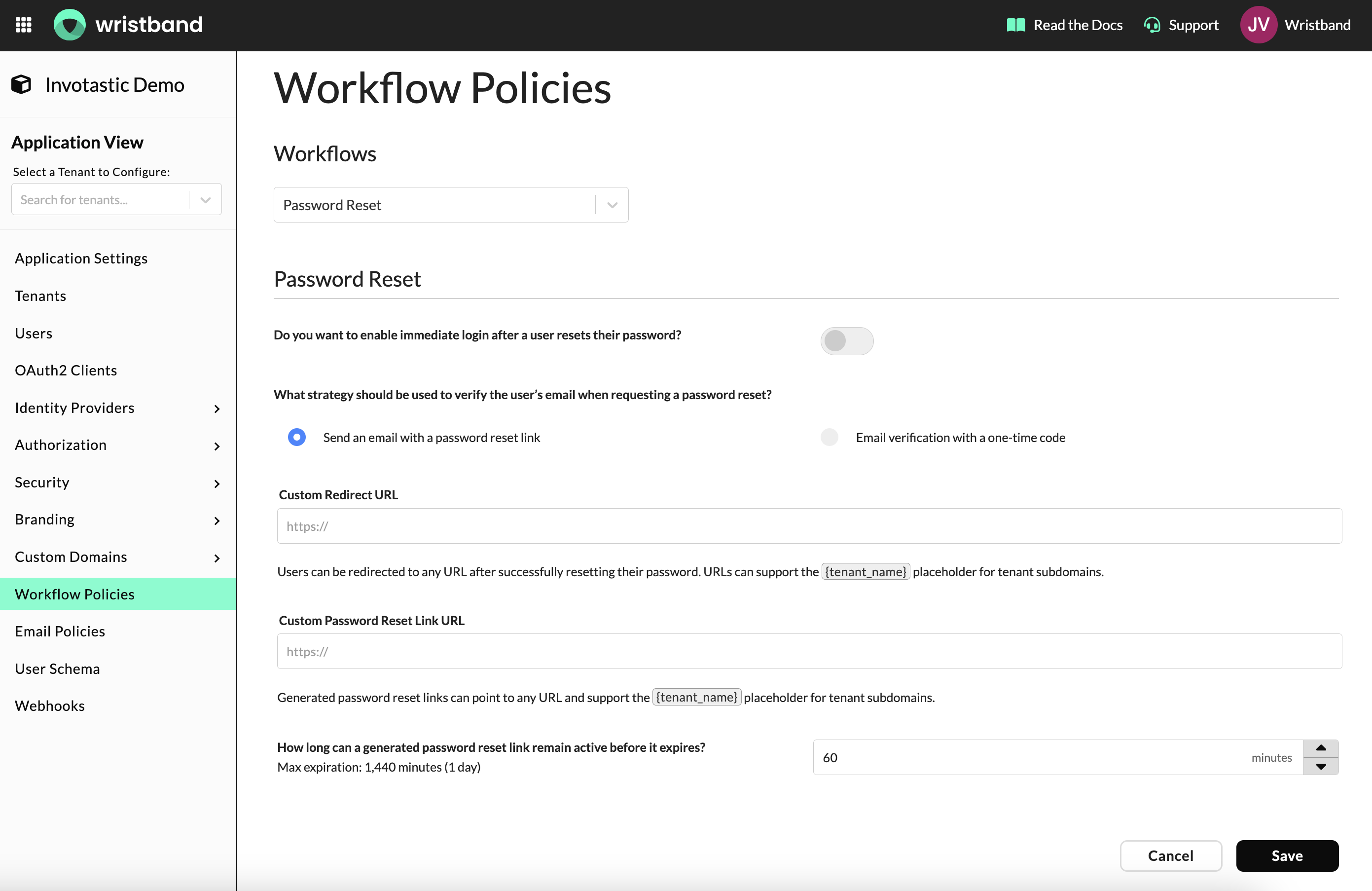
Password Reset Workflow Policies in the Wristband Dashboard
Forgot Password
The most common way users reset their password is through the "Forgot Password" link on the Tenant-level Login Page.
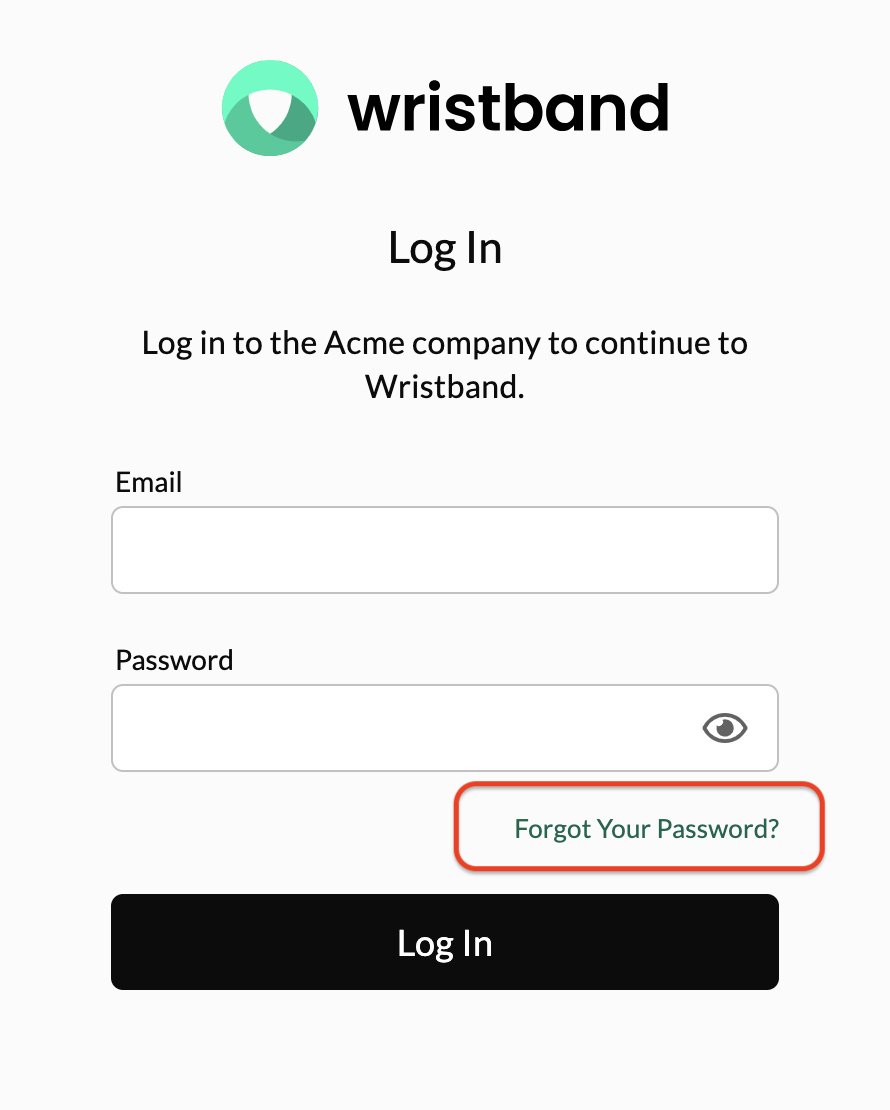
When clicked, the page transitions to display a Forgot Password form where the user enters the email address associated with their account. The user can also choose to return to the main login form from this screen.After submitting their email, Wristband sends a Password Reset email to the user.
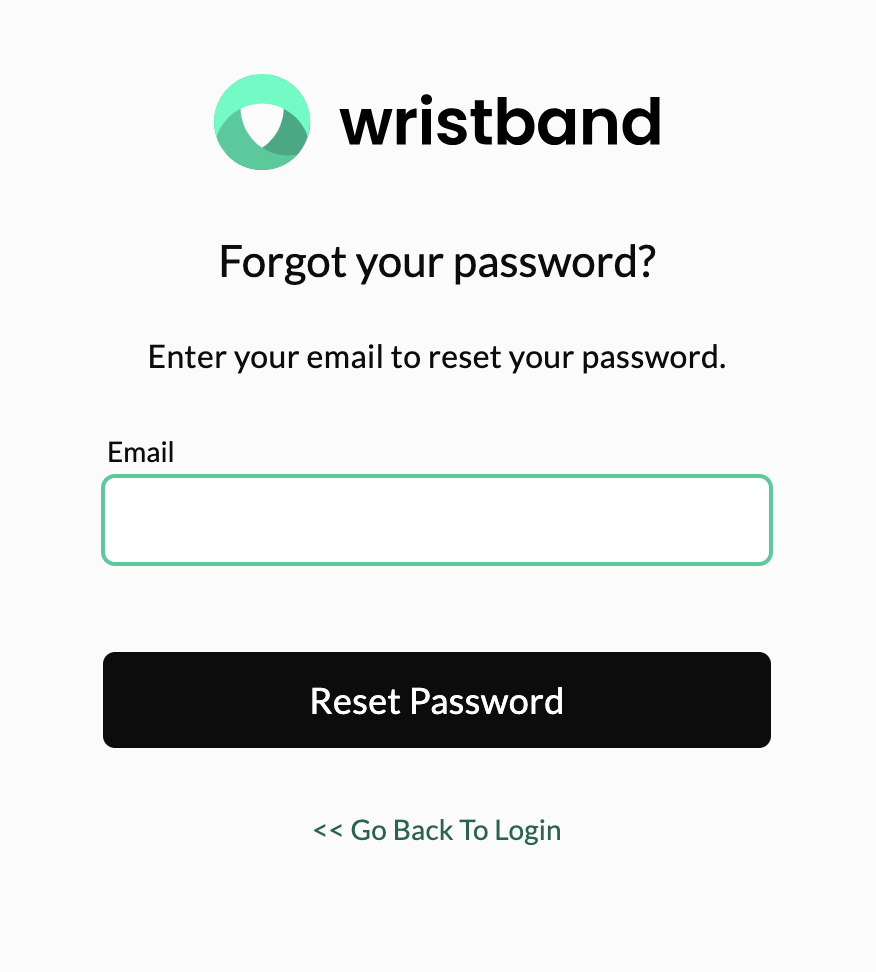
Depending on which Email Verification Strategy workflow policy is configured, one of the following will occur upon submitting their email:
- Verification Link: Wristband sends a Password Reset email containing an action link. When the user clicks the link, they are directed to the Reset Password Page where they can enter their new password.
- One-Time Code: Wristband sends a Password Reset email containing a one-time code. The login form changes to display a code input field. The user enters the code, which is verified inline, and is then presented with the Reset Password form.
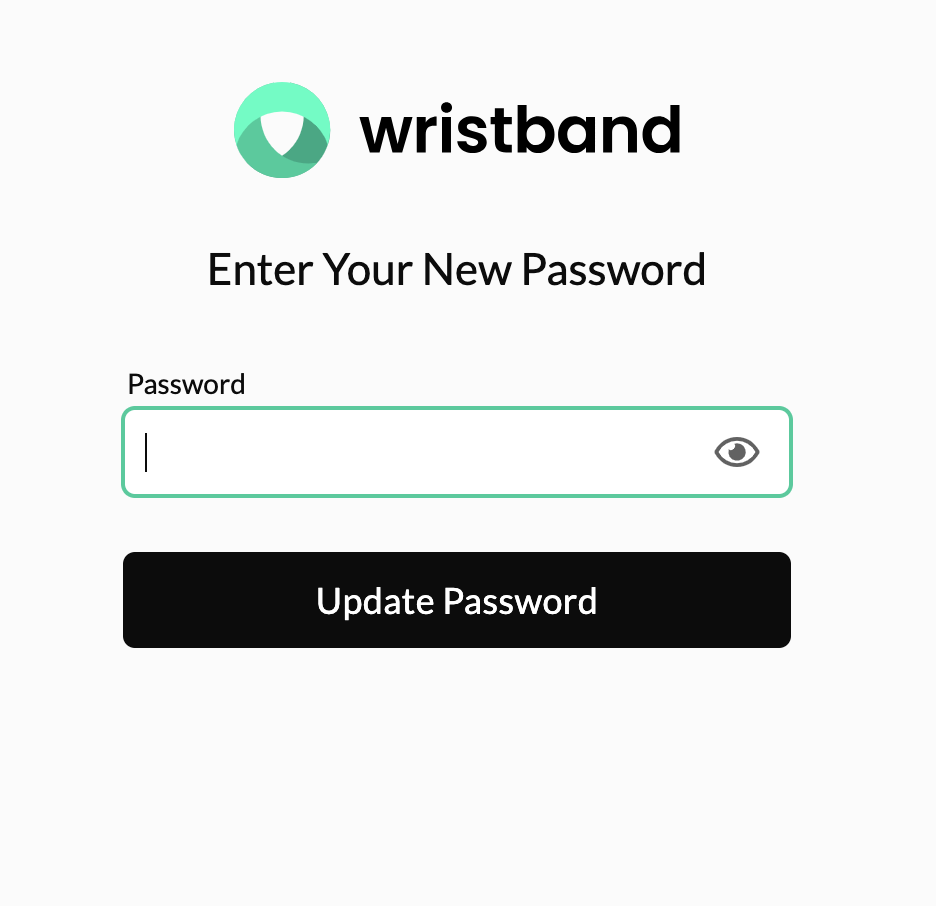
After successfully submitting their new password, what happens next depends on the Immediate Login and Custom Redirect URL workflow policies:
- If a custom redirect URL is configured, then the user is redirected to that URL.
- If immediate login is enabled and no custom redirect URL is configured, then Wristband creates an authentication session and logs the user into the application immediately.
- Otherwise, if neither of the above are configured, then the user is shown a link to return to the Login Page where they can enter their new password.
Upon completion of the Forgot Password flow, the user will receive a Password Updated email to their email address as a safety measure to let them know that a password reset was completed.
Admin-Initiated Password Reset
In addition to the user-initiated Forgot Password flow, Wristband supports admin-initiated password resets from the Edit User Page in the Wristband Dashboard. Admins can do any of the following:
- Send a Password Reset email directly to the user
- Generate a shareable reset link to distribute through their own channel
Password Reset Email
Admins can trigger a Password Reset email on behalf of any user directly from the Edit User Page. This sends the same Password Reset email the user would receive through the Forgot Password flow, including the configured email verification strategy. This is useful when a user is locked out and cannot initiate the reset themselves.
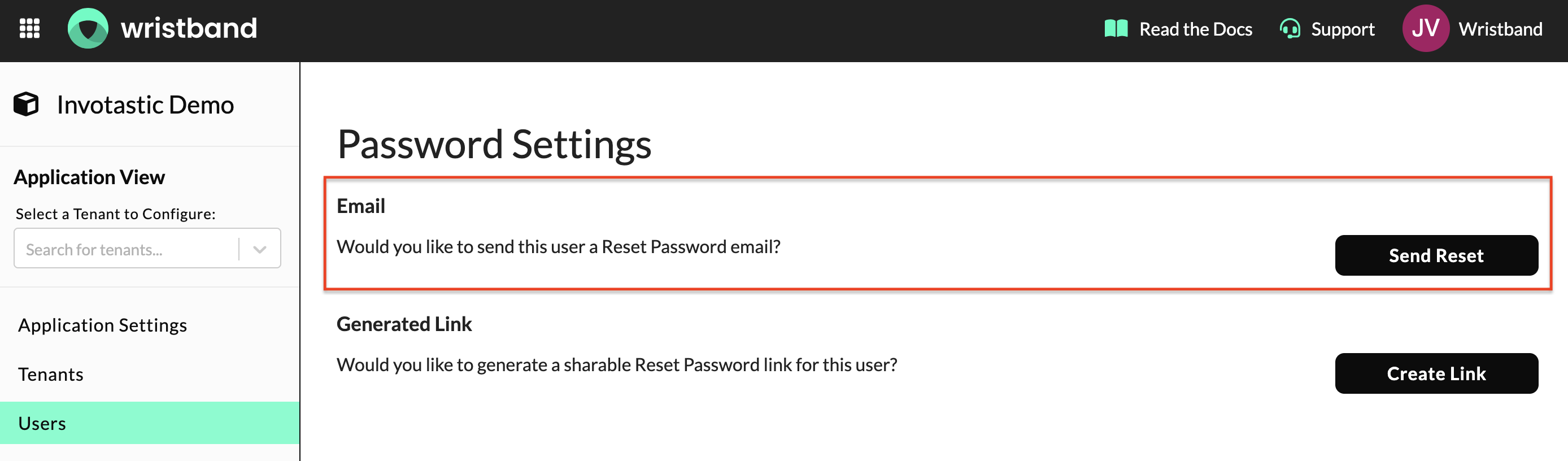
Send Reset button on the Edit User Page in the Wristband dashboard
Password Reset emails can also be triggered programmatically via the Request Password Reset API.
Generated Password Reset Links
Admins can generate a shareable reset link for a user from the Edit User Page. The generated link can be distributed through any channel, such as email, Slack, or a support ticket, giving admins flexibility in how they deliver it. The link respects the Password Reset Link Lifetime workflow policy and expires accordingly.
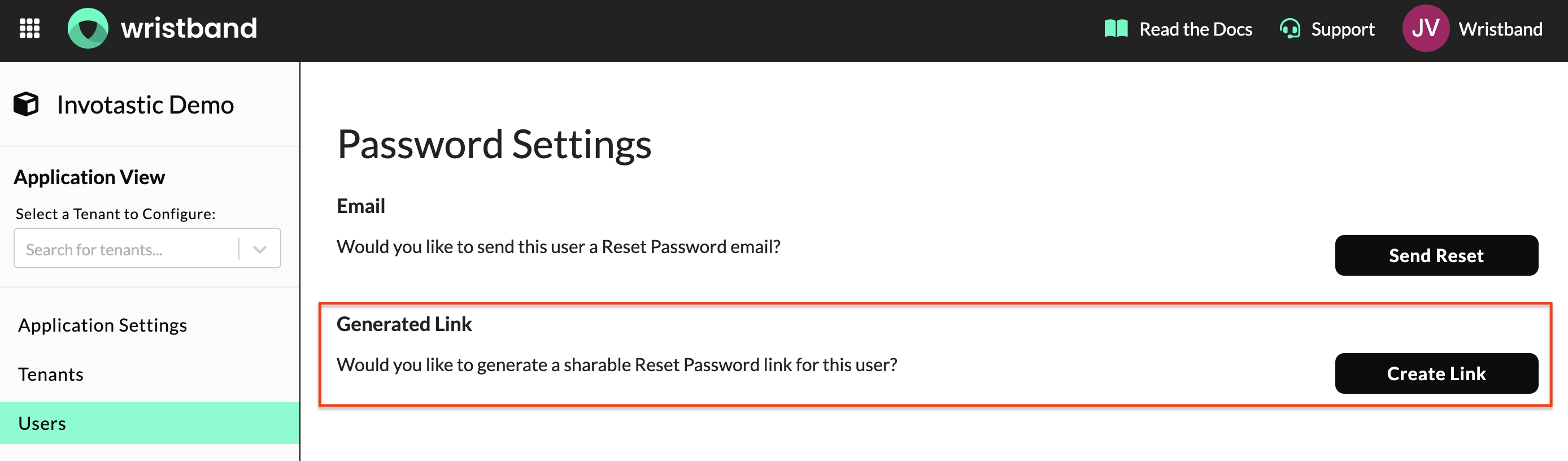
Create Link button on the Edit User Page in the Wristband dashboard
Password reset links can also be generated programmatically via the Create Password Reset Link API.
Change Password
As an alternative to the Password Reset Workflow, the Change Password API allows users who are already logged in to change their own password by providing their current password along with a new one. This is typically used for in-app account settings flows rather than recovery.
Updated 6 months ago