
Add Auth Endpoints
Learn how to create the necessary auth endpoints needed to integrate your application with Wristband.
To implement login and logout flows with Wristband, you'll need to use the Wristband SDK to create the following four endpoints in your NestJS application:
- Login Endpoint
- Callback Endpoint
- Logout Endpoint
- Session Endpoint
Create Auth Controller
Start by creating an AuthController that has the WristbandExpressAuthService injected into the constructor. You'll also need to import the WristbandAuthGuard.
// src/auth/auth.controller.ts

import { Controller, Get, Inject, Req, Res, UseGuards } from '@nestjs/common';
import { Request, Response } from 'express';
import { env } from 'node:process';
import { CallbackResult, WristbandExpressAuthService } from '@wristband/nestjs-auth';
import { WristbandAuthGuard } from '../guards/auth.guard';

// Auth Endpoints route prefix can be whatever you prefer
@Controller('api/auth')
export class AuthController {
  constructor(
    @Inject('WristbandAuth')
    private readonly wristbandAuth: WristbandExpressAuthService,
  ) {}

  // Auth endpoints to follow here...
}
Login Endpoint
The Login Endpoint initiates login requests to Wristband. It constructs the authorization request and redirects the user to Wristband's Authorize Endpoint. From there, the user is directed to Wristband's hosted login page to complete the login process.
Below is a code snippet showing how to use Wristband's SDK to implement the Login Endpoint.
// src/auth/auth.controller.ts (continued)

// ...

@Controller('api/auth')
export class AuthController {
  // ...

  // Login Endpoint - Route path can be whatever you prefer
  @Get('login')
  async login(@Req() req: Request, @Res() res: Response): Promise<void> {
    // Call the Wristband login() method which will return a URL that should
    // be used to redirect to Wristband's hosted login page.
    const authorizeUrl = await this.wristbandAuth.login(req, res);
    res.redirect(authorizeUrl);
  }
}
Callback Endpoint
After the user successfully authenticates, Wristband redirects to your application's Callback Endpoint. Calling wristbandAuth.callback() returns a CallbackResult object containing the user's tokens and claims.
To initialize the user's session, invoke thesession.fromCallback() function passing in the callback data as a parameter. This will hydrate the session with the user's claims and tokens. Finally, save the session by calling session.save().
Below is a code snippet showing how to use Wristband's SDK to implement the Callback Endpoint.
// src/auth/auth.controller.ts (continued)

// ...

@Controller('api/auth')
export class AuthController {
  // ...

  // Callback Endpoint - Route path can be whatever you prefer
  @Get('callback')
  async callback(@Req() req: Request, @Res() res: Response): Promise<void> {
    // Call the Wristband callback() method to check if the user
    // successfully authenticated.  If the user did authenticate successfully,
    // the user's tokens and claims can be retrieved from the CallbackResult.
    const callbackResult: CallbackResult = await this.wristbandAuth.callback(req, res);
    const { type, callbackData, reason, redirectUrl } = callbackResult;

    if (type === 'redirect_required') {
      // For some edge cases, such as if an invalid grant was passed to the token API,
      // the SDK will return a redirect URL. Your code should redirect to it in order to
      // restart the login flow.
      res.redirect(redirectUrl);
      return;
    }

    // Create a session for the authenticated user. If needed, custom fields can
    // be stored in the session using the customFields parameter of the
    // fromCallback() method.
    req.session.fromCallback(callbackData);
    await req.session.save();

    // Once the Callback Endpoint has completed,  we redirect to your app's
    // default return URL (typically your app's home page) or to an explicit
    // return URL, if one was specified in the original login request.
    res.redirect(callbackData.returnUrl || '<replace_with_a_default_return_url>');
  }
}
Logout Endpoint
When a user logs out of your application, you must ensure that all authenticated state associated with the user is cleared. The Logout Endpoint needs to perform three tasks to accomplish this:
- Clear the application's local session state.
- Revoke any refresh tokens associated with the user.
- Redirect to Wristband's Logout Endpoint to terminate the user's Wristband auth session.
Below is a code snippet showing how to use Wristband's SDK to implement the Logout Endpoint.
// src/auth/auth.controller.ts (continued)

// ...

@Controller('api/auth')
export class AuthController {
  // ...

  // Logout Endpoint - Route path can be whatever you prefer
  @Get('logout')
  async logout(@Req() req: Request, @Res() res: Response): Promise<void> {
    // Get all the necessary session data needed to perform the logout operation.
    const { refreshToken, tenantName } = req.session;

    // Clear your application's local session.
    req.session.destroy();

    // Call the Wristband logout() function and use the returned URL to redirect
    // to Wristband's Logout Endpoint.  This will delete Wristband's session
    // that is associated to the authenticated user.  When Wristband is done
    // logging out the user it will redirect back to your application's login
    // URL or to the explicitly provided redirect URL.
    const logoutUrl = await this.wristbandAuth.logout(req, res, {
      tenantName,
      refreshToken
    });
    res.redirect(logoutUrl);
  }
}
Session Endpoint
The Session Endpoint verifies that an incoming request contains a valid session and, if so, returns a response that includes the user's session data. This endpoint is used primarily by the frontend for the following two purposes:
- To allow the frontend to determine whether the user has a valid session.
- To provide the frontend with the user's session data for use within the browser.
Below is a code snippet showing how to use Wristband's SDK to implement the Session Endpoint.
Important: This endpoint must be protected with the auth guard.
// src/auth/auth.controller.ts (continued)

// ...

@Controller('api/auth')
export class AuthController {
  //
  // ...
  //

  // Session Endpoint - Route path can be whatever you prefer
  @Get('session')
  @UseGuards(WristbandAuthGuard) // The guard ensures an authenticated session.
  getSessionResponse(@Req() req: Request, @Res() res: Response): void {
    // Call the getSessionResponse() method to extract the user's
    // session data and populate a SessionResponse. If needed, you can add
    // additional data to the SessionResponse by using the metadata parameter
    // of the getSessionResponse() method.
    const sessionResponse = req.session.getSessionResponse();
    res.header('Cache-Control', 'no-store');
    res.header('Pragma', 'no-cache');
    res.status(200).json(sessionResponse);
  }
}
Register The Auth Module
Now that you have the AuthController with all the authentication endpoints, you need to register it within a module and make it available to your application.
Create the Auth Module
Create an AuthModule that encapsulates the AuthController:
// src/auth/auth.module.ts
import { Module } from '@nestjs/common';

import { AuthController } from './auth.controller';

@Module({ controllers: [AuthController] })
export class AuthModule {}
Add Auth Module to AppModule
Import the AuthModule into your AppModule to make the authentication routes available throughout your application:
// src/app.module.ts

import { ConfigModule, ConfigService } from '@nestjs/config';
import { Module, NestModule, MiddlewareConsumer } from '@nestjs/common';
import { env } from 'node:process';
import { WristbandExpressAuthModule } from '@wristband/nestjs-auth';
import {
  WristbandExpressSessionMiddleware,
  WristbandExpressSessionModule
} from '@wristband/nestjs-auth/session';
import { authConfig, sessionConfig, authGuardConfig } from './config/wristband.config';

// ADD: Import the AuthModule
import { AuthModule } from './auth/auth.module';

@Module({
  imports: [
    ConfigModule.forRoot({
      isGlobal: true,
      load: [authConfig, sessionConfig, authGuardConfig],
      envFilePath: env.NODE_ENV === 'production' ? '' : '.env',
      ignoreEnvFile: env.NODE_ENV === 'production',
    }),
    WristbandExpressAuthModule.forRootAsync({
      imports: [ConfigModule],
      useFactory: (configService: ConfigService) => configService.get('wristbandAuth'),
      inject: [ConfigService],
    }),
    WristbandExpressSessionModule.forRootAsync({
      imports: [ConfigModule],
      useFactory: (configService: ConfigService) => configService.get('wristbandSession'),
      inject: [ConfigService],
    }),

    // ADD: Add the AuthModule to the imports
    AuthModule,

    // ...any project-specific modules...
  ],
})

export class AppModule implements NestModule {
  configure(consumer: MiddlewareConsumer) {
    consumer.apply(WristbandExpressSessionMiddleware).forRoutes('{*splat}');
  }
}
Register Your Login Endpoint and Callback Endpoint With Wristband
For several authentication flows, Wristband will need to redirect to your application's Login Endpoint and Callback Endpoint. Therefore, we need to inform Wristband of the URLs for these two endpoints. To do that, we'll need to update the following two fields within the Wristband dashboard:
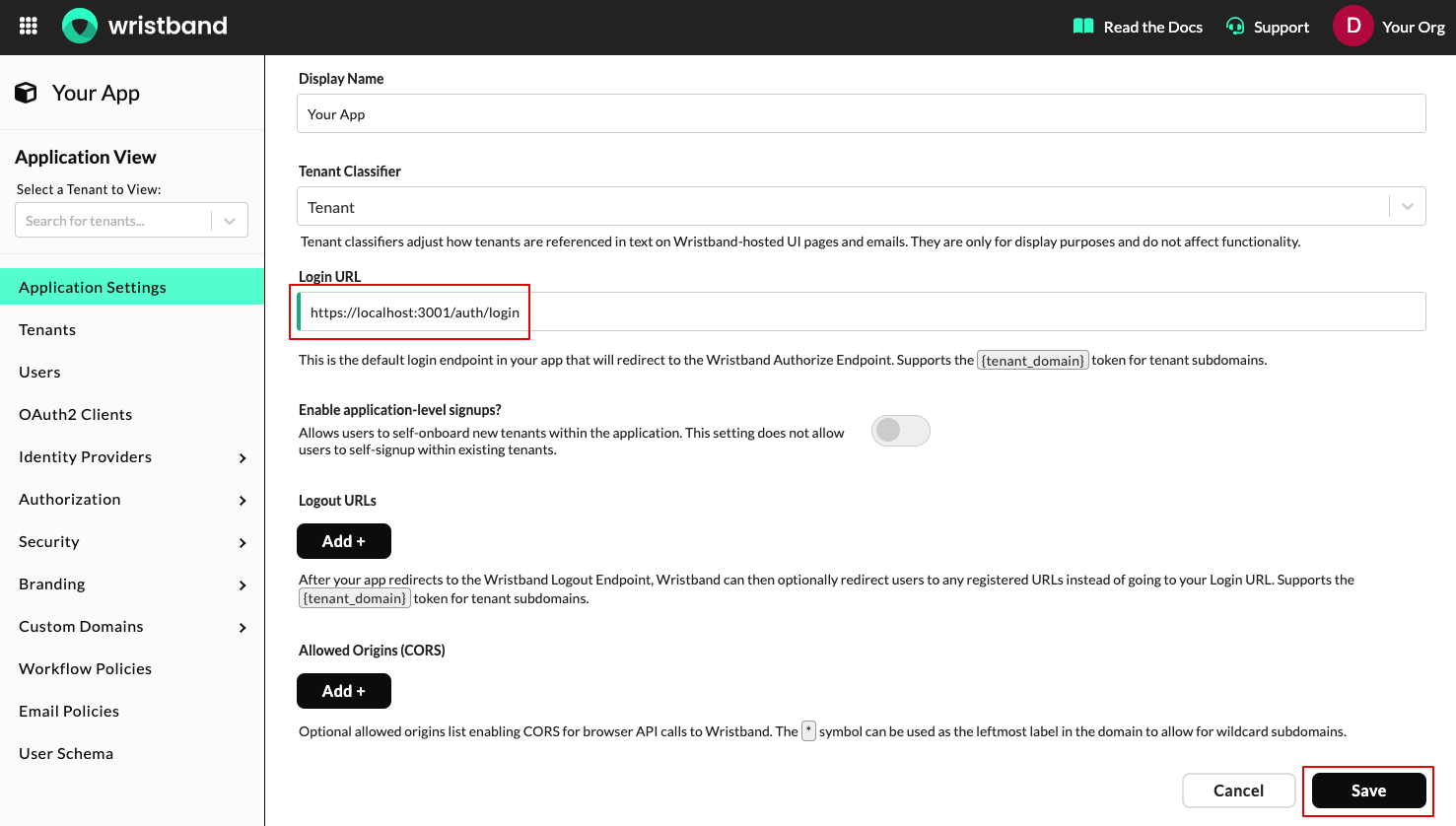
- Application Login URL
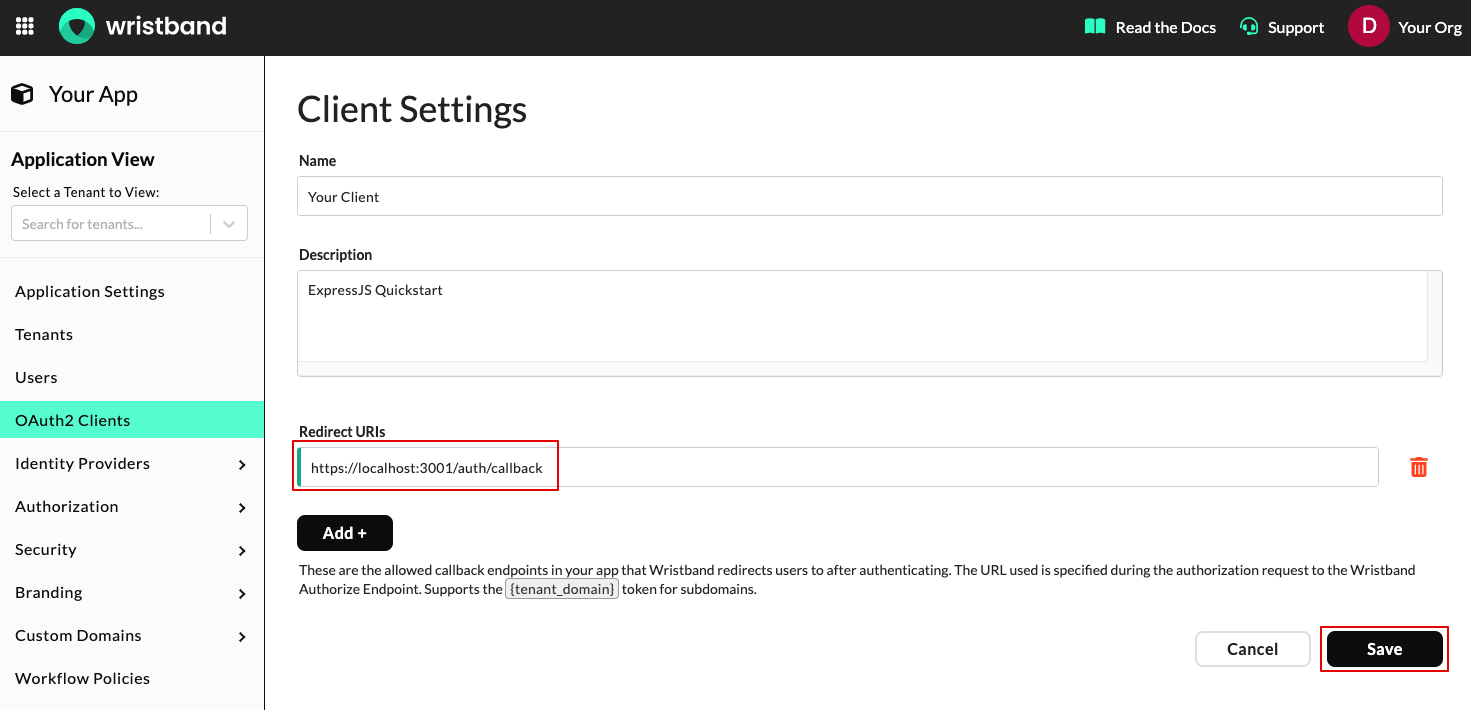
- Client Redirect URIs
In the sections below, we'll go over how to update these two fields.
Updating the Application Login URL
To update the Application Login URL, follow these steps.
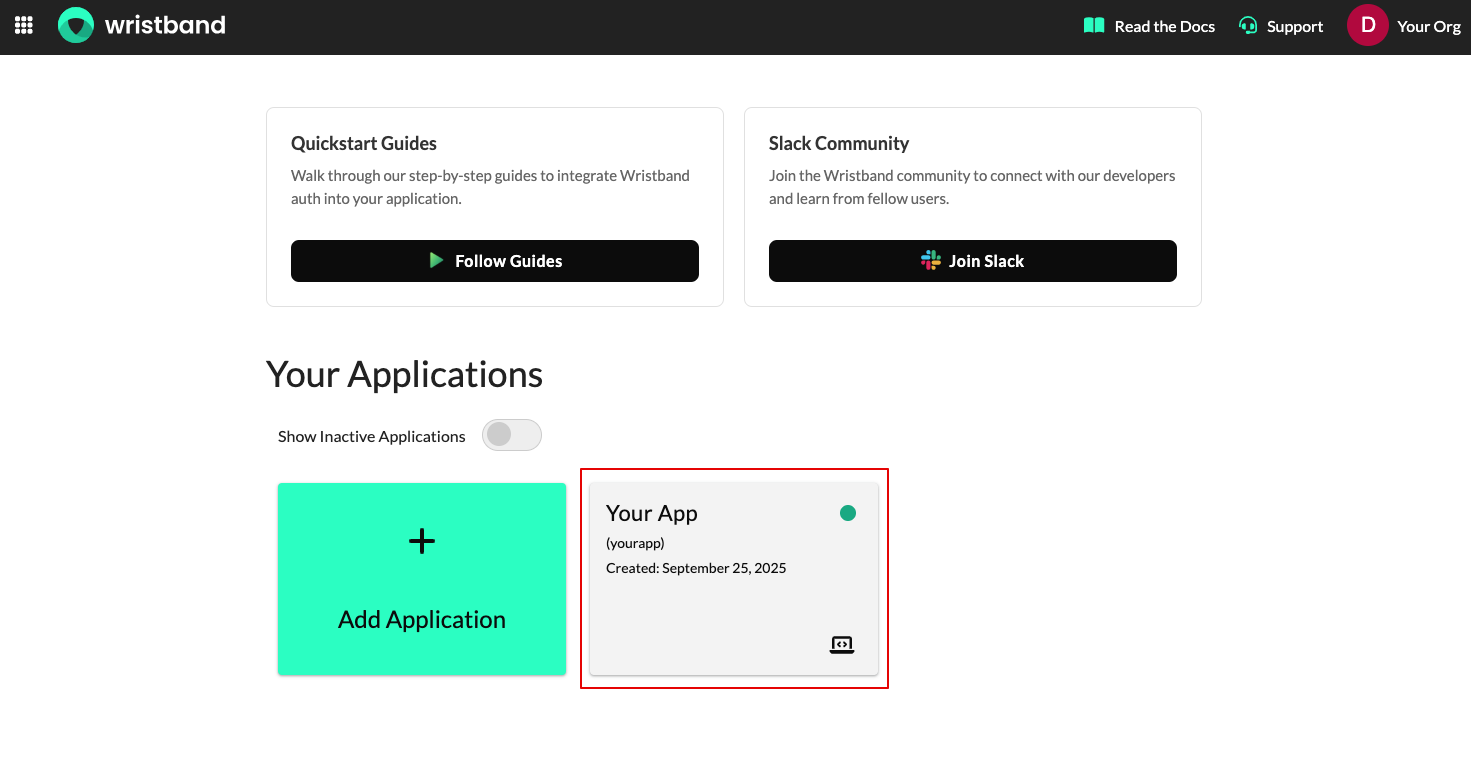
- From the Dashboard Home Page, select the appropriate application.
- Next, on the Application Settings page, locate the Login URL field and set its value to the URL of your application's Login Endpoint. When you are finished, click the "Save" button.
Updating the Client Redirect URIs
To update the Client Redirect URIs, follow these steps.
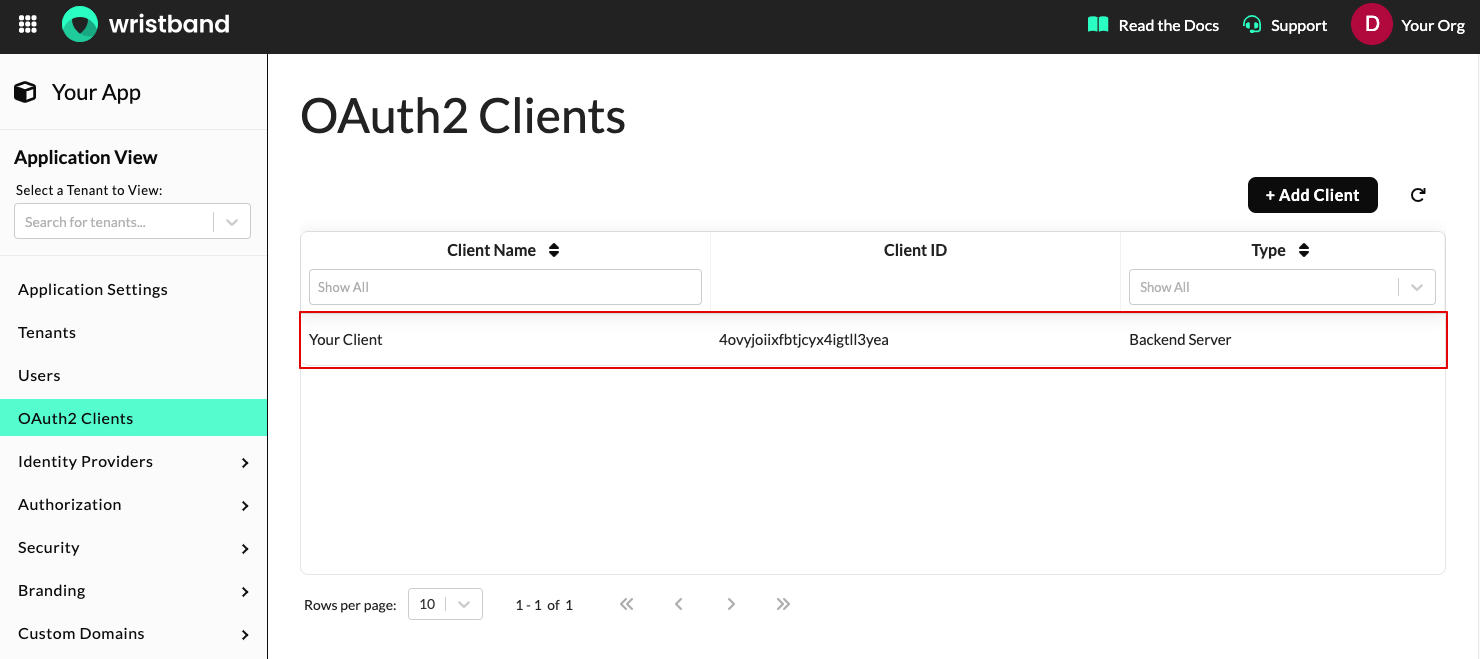
- Select "OAuth2 Clients" from the left navigation bar, then select the client whose ID matches the client ID that was registered with the SDK.
- On the Edit Client page, navigate to the Redirect URIs section and click the "Add+" button. Then enter the URL of your application's Callback Endpoint. When you are finished, click the "Save" button.
Updated 5 months ago
What’s Next
Now that your authentication endpoints are set up and configured, let's verify that they're working correctly.