
Email Custom Domains
Send transactional emails from your own domain instead of a Wristband one
By default, transactional emails sent to your customers come from a Wristband email domain. Configuring a custom email domain lets these emails come from your own domain instead, so the from address matches your brand rather than Wristband's. This applies across signup, password reset, user invitations, email verification, and more.
Application-Level Email Custom Domains
If you need to configure an application-level email custom domain, you can do so in the Application View of the Wristband Dashboard:
-
Navigate to the 'Email Domains' submenu under the Custom Domains section.
-
Create the custom domain you wish to use for your email sender address.
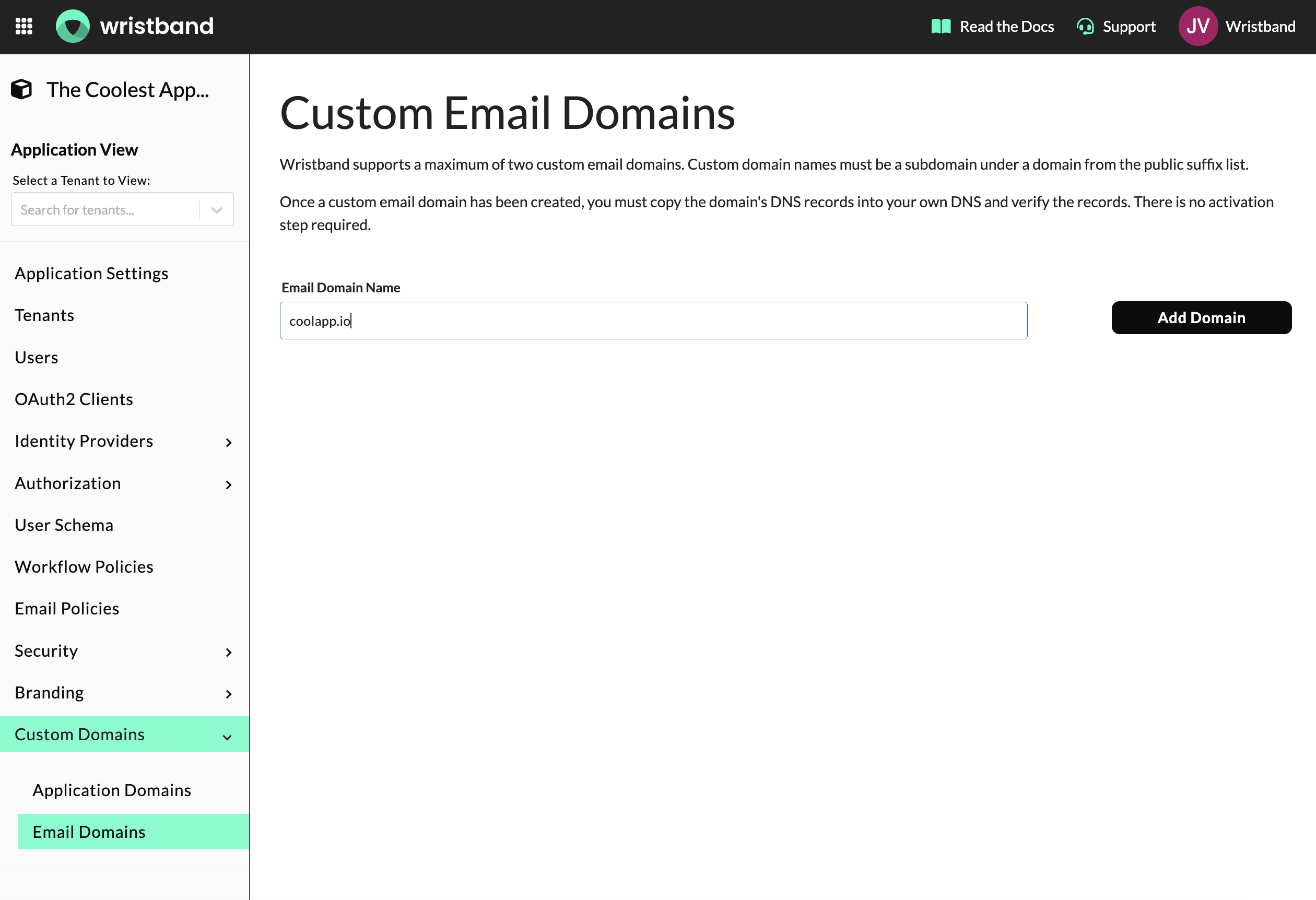
Add Application-Level Email Custom Domain
-
After adding your custom domain, configure the DNS records with your domain registrar. The dashboard will display the necessary records for you to copy.
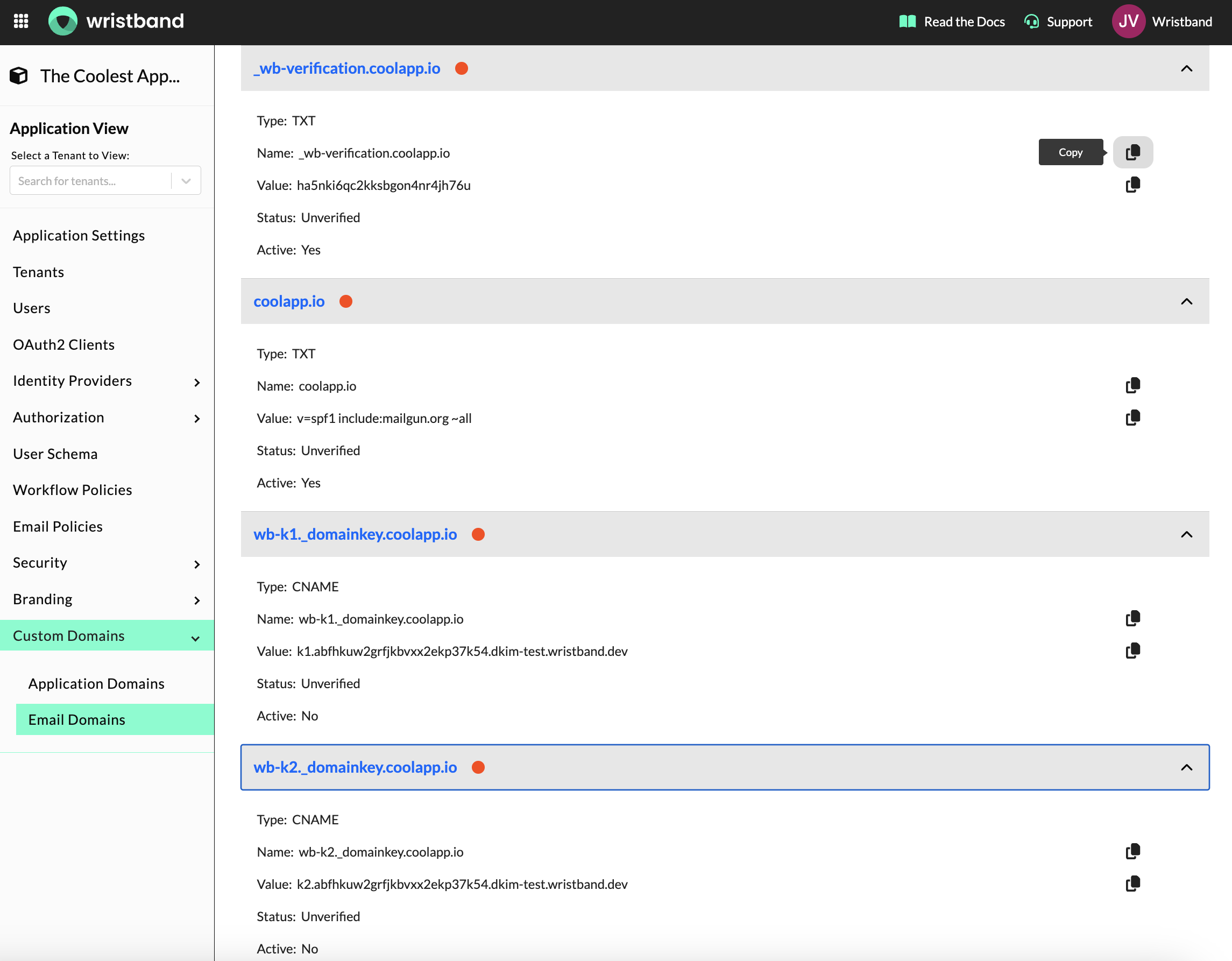
Copy Email Domain DNS Records
-
Once the DNS records are set, trigger the domain verification by clicking the verification button in the dashboard. This can be done multiple times if needed, and the status will update in the UI once the domain is verified and ready for use.
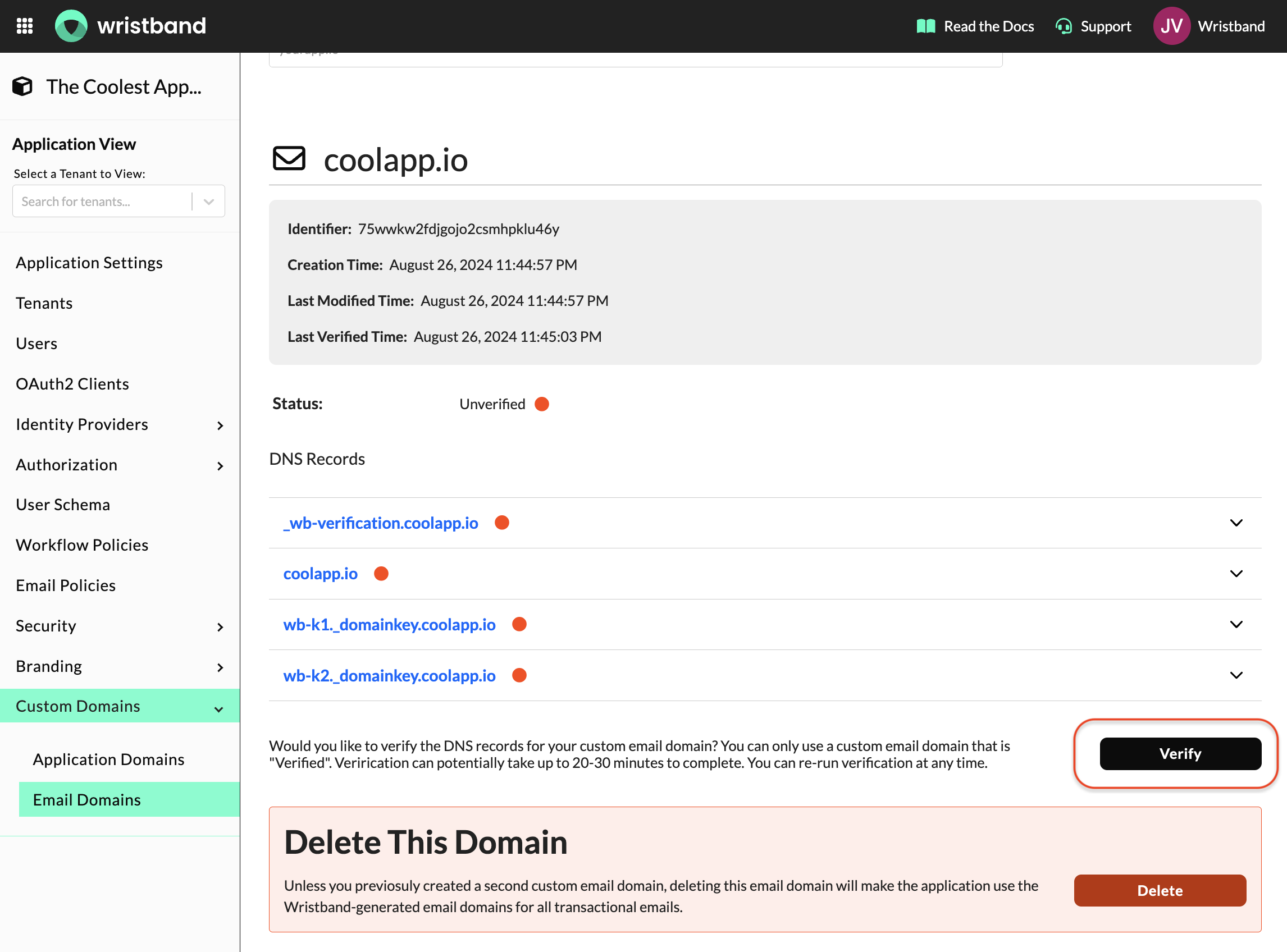
Verify Custom Email Domain
-
After verifying the email custom domain, go to the Email Branding configurations and update the "Sender Details" > "From Address" field to utilize the email custom domain. Emails will now be sent using that "From Address" value.
Tenant-Level Email Custom Domains
If you prefer to use a custom sender domain for a specific tenant, you can configure this in the Tenant View of the Wristband Dashboard. The steps to create and verify the custom email domain, as well as update the branding configurations, are the same as for application email custom domains.
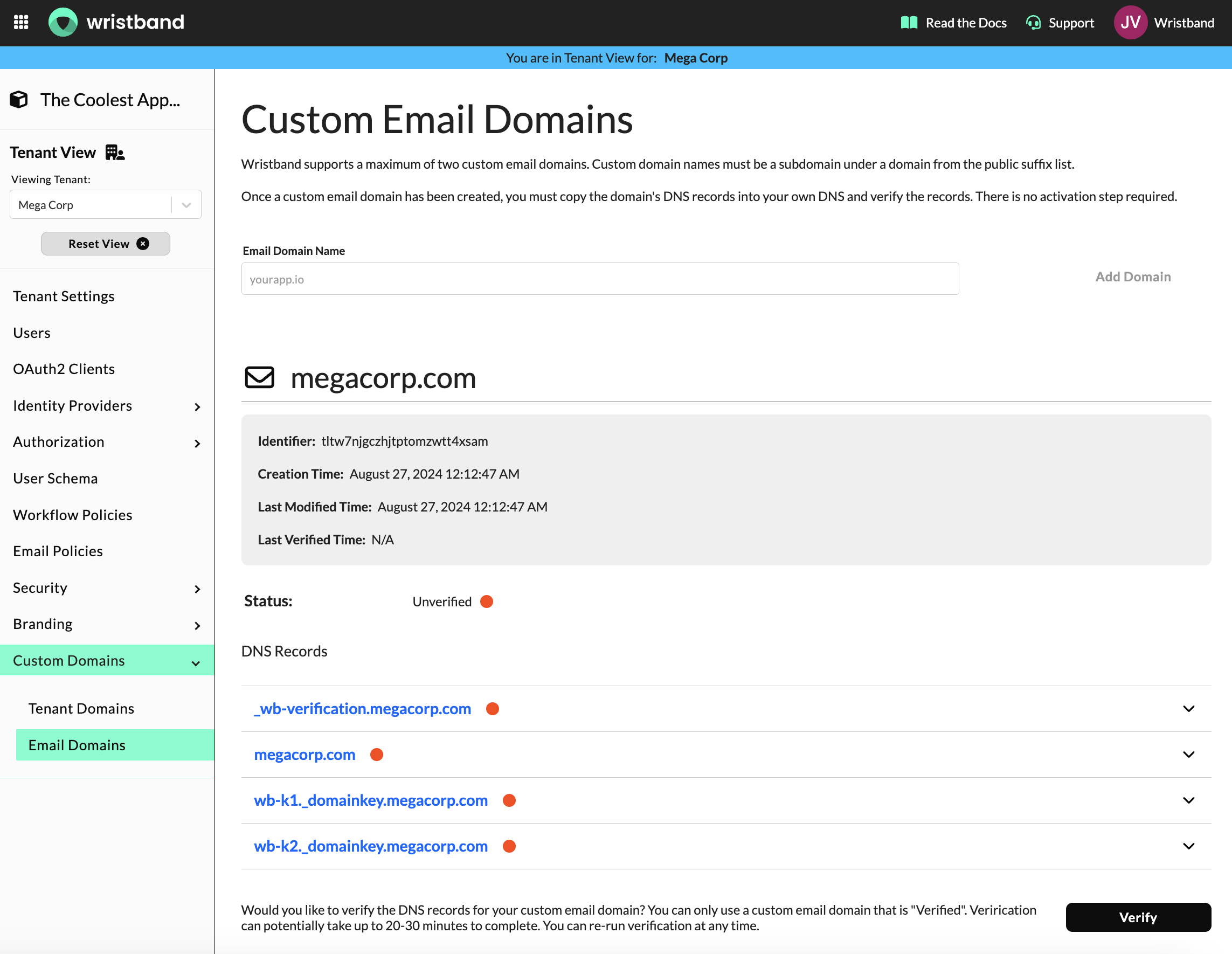
Tenant-Level Email Custom Domains
Updated 3 months ago