
MFA Workflow
Require users to verify their identity with a second factor after authenticating with their primary login method.
The MFA Workflow enables your application to require users to verify their identity using a second factor after successfully authenticating with their primary login factor. It consists of two distinct flows:
- MFA Enrollment: A user sets up their authenticator app for the first time
- MFA Challenge: An already-enrolled user is prompted to enter a verification code during login.
Both flows apply only to users authenticating through the Wristband Identity Provider. Users authenticating via external identity providers are subject to their own provider's MFA enforcement.
The behavior of the MFA workflow is determined by your application's MFA Policies, which control whether enrollment is required or optional and whether recovery codes are enabled. To learn more about configuring MFA Policies, see Multi-Factor Authentication (MFA).
MFA Enrollment
MFA Enrollment is the process by which a user registers a Time-Based One-Time Password (TOTP) authenticator app with their account, such as Google Authenticator or Authy. For Wristband-hosted UI, enrollment takes place on the tenant-level MFA enrollment page at /mfa/enroll. Upon completing enrollment, the user is also issued a recovery code if recovery codes are enabled in your MFA policy.
Required Enrollment
When MFA enrollment is set to Required in your MFA policy, the following Wristband flows will automatically prompt users to enroll (if they haven’t already):
- User invite
- Password reset (if immediate login is enabled)
- Login
- Signup
At the API level, the following APIs can return an MFA_ENROLLMENT_REQUIRED status for users who have not yet enrolled:
- Accept New User Invite API
- Accept Existing User Invite API
- Activate User API
- Verify Password for Login API
- Reset Password API
- Provision Wristband IdP User on Signup API
- Verify Magic Link API
How your application handles this status depends on your UI approach:
- Wristband-Hosted UI: Wristband automatically redirects the user to the tenant-level MFA enrollment page (e.g.
https://tenant1-yourapp-yourcompany.us.wristband.dev/mfa/enroll). - Self-Hosted UI: Your application is responsible for handling the
MFA_ENROLLMENT_REQUIREDstatus and directing the user to your own enrollment page or flow. The route and presentation are entirely up to you.
Optional Enrollment
When MFA enrollment is set to Optional, enrollment is not triggered automatically. To support self-enrollment, expose that ability in your own UI and call the following APIs:
Enrollment Pages
When a user is prompted to enroll, they are presented with an enrollment page displaying a QR code to scan with their authenticator app.
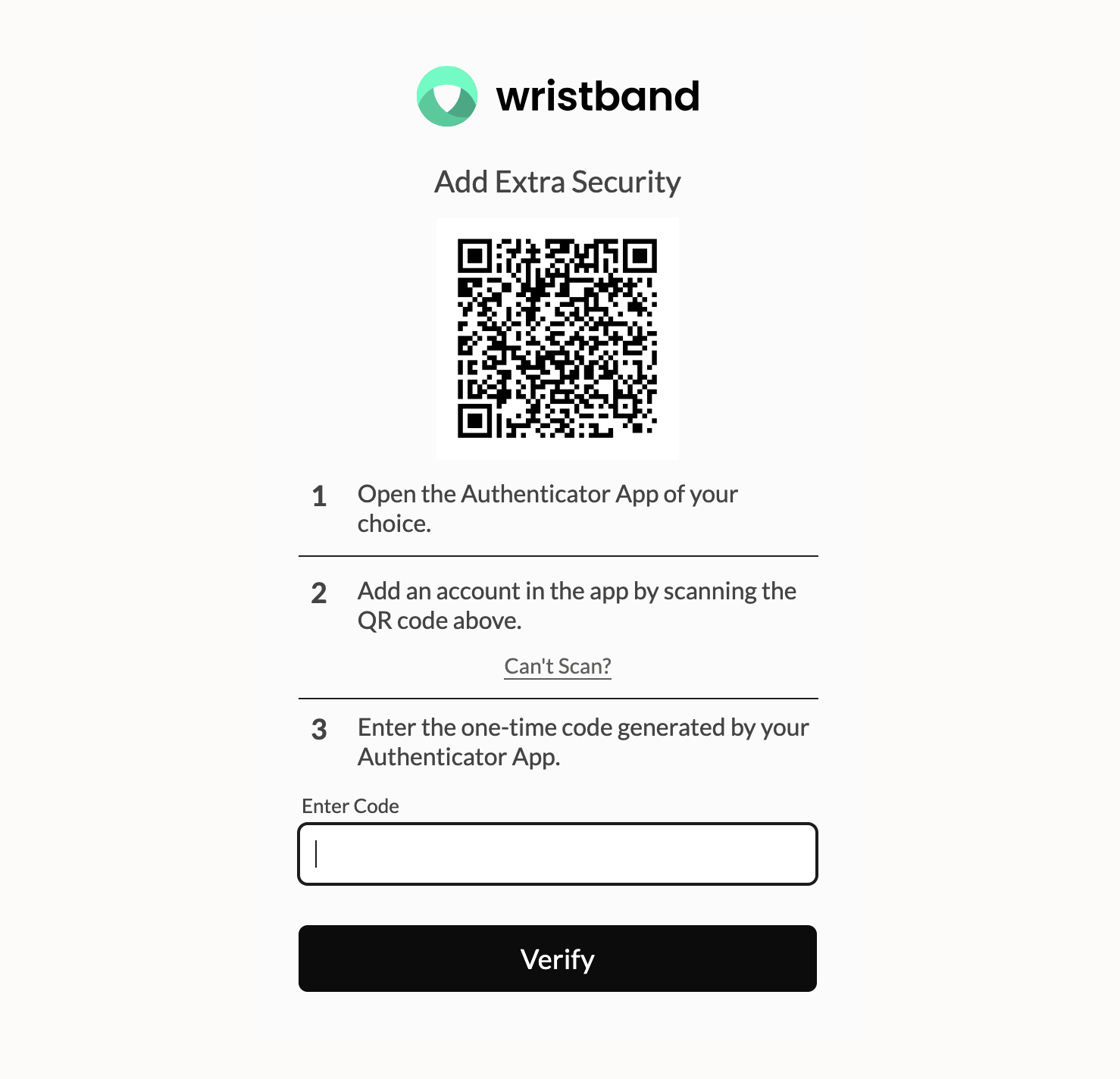
Wristband-hosted MFA enrollment page showing the QR code and verification step.
If the user is unable to scan the QR code, they can reveal the raw secret key to enter manually into their authenticator app.
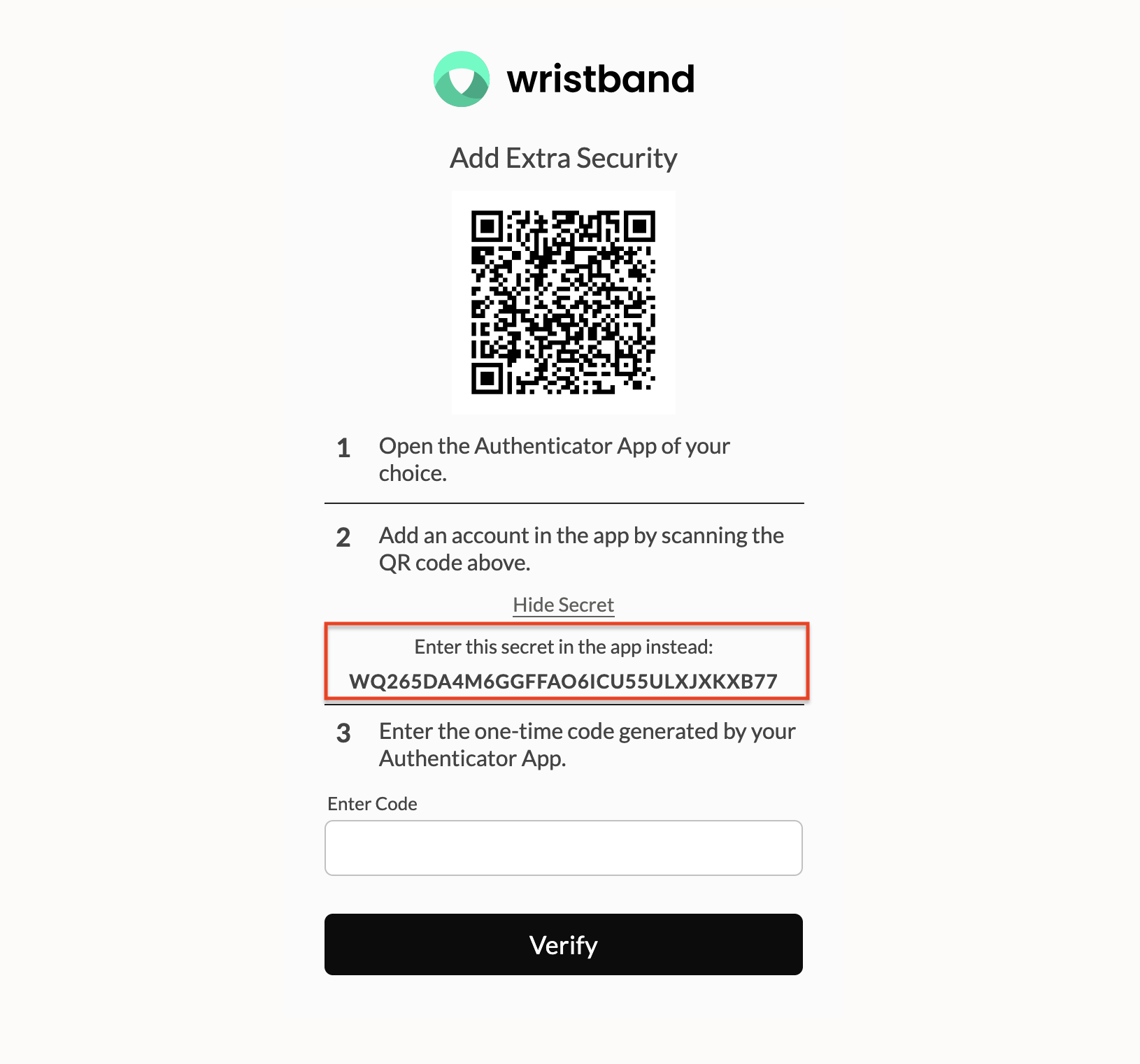
MFA enrollment page showing the secret key as a fallback for users who cannot scan the QR code.
After successfully verifying a TOTP code, users with recovery codes enabled are shown their recovery code and prompted to save it before continuing.
Note: Any previous recovery codes are invalidated when a new one is generated.
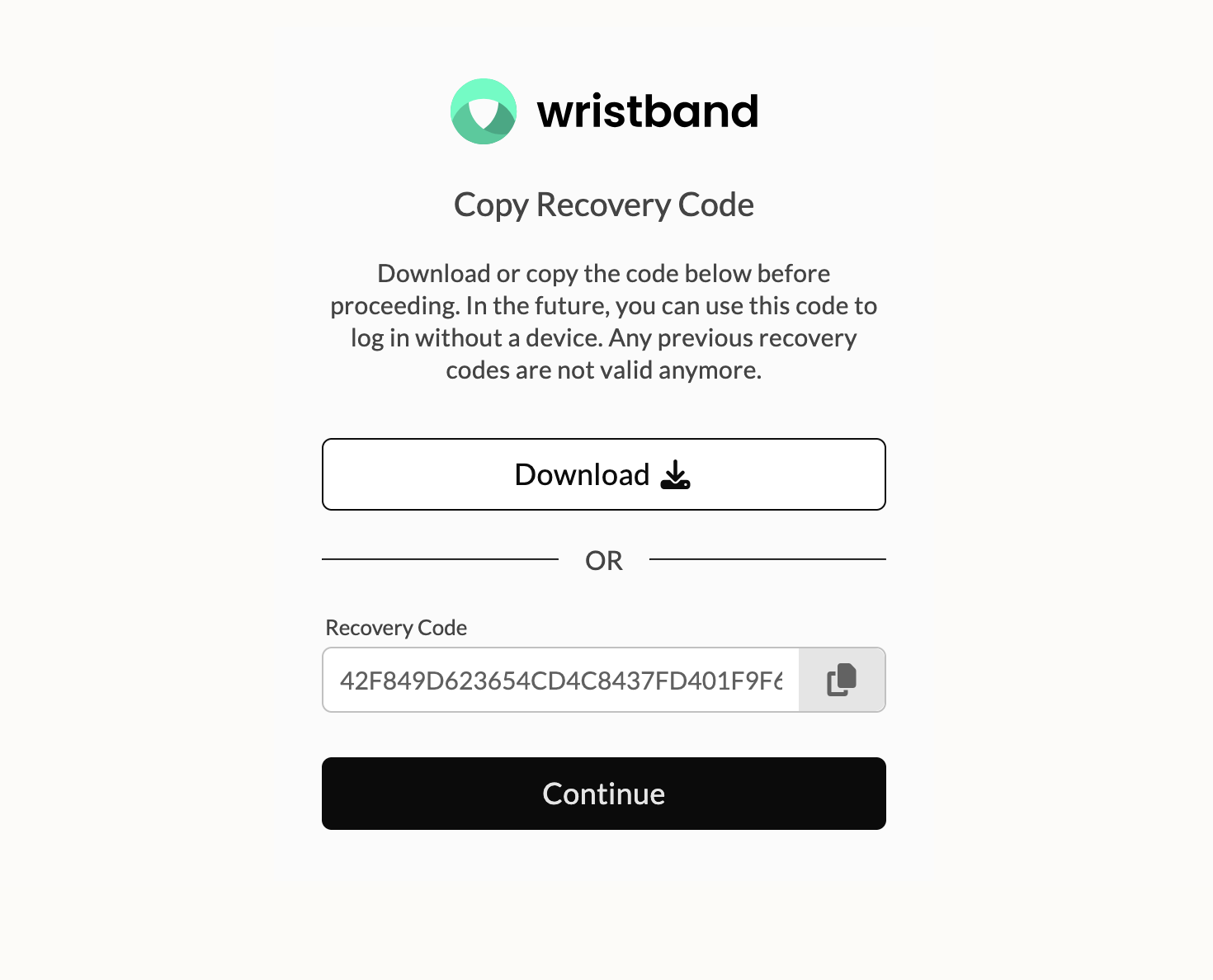
The Copy Recovery Code page is shown after enrollment if recovery codes are enabled.
MFA Challenge
When a user who has already enrolled in MFA successfully authenticates with their primary login factor, Wristband issues an MFA challenge requiring them to enter a verification code before an authentication session is created. For Wristband-hosted UI, the user is redirected to the tenant-level MFA challenge page at /mfa/challenge. The user can enter either a valid TOTP code from their authenticator app or, if recovery codes are enabled in your MFA policy, their recovery code. The user has 10 minutes to complete the challenge. Clicking Cancel returns them to the tenant login page.
If the user uses their recovery code to complete the challenge, it is immediately invalidated. The user will then be prompted to save a newly-generated recovery code before continuing.
The following flows will trigger an MFA challenge for users who have MFA enrolled:
- Login
- Password reset (if immediate login is enabled)
The following APIs can return an MFA_CHALLENGE_REQUIRED status for users who have enrolled in MFA:
How your application handles this status depends on your UI approach:
- Wristband-Hosted UI: Wristband automatically redirects the user to the tenant-level MFA challenge page (e.g.
https://tenant1-yourapp-yourcompany.us.wristband.dev/mfa/challenge). - Self-Hosted UI: Your application is responsible for handling the
MFA_CHALLENGE_REQUIREDstatus and directing the user to your own challenge page or flow. The route and presentation are entirely up to you.
TOTP Code
By default, the challenge page prompts the user to enter the one-time code generated by their authenticator app. Upon entering a valid code, an authentication session is created and the user is redirected into your application.
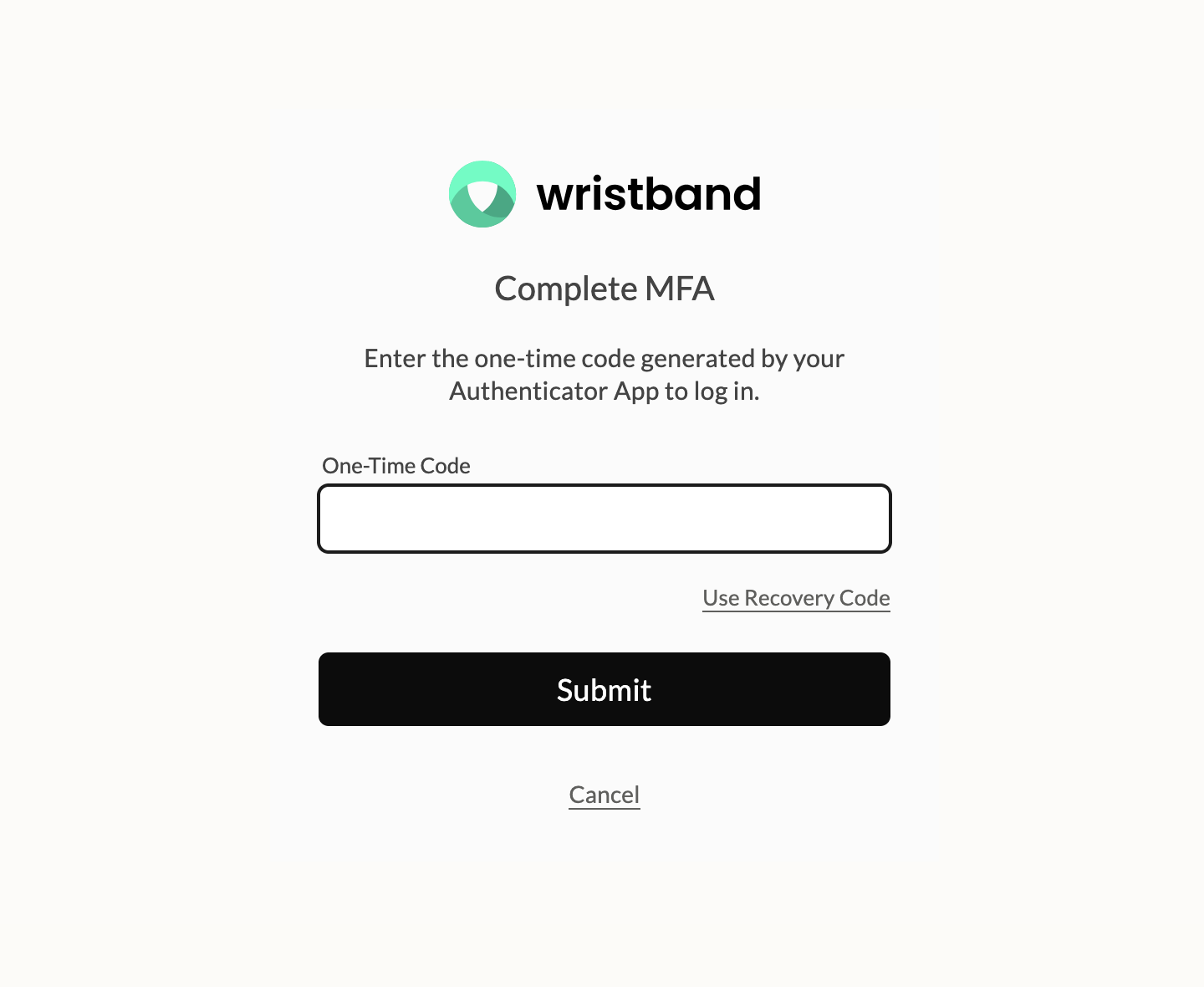
Wristband-hosted MFA challenge page showing the TOTP input and Use Recovery Code link.
Recovery Code
If recovery codes are enabled, a Use Recovery Code link is available on the TOTP challenge page to switch to that method instead. If the user clicks it, the page switches to a recovery code input. A Use One-Time Code link is available to switch back. If recovery codes are not enabled in your MFA policy, this option will not appear.
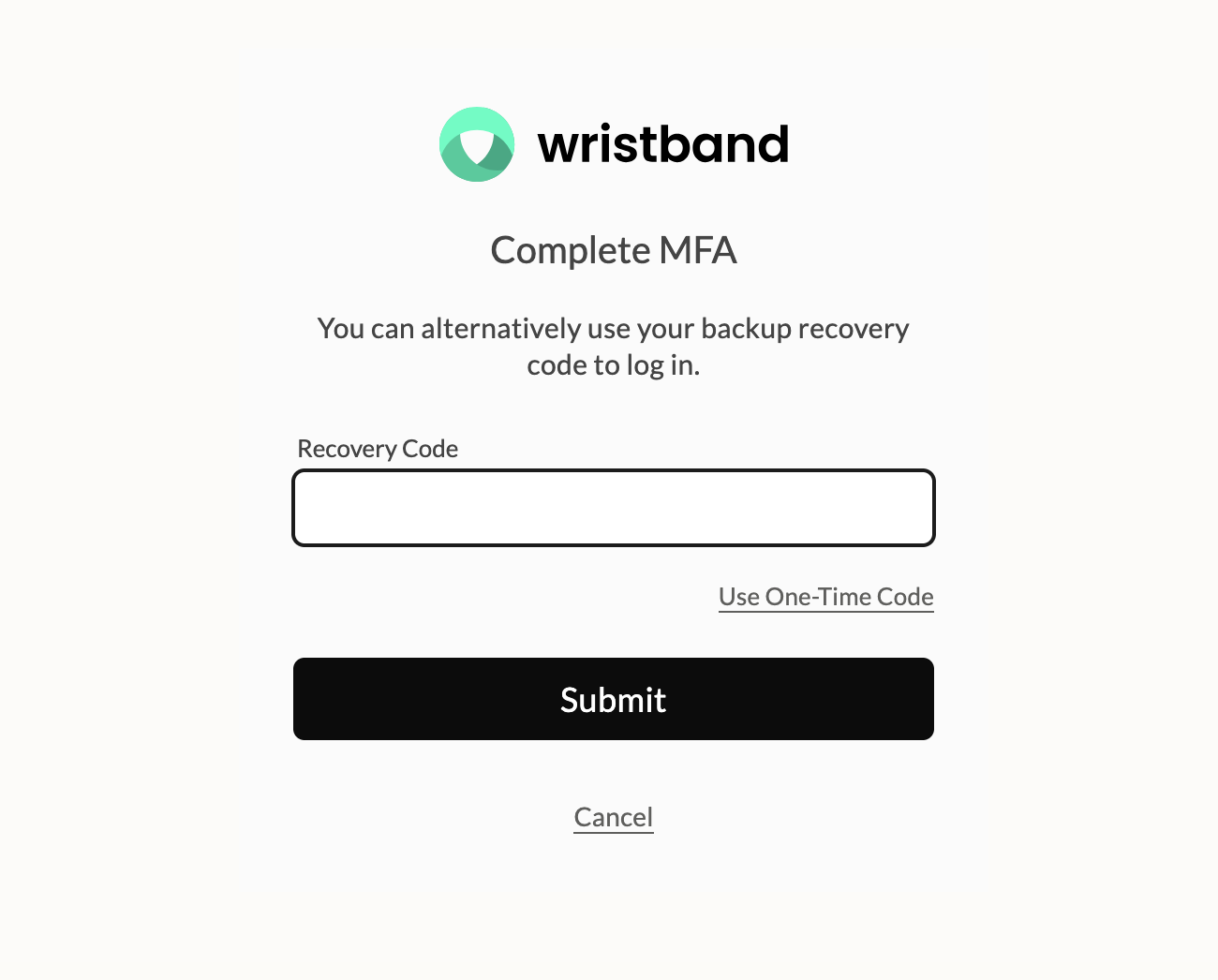
Wristband-hosted MFA challenge page showing the Recovery Code input and Use TOTP link.
Upon entering a valid recovery code, it is immediately invalidated and an authentication session is created. The user is then shown a new recovery code and prompted to save it before continuing into the application.
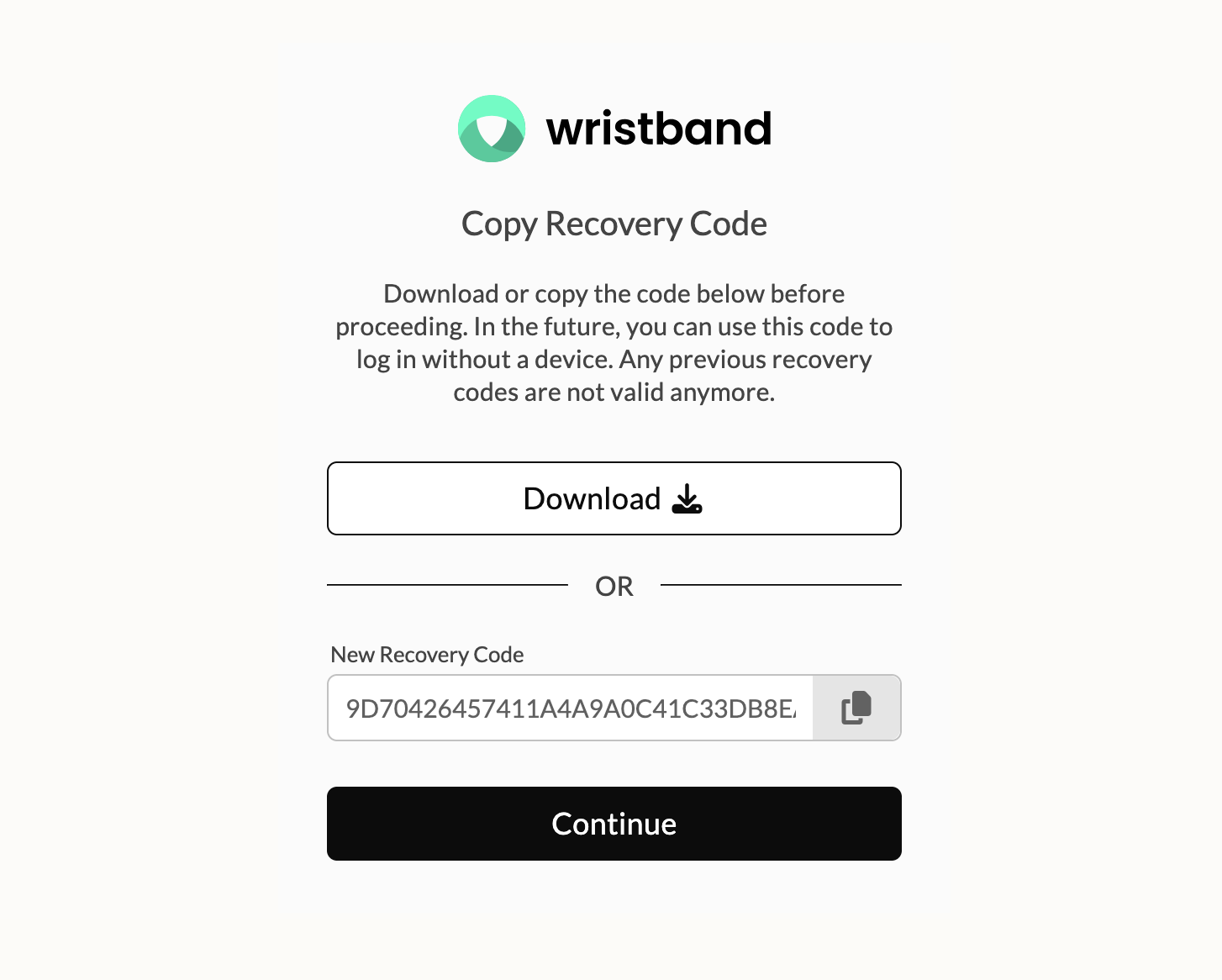
Copy Recovery Code page shown after using a recovery code during MFA challenge.
Updated 6 months ago