
Multi-Factor Authentication (MFA)
Set up multi-factor authentication (MFA) policies for the Wristband Identity Provider.
Protect user accounts from unauthorized access by enforcing multi-factor authentication (MFA). This Wristband Identity Provider feature requires users to complete a second layer of verification before they can successfully log in.
NoteBecause external identity providers manage their own security compliance, Wristband's MFA settings will not intercept users federating from external systems.
Wristband divides MFA behavior into two distinct flows:
- MFA Enrollment: A user sets up their second factor for the first time.
- MFA Challenge: An already-enrolled user is prompted to enter a verification code during login.
For more context, see:
- MFA Workflow → How the MFA enrollment and challenge flows work.
MFA Policies
Manage your application security requirements under Security → MFA Policies in the Application View of your Wristband Dashboard.
Application-Level Enforcements: Any policy configured at this global level automatically cascades down to all tenants by default.
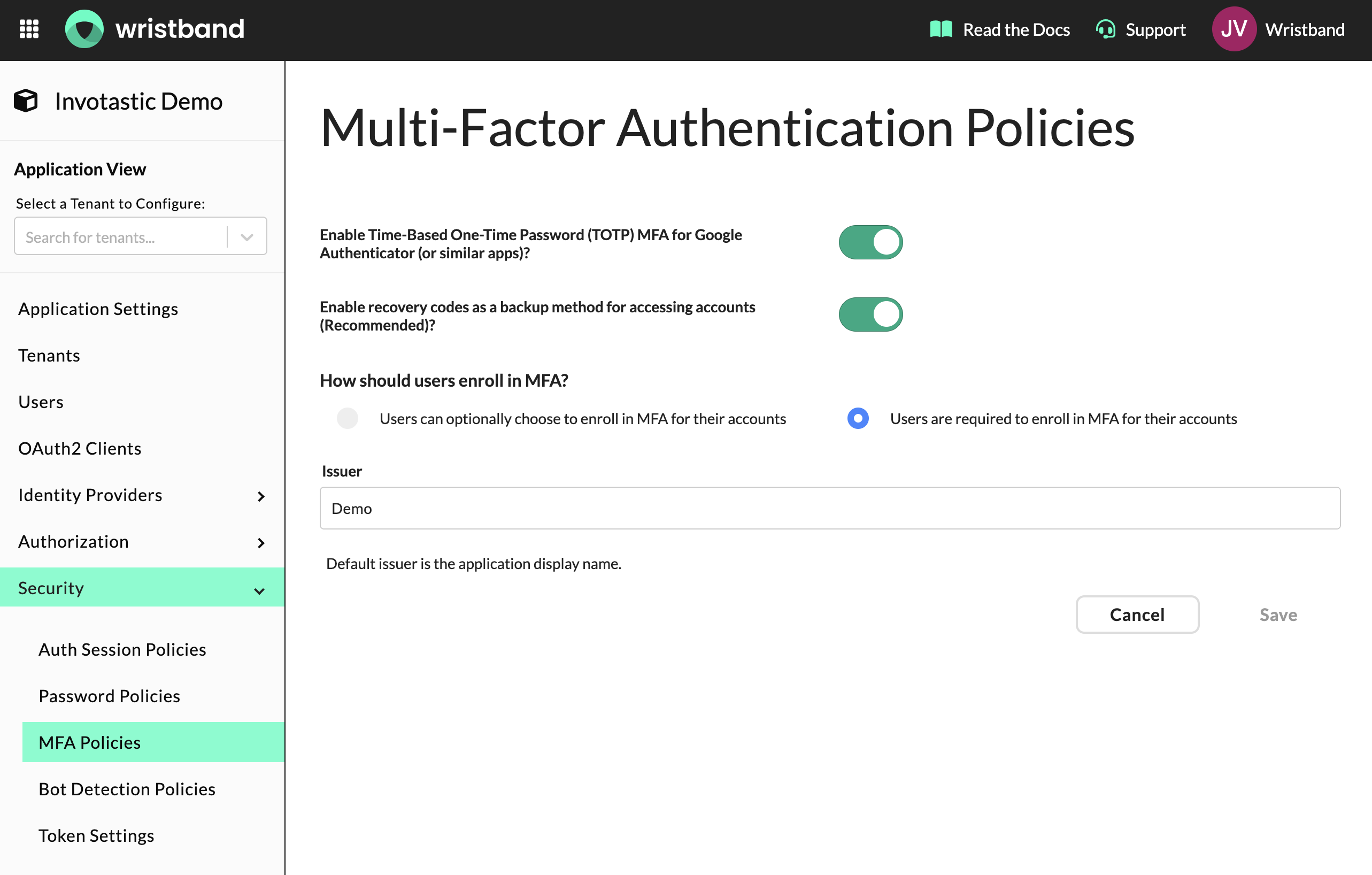
Figure 1: MFA Policies configuration in Application View.
The following settings are available:
-
Enable TOTP MFA:
Enables Time-Based One-Time Password (TOTP) verification via authenticator apps (e.g., Google Authenticator, Authy).
- Note: TOTP is the primary factor for Wristband MFA and must be enabled.
-
Enable Recovery Codes: When active, Wristband issues a single-use backup recovery code to users right after they enroll their authenticator app. This ensures they can still log in if they lose access to their authenticator device. It is highly recommended to keep this enabled. For security, old recovery codes are instantly invalidated and regenerated whenever a user performs a fresh TOTP re-enrollment.
-
MFA Enrollment: Controls whether MFA enrollment is optional or required for users.
- Optional: When set to optional, MFA enrollment is not enforced during login. If you want to offer self-enrollment capabilities, you can build this feature directly into your application's custom UI. Use Wristband's standalone Enroll TOTP Auth Factor and Enroll Recovery Code Auth Factor APIs to manage the registration lifecycle seamlessly.
- Required: Choose this option to mandate MFA account protection across your entire ecosystem. When active, Wristband automatically intercepts un-enrolled users and handles the setup sequence during logins, signups, user invitations, and password resets, preventing any system access until a secondary factor is registered.
-
Issuer: Specifies the name shown next to the security codes within the user's authenticator app. Leaving this field blank causes Wristband to automatically use your application's primary display name instead.
Tenant-Level Override
To customize multi-factor authentication requirements for an individual customer, apply a tenant-level override:
- Select the target tenant from the Select a Tenant to Configure dropdown menu in the side navigation bar (visible within the Application View).
- Navigate to Security → MFA Policies.
- Switch on the tenant override toggle to define unique MFA enforcement and verification rules specifically for that tenant environment.
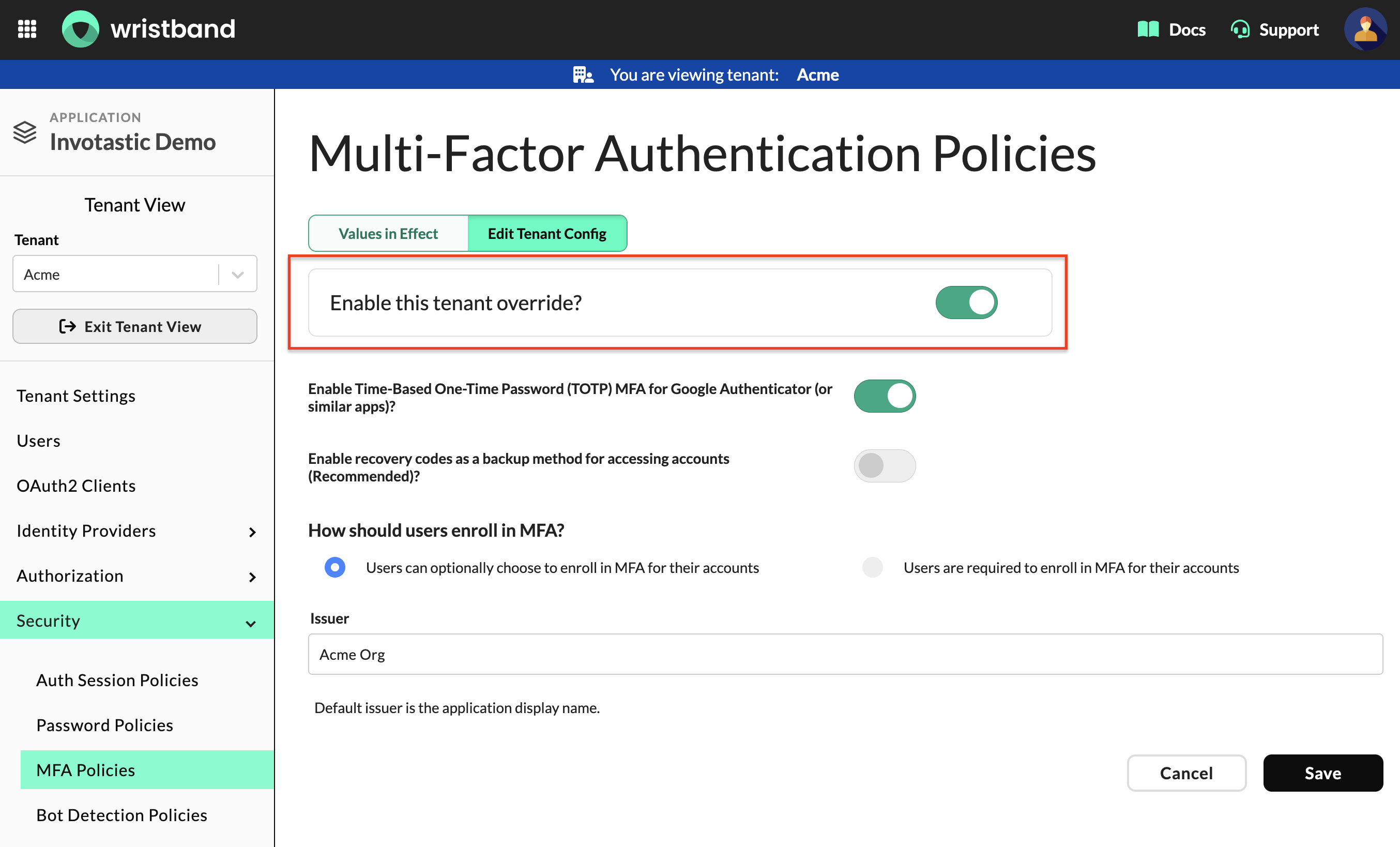
Figure 2: MFA Policies configuration in Tenant View with the tenant override toggle enabled.
Updated 2 days ago