
Configuring MFA
Learn how to configure multi-factor authentication (MFA) for your Wristband account.
Overview
Multi-factor authentication (MFA) adds an extra layer of security to your Wristband tenant by requiring users who have enrolled in MFA to verify their identity using an additional authentication factor during login.
Wristband allows you to enable MFA, configure supported MFA factors, and determine whether MFA enrollment is required or optional for users in your tenant.
Configuring MFA for Your Wristband Tenant
Owner Role RequiredTo configure MFA for your Wristband tenant, you must have the owner role assigned to your account. Users without this role cannot access the Tenant Settings page.
To access your tenant's MFA settings:
- Click your account icon in the top-right corner of the Wristband Dashboard.
- Select Tenant Settings from the dropdown menu.
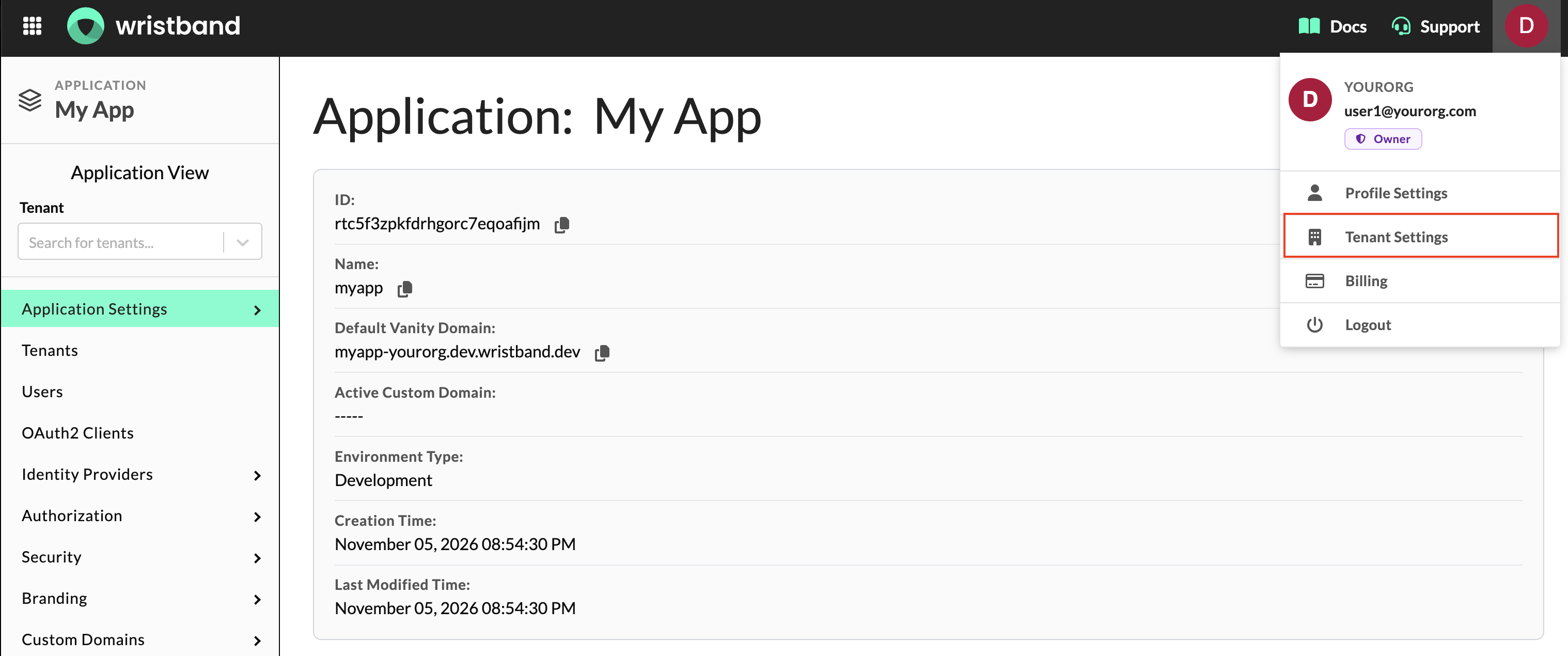
Figure 1: Accessing Tenant Settings.
- On the Tenant Settings page, locate the Multi-Factor Authentication section.
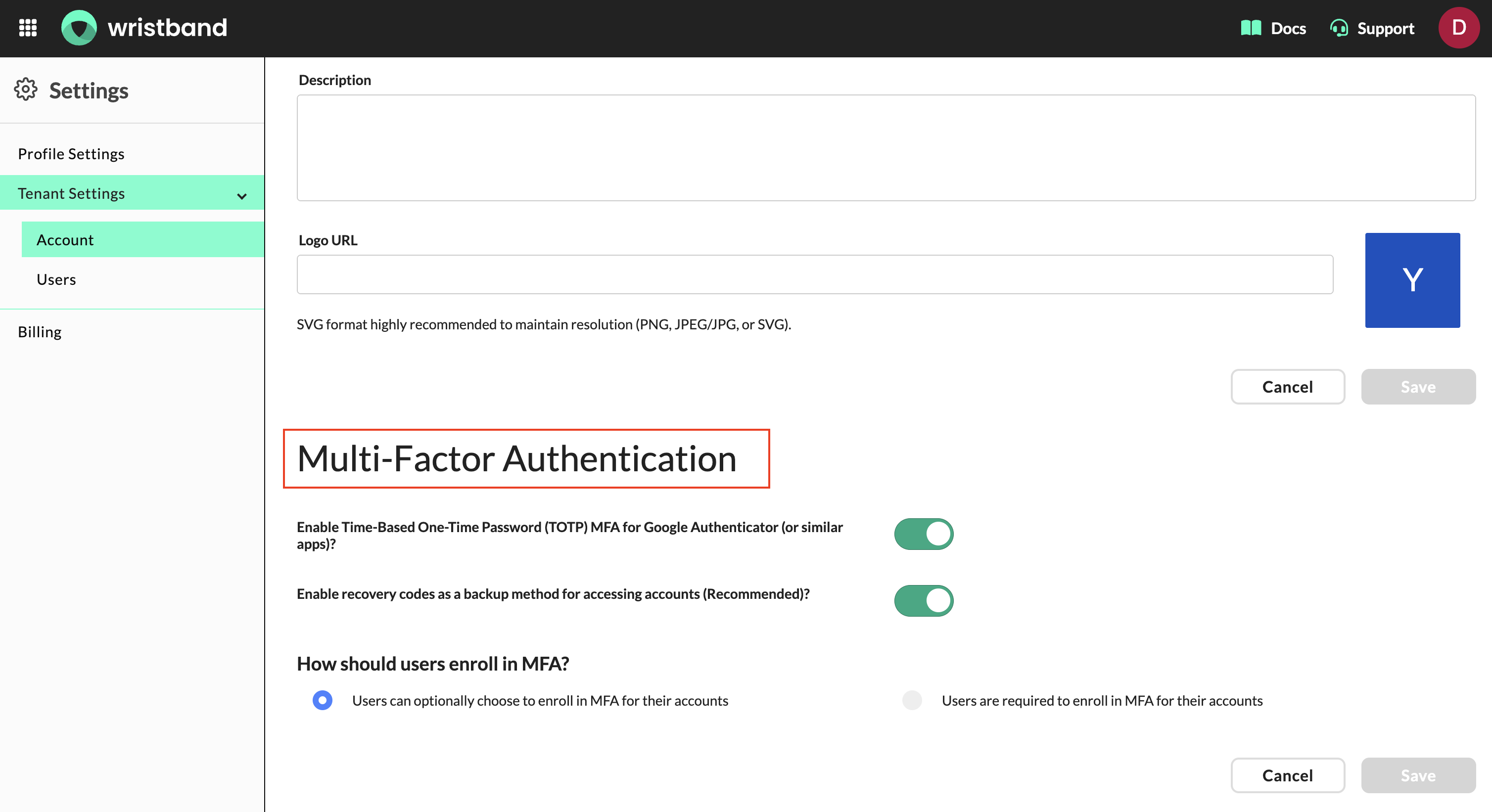
Figure 2: The Multi-Factor Authentication section on the Tenant Settings page.
Enabling MFA
Wristband supports Time-Based One-Time Password (TOTP) authentication, which allows users to verify their identity using a one-time password generated by an authenticator app, such as Google Authenticator.
To enable MFA:
- Turn on the Enable Time-Based One-Time Password (TOTP) MFA toggle.
- Click Save.
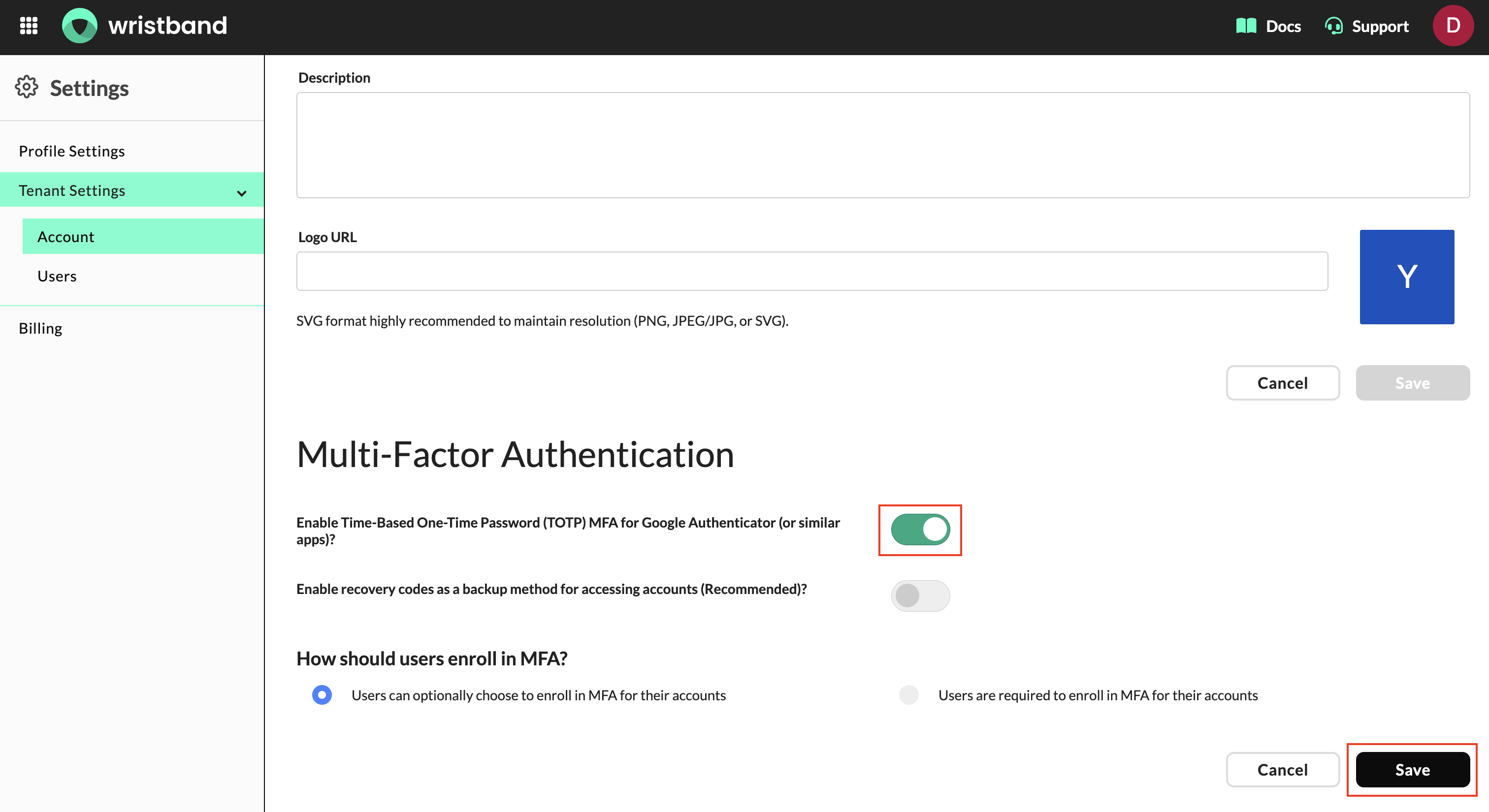
Figure 3: Enabling TOTP-based MFA.
Enabling Recovery Codes
Recovery codes provide an alternative authentication factor that users can use when they are unable to complete a TOTP challenge, such as when they lose access to their authenticator app or device.
To enable recovery codes:
- Turn on the Enable recovery codes toggle.
- Click Save.
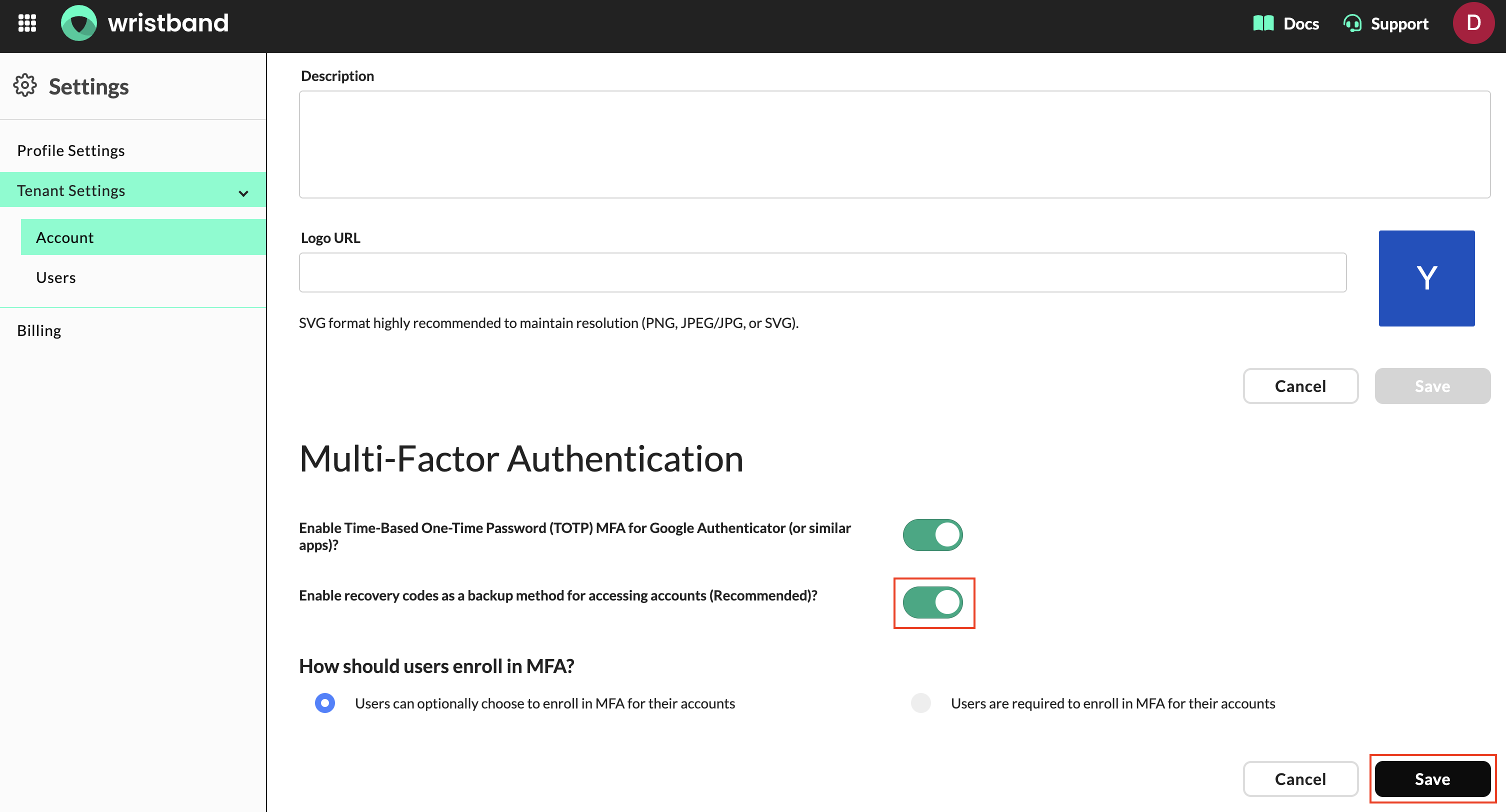
Figure 4: Enabling MFA recovery codes.
When recovery codes are enabled, users are provided with a recovery code upon completing MFA enrollment. Each recovery code can only be used once. After a recovery code is successfully used, Wristband generates a new recovery code for the user.
Configuring MFA Enrollment
Once MFA is enabled, you can configure whether users in your Wristband tenant are required to enroll in MFA or can choose to enroll at their discretion.
Requiring MFA Enrollment
When MFA enrollment is required, users who have not yet enrolled in MFA are prompted to enroll the next time they log in to your Wristband tenant. Users must complete the MFA enrollment process before they can finish logging in.
To require MFA enrollment:
- Under How should users enroll in MFA?, select Users are required to enroll in MFA for their accounts.
- Click Save.
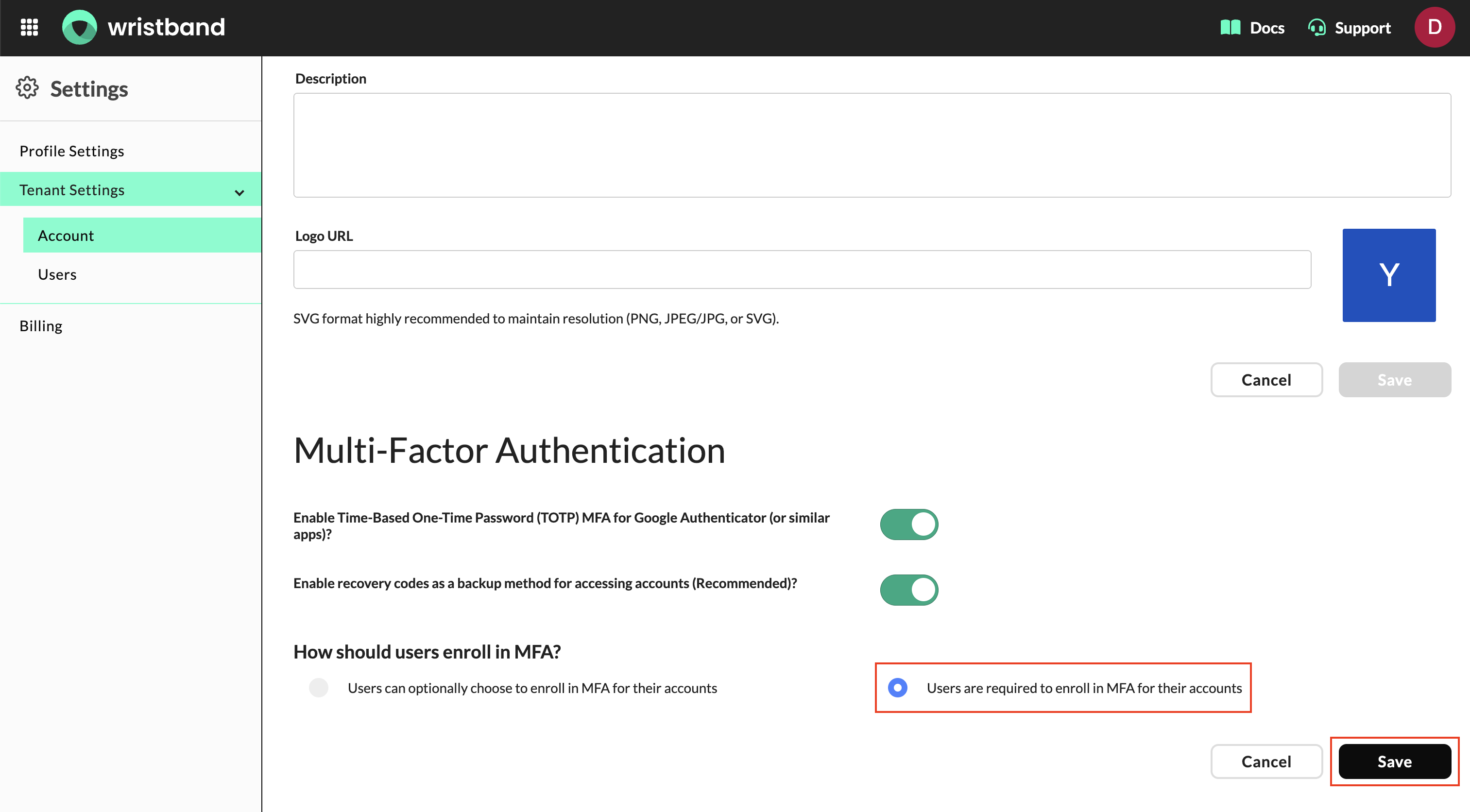
Figure 5: Configuring required MFA enrollment.
Allowing Optional MFA Enrollment
When MFA enrollment is optional, users can log in to your Wristband tenant without enrolling in MFA. Users who wish to add an extra layer of security to their accounts can voluntarily enroll in MFA through their Profile Settings.
To make MFA enrollment optional:
- Under How should users enroll in MFA?, select Users can optionally choose to enroll in MFA for their account.
- Click Save.
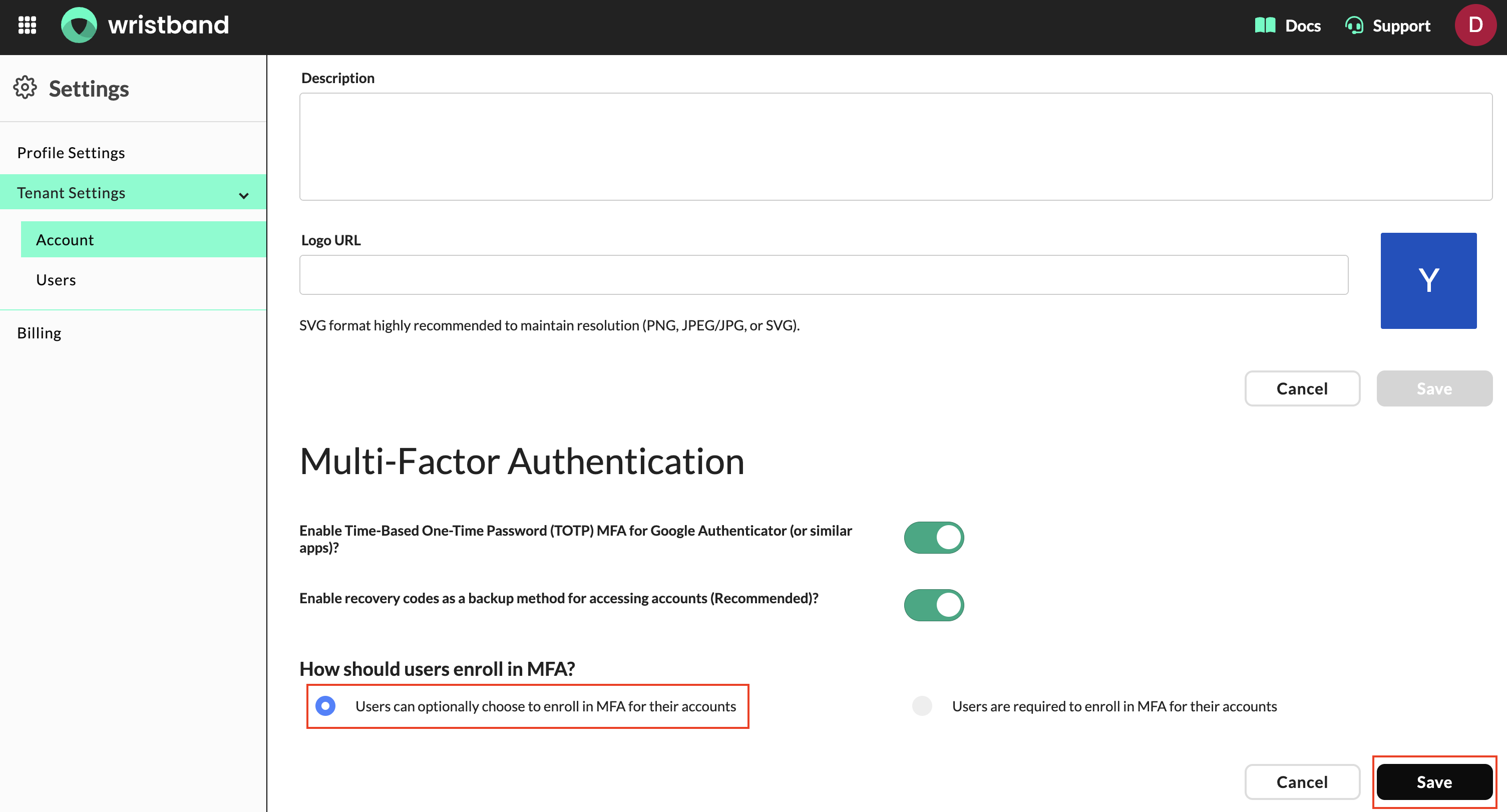
Figure 6: Configuring optional MFA enrollment.
Updated about 8 hours ago