
Attribute Mapping and Syncing
Map and sync user profile attributes from an enterprise external identity provider into Wristband users.
Wristband keeps a user's data aligned with their enterprise external identity provider through attribute mapping and syncing:
- Attribute Mapping: For SAML enterprise identity providers, you define which user profile fields, such as name and email, correspond between the identity provider and Wristband.
- Attribute Syncing: For both SAML and OIDC enterprise identity providers, Wristband writes mapped or standard claim values into the user's profile automatically on every login, keeping profile data current without manual upkeep.
How Attribute Mapping Works
Attribute mapping applies to SAML enterprise identity providers, not OIDC enterprise identity providers or social login providers. SAML has no standardized attribute naming convention. One SAML IdP might send a user's email as email, another as emailaddress, and a third as a full URI like http://schemas.xmlsoap.org/ws/2005/05/identity/claims/emailaddress.
By contrast, OIDC IdPs don't require attribute mapping since user claims follow a standardized convention, such as email, given_name, and family_name, which Wristband can read directly without requiring a custom mapping.
Attribute mappings tell Wristband which incoming SAML attributes correspond to which fields on the Wristband user. On each login, Wristband reads the attributes from the incoming SAML assertion and maps their values to the corresponding fields on the Wristband user.
You can map SAML attributes into the following Wristband user profile fields:
idemailemailVerifiedgivenNamefamilyNamefullNamephoneNumberbirthdategroups
Groups and Role MappingAttribute mapping underpins Role Mapping. Wristband needs to know which SAML attribute carries group data before it can match those groups to Wristband roles, so mapping the
groupsfield here is a prerequisite for setting up Role Mapping.
Configuring Attribute Mapping
Navigate to Tenant View in the Wristband dashboard and select Identity Providers -> Enterprise from the side navigation. Select the enterprise IdP you want to configure, then go to its User Syncing section.
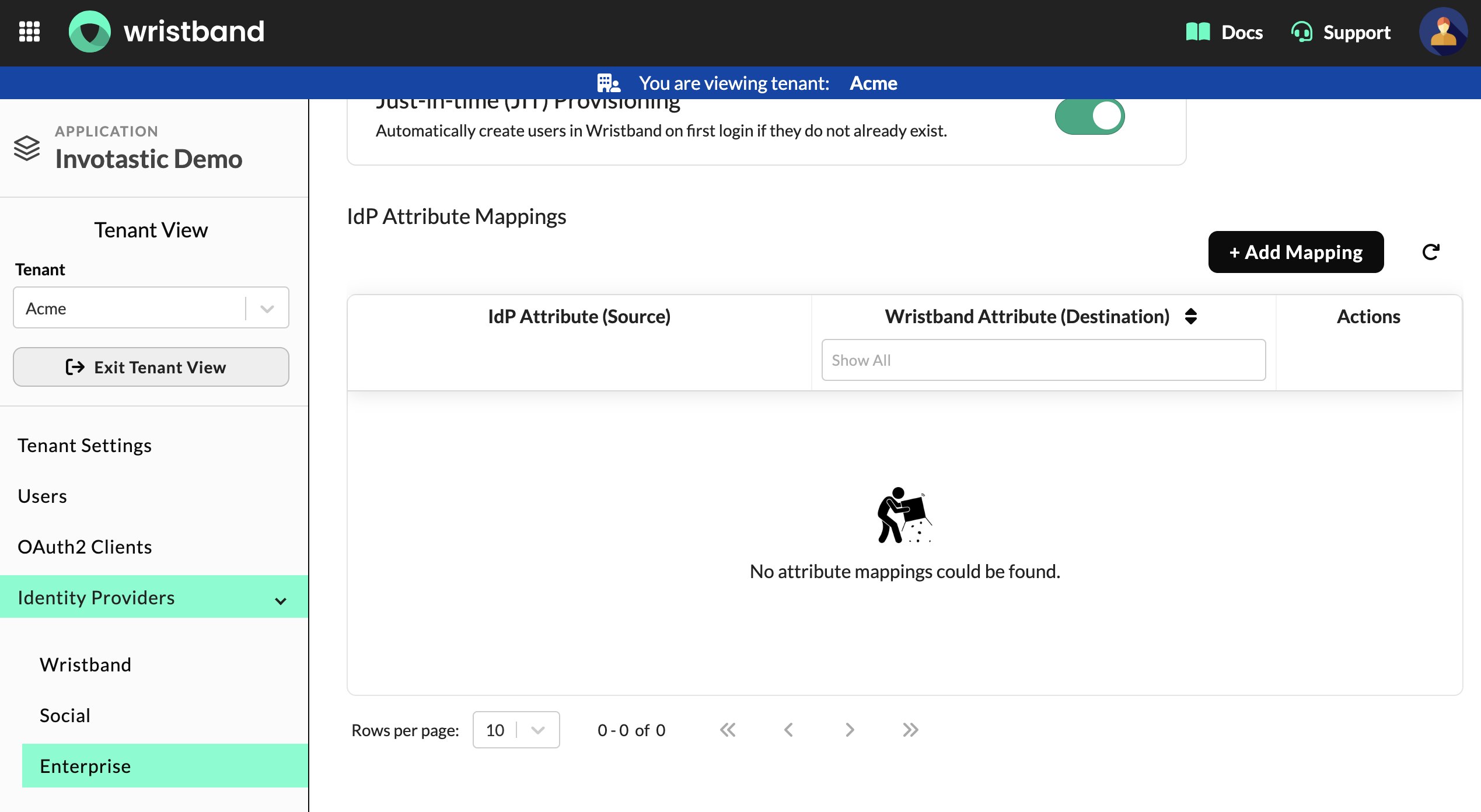
The User Syncing section of an enterprise IdP, showing the IdP Attribute Mappings table.
To add a mapping, click + Add Mapping. In the modal, enter the exact attribute name (case-sensitive) from your customer's IdP in the IdP Attribute (Source) field, select the corresponding field from the Wristband Attribute (Destination) dropdown, and click Create.
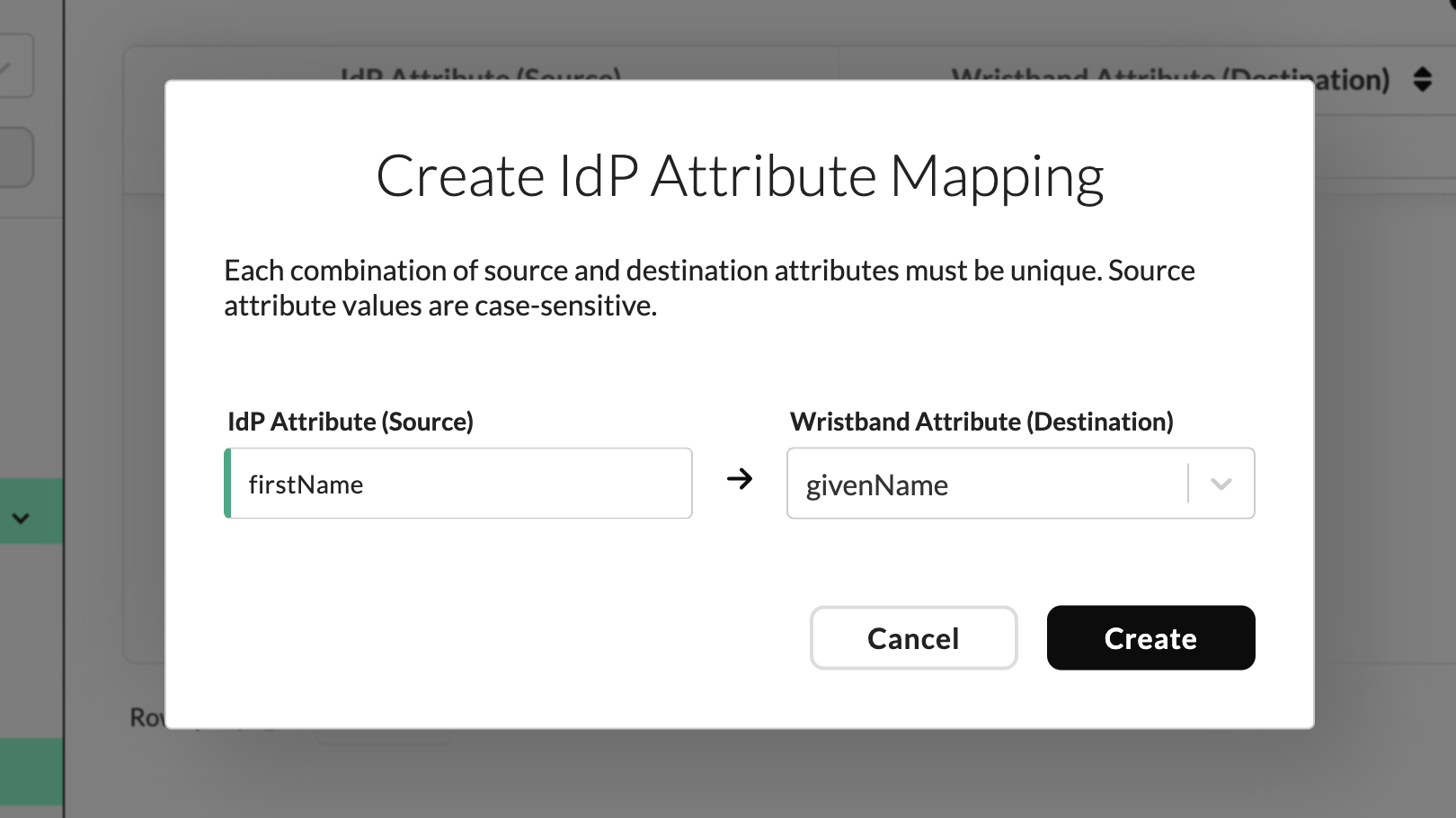
The Create IdP Attribute Mapping modal, showing the IdP Attribute (Source) and Wristband Attribute (Destination) fields.
How Attribute Syncing Works
Attribute syncing applies to both SAML and OIDC enterprise identity providers. On each login, Wristband writes the current values for synced fields into the Wristband user's profile. For SAML, these values come from the mapped attributes parsed from the incoming assertion. For OIDC, they come directly from standard claims in the ID token or UserInfo Endpoint.
You can sync the following Wristband user profile fields:
-
birthdate -
email -
fullName -
givenName -
familyName -
phoneNumber
Configuring Attribute Syncing
Navigate to Tenant View in the Wristband dashboard and select Identity Providers -> Enterprise from the side navigation. Select the enterprise IdP you want to configure, then go to its User Syncing section.
To enable syncing for a field, select it from the User Attributes to Sync on Login selector and click Save.
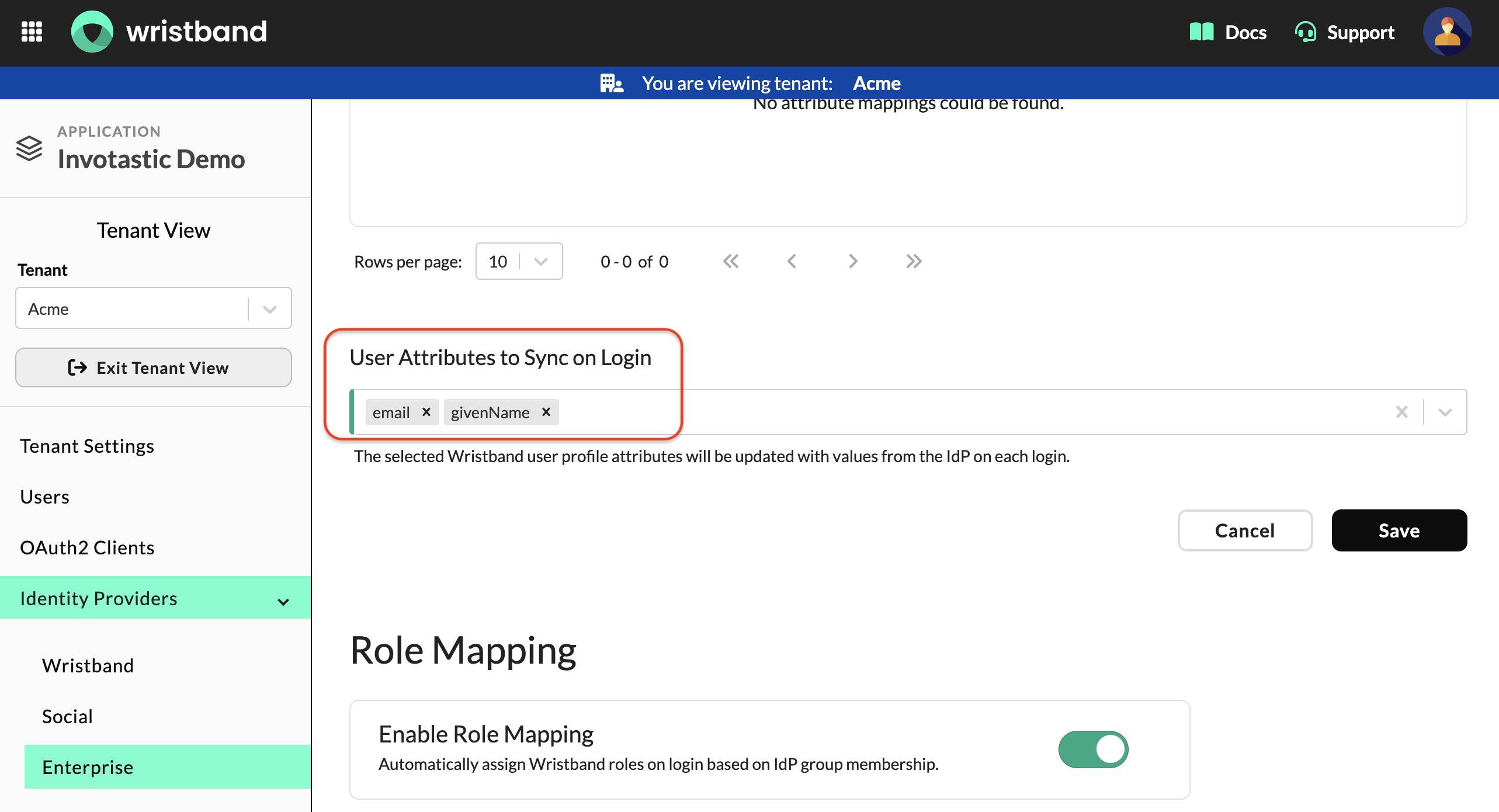
The User Attributes to Sync on Login selector, showing email and givenName selected.
Updated 3 months ago