
Password Reset: Self-Hosted UI
Implement your own Password Reset Page using Wristband APIs.
If you intend to self-host the Reset Password Page, you can configure Wristband to reference the URL where your page is located. Wristband will then direct users to your page wherever it needs to be presented during the password reset flow.
Configuration
Email Policies
Under Email Policies in the Application View of the Wristband Dashboard, set the Action Link URL for the Password Reset email template to the location of your self-hosted Reset Password Page. Wristband sends this URL in the Password Reset email when a user initiates a password reset. Supports the {tenant_name} placeholder for tenant subdomains. Individual tenants can also override this application-level setting.
Note: To configure the URL used for admin-generated password reset links, set the Custom Password Reset Link URL field under Workflow Policies → Password Reset. See Password Reset Workflow for details.
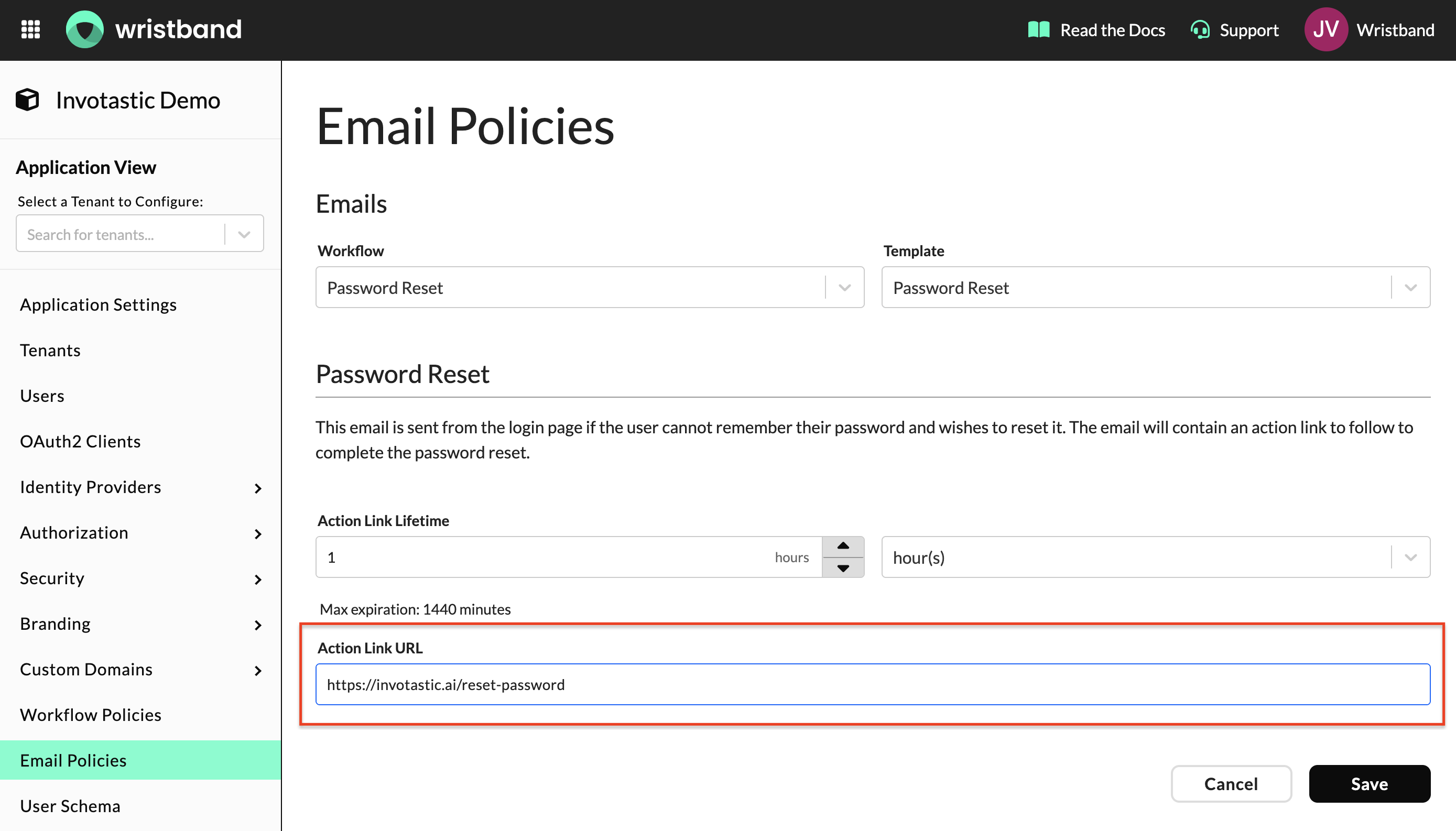
Password Reset Action Link URL field in Email Policies
Forgot Password
Login Required
At a high level:
- The user clicks on the Action Link in the Password Reset Email that was sent to their inbox.
- The user is redirected to your application's self-hosted Reset Password Page.
- The user enters their new password and submits the form.
- Your application calls the Wristband Password Reset API, passing along the Email Authorization Code.
- A message is displayed to the user indicating success along with a link to your application's Login Endpoint.
At this point, the workflow is complete, and the user can attempt to login to the application.

Immediate Login Enabled
At a high level:
- The user clicks on the Action Link in the Password Reset Email that was sent to their inbox.
- The user is redirected to your application's self-hosted Reset Password Page.
- The user enters their new password and submits the form.
- Your application calls the Wristband Password Reset API, passing along the Email Authorization Code.
- Your application then redirects the user to the Wristband Create Auth Session for Password Reset API in order to create a Wristband Authentication Session for the user. The redirect URL is returned in the response from the prior step as well as an Auth Session Code that is required to successfully create the session.
- Wristband redirects the user to the Login Endpoint implemented by your application.
From here, the user would be sent through the Authorization Code Flow in order to login and gain entry to the application. Because Wristband already created an Authentication Session for the user during the flow, the user gains immediate entry into the application without having to re-enter their credentials.

Updated 6 months ago