
Configuration
Learn how to configure webhooks for a Wristband application.
Enabling Webhooks
You must be on the Pro tier or higher to enable webhooks for your Wristband applications.
By default, webhooks are disabled and must be manually enabled. To enable webhooks, navigate to the application that you'd like to enable webhooks for, then select "Webhooks" from the left navigation menu. Next, click the "Enable Webhooks" toggle.
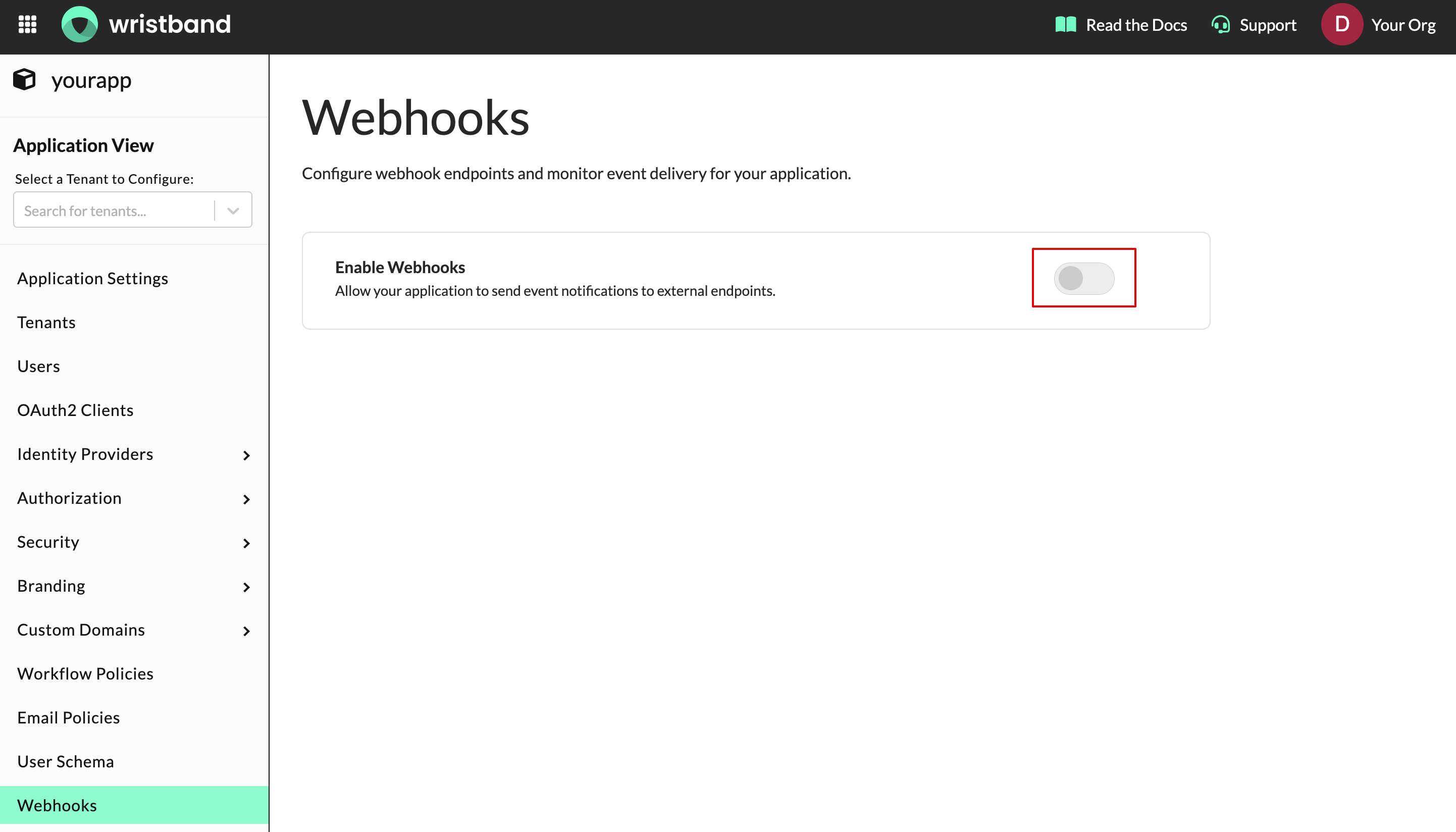
Figure 1. Screenshot showing how to enable webhooks in the Wristband Dashboard.
Once webhooks are enabled for an application, webhook events will start being generated for that application. To begin consuming the webhook events, you'll need to configure a webhook endpoint in the Svix Consumer App Portal.
Configuring Webhook Endpoints
To create a webhook endpoint, click the "Open Portal" button on the webhooks configuration page.
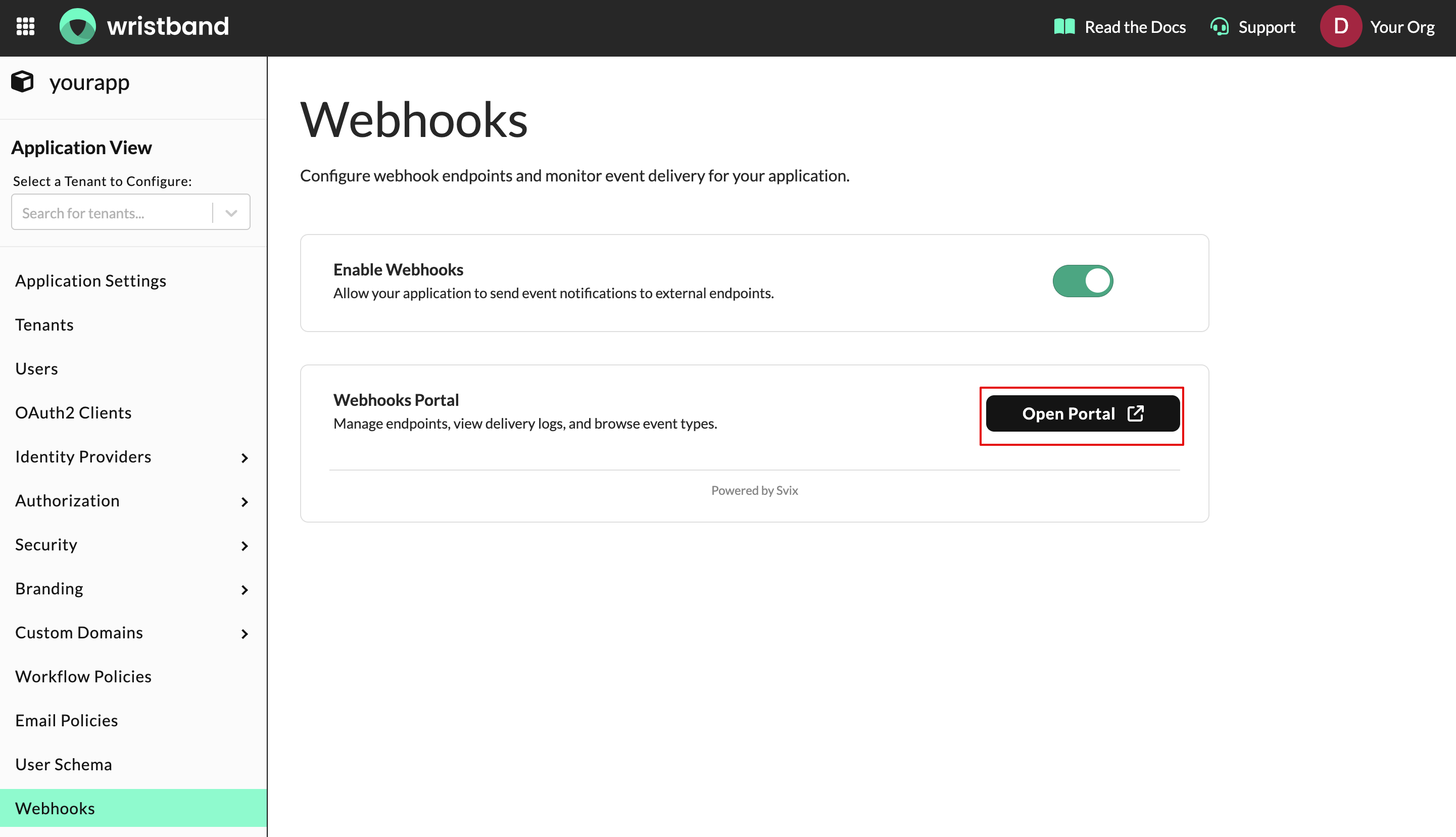
Figure 2. Screenshot showing how to get to the Svix Consumer App Portal from the Wristband Dashboard.
Once the button is clicked, a new tab will open displaying the Svix Consumer App Portal. Within the Svix Consumer App Portal select "Endpoints" from the left navigation menu, then select the "Add Endpoint" button.
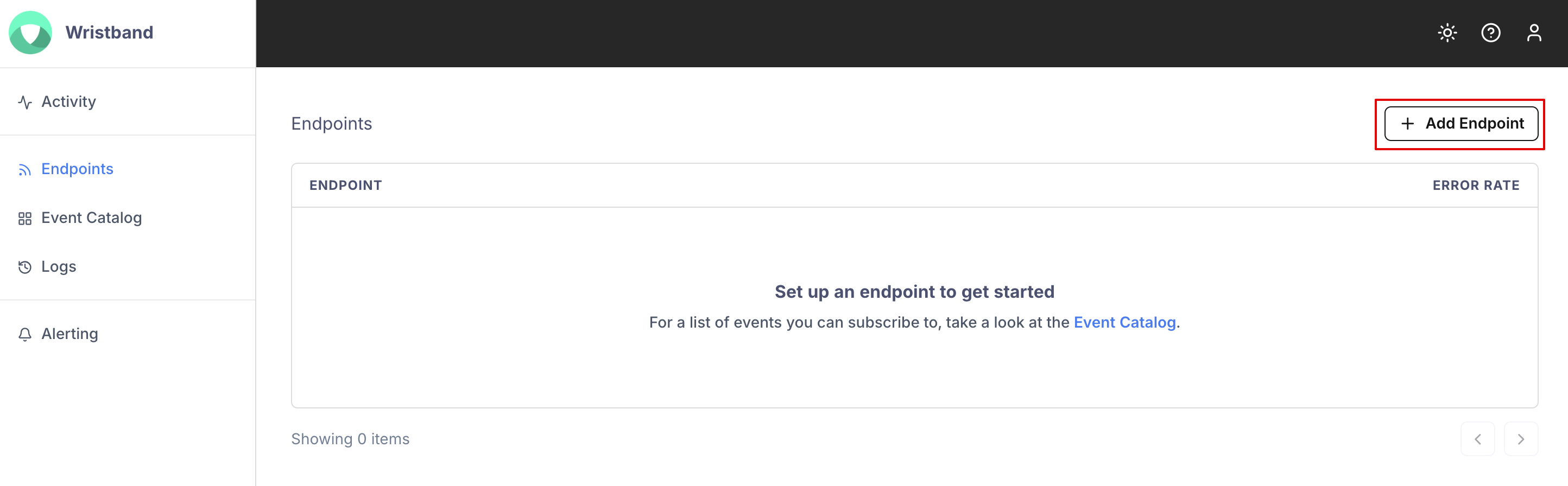
Figure 3. Screenshot showing how to add an endpoint from the Svix Consumer App Portal.
On the endpoint configuration page, enter the URL where you'd like webhook events to be sent, and select the event types that you'd like to receive. Next, click the "Create" button to create the endpoint.
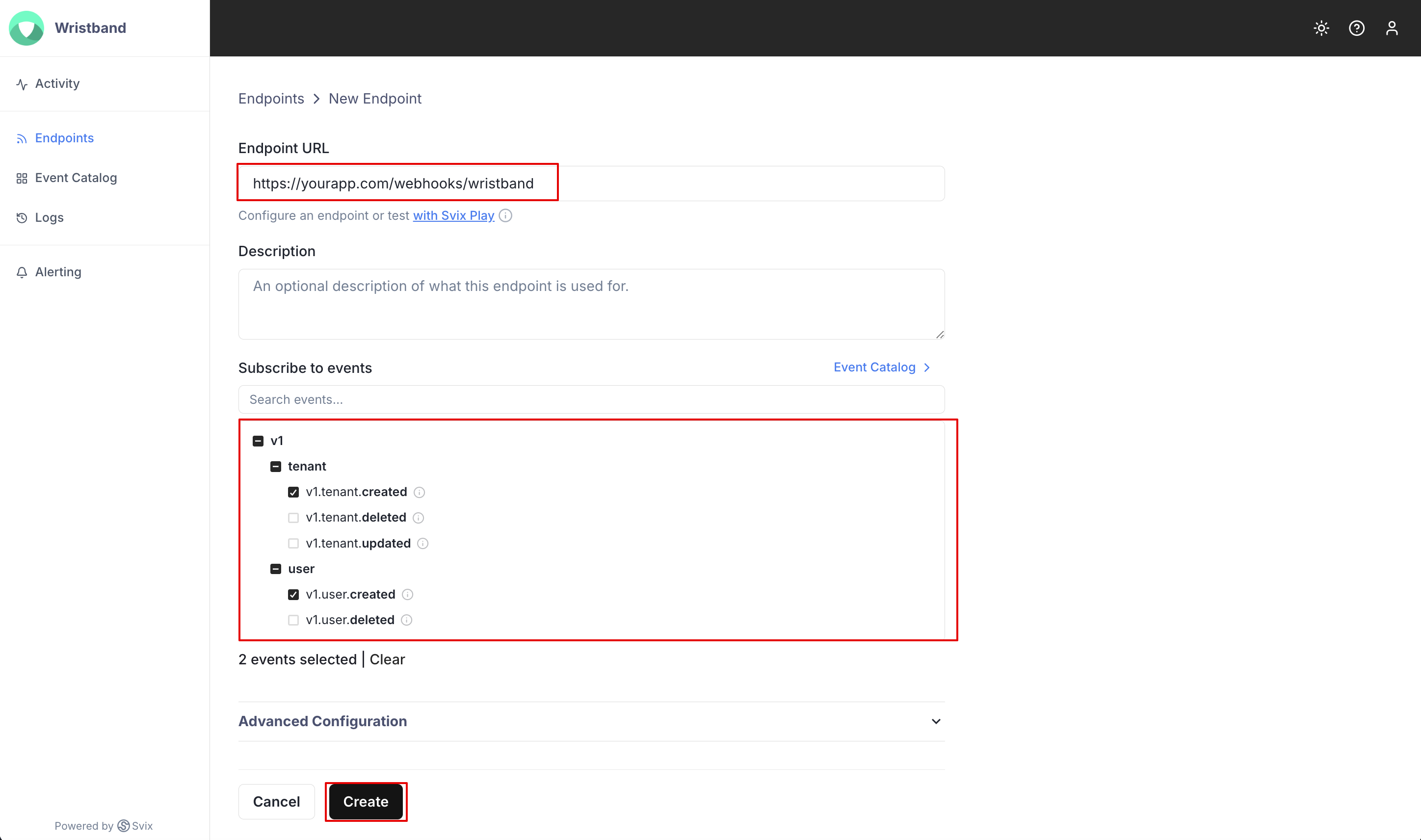
Figure 4. Screenshot showing how to configure a new webhook endpoint.
Svix will now start publishing webhook events to your newly created endpoint using HTTP POST requests.
Configure a Test Endpoint With Svix Play
When configuring your endpoint, if you don't yet have a URL that can receive webhook events, you can instead generate a Svix Play URL by clicking the "with Svix Play" link below the URL form input.
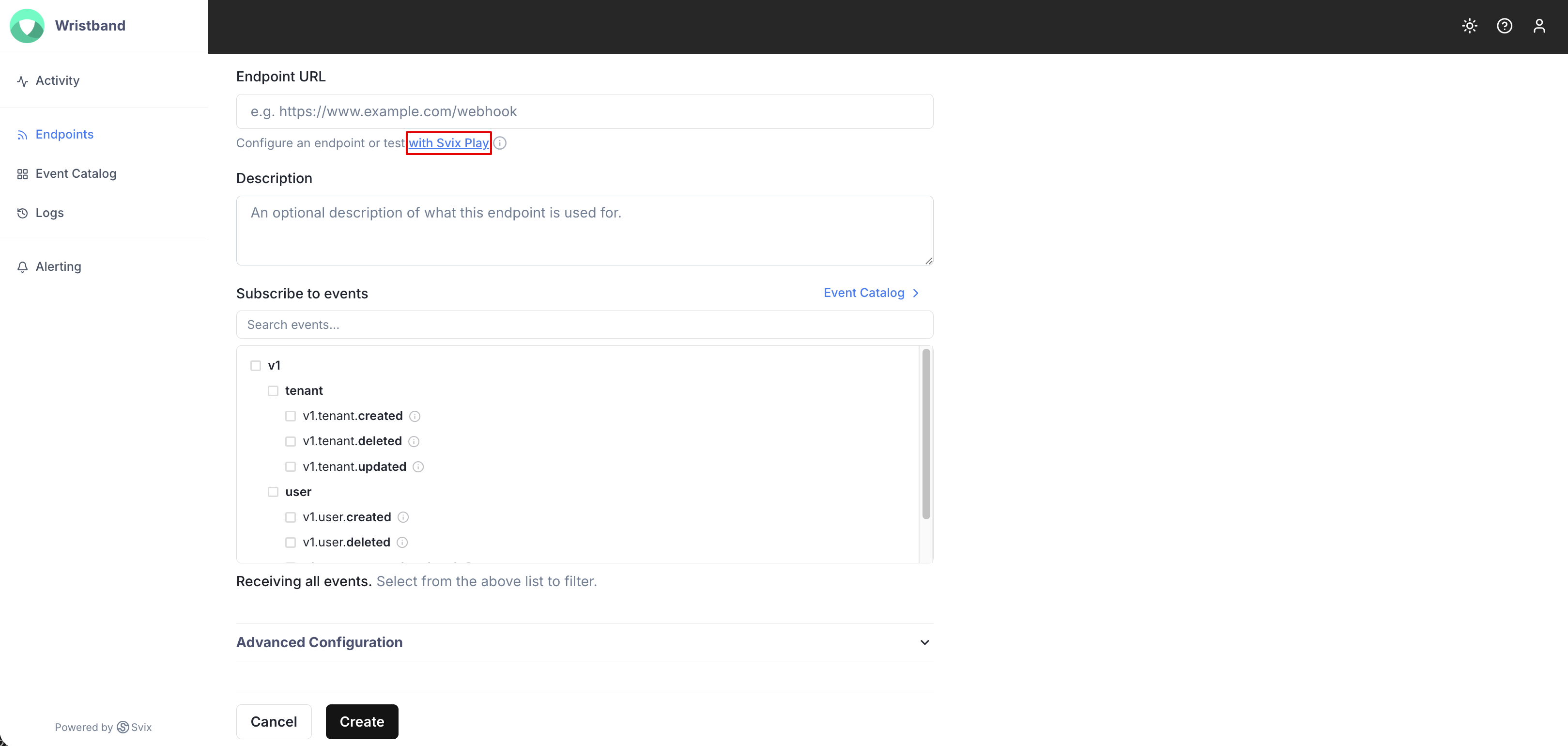
Figure 5. Screenshot showing how to configure an endpoint using a Svix Play URL.
After creating the endpoint, you'll see a "View in Svix Play" button. If you click that button, you'll be able to inspect any events sent to the endpoint.
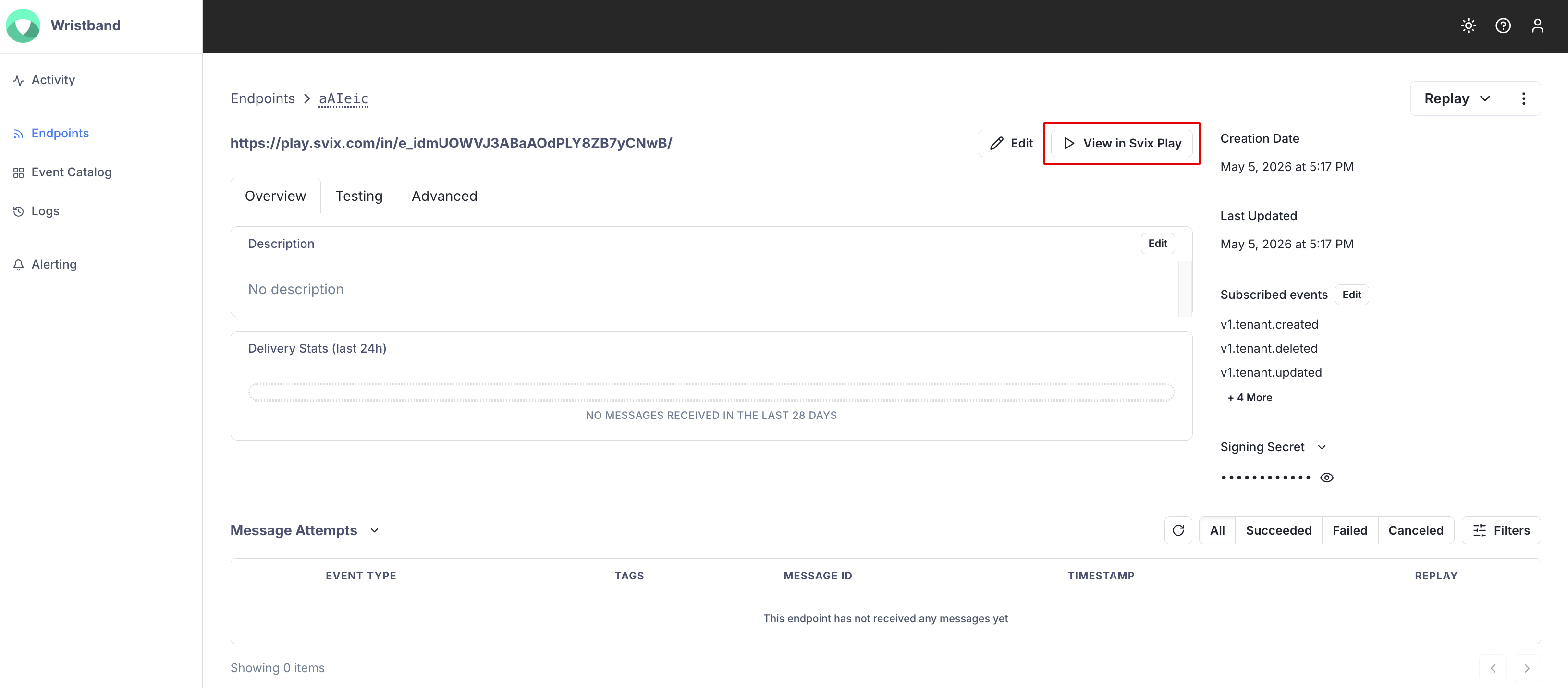
Figure 6. Screenshot showing how to inspect endpoint events using Svix Play.
Sending Test Events
To verify that your webhook endpoint is working properly, you can send test events using the Svix Consumer App Portal. To send a test event click the endpoint that you'd like to test from the endpoints list. Then navigate to the "Testing" tab and select the type of event you'd like to send. Finally, click the "Send Example" button.
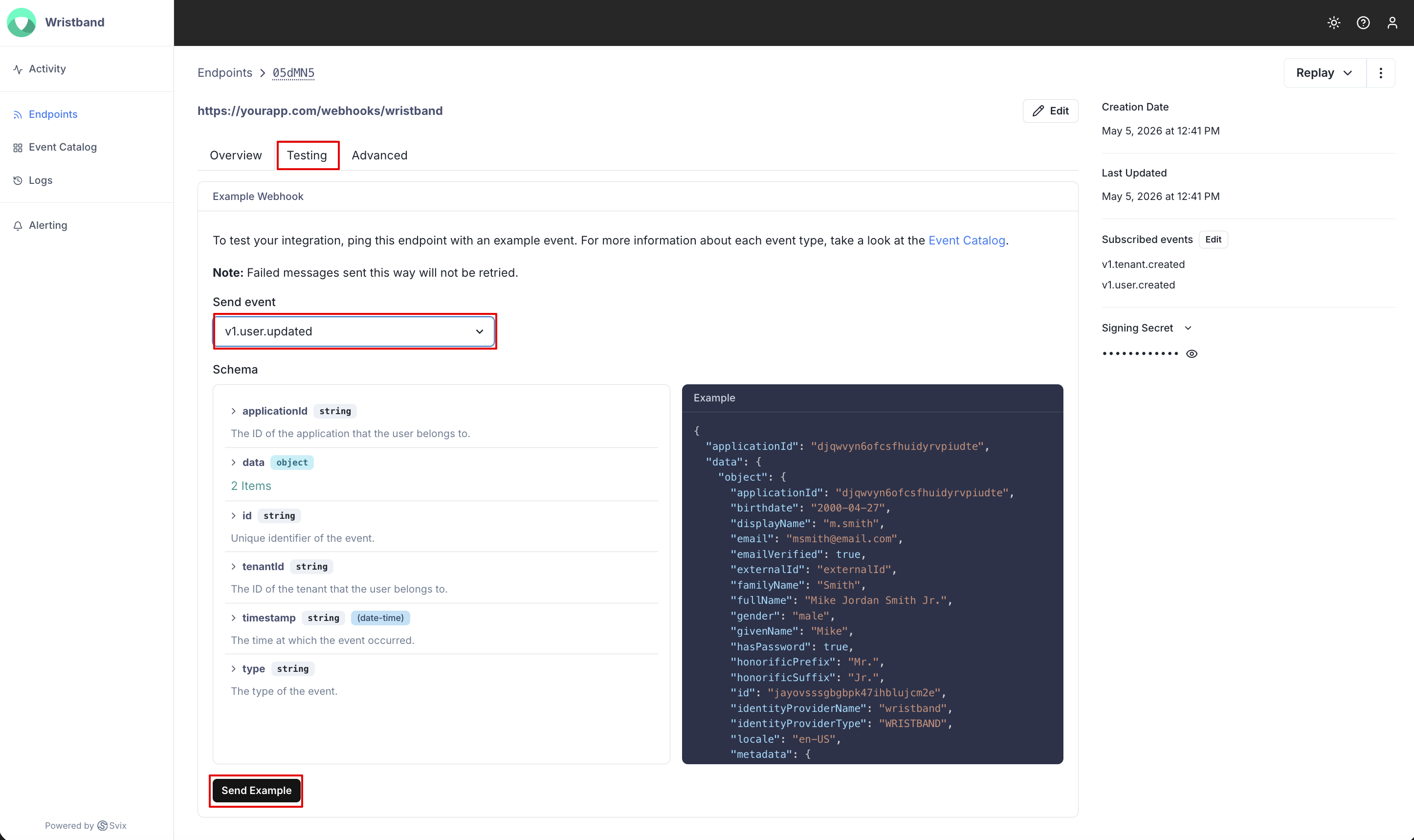
Figure 7. Screenshot showing how to send a test event to an endpoint.
Enabling Webhook Alerts
It is highly recommended that you enable webhook alerts to receive email notifications if issues occur with your webhook endpoints. For example, you'll receive email notifications if messages fail to be delivered or your endpoints are disabled due to prolonged failures. To enable webhook alerts, select "Alerting" from the left navigation menu of the Svix Consumer App Portal. Then enable email notifications and provide a list of email addresses to send the alerts to. Finally, click the "Save" button.
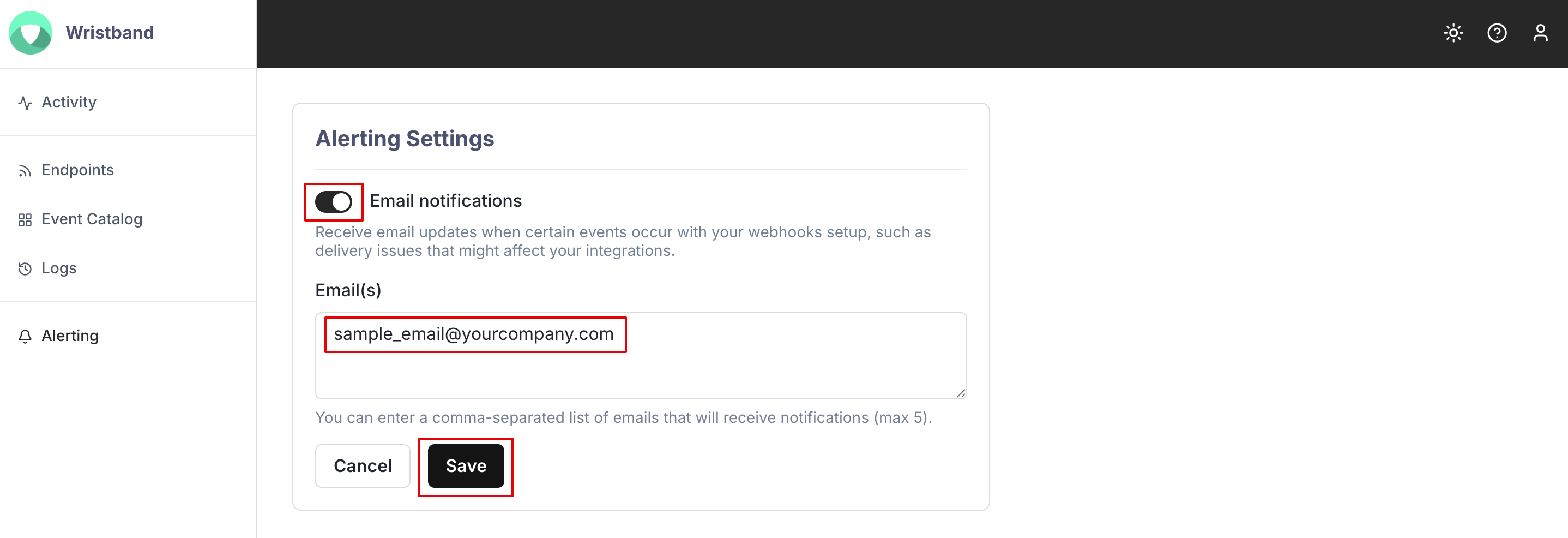
Figure 8. Screenshot showing how to enable webhook alert emails.
Updated 5 months ago
What’s Next
Next, we'll show how to consume webhook events published to your endpoints.