
Passwords
Set up password login and password policies for the Wristband Identity Provider.
Password login enables users to authenticate by entering a login identifier (e.g., email address) and password on the sign-in page.
Enabling Password Login
Configure the Wristband IdP login factors by navigating to Identity Providers → Wristband within the Application View of the Wristband Dashboard. The Supported Login Factors setting controls the available options on your sign-in screen.
- Enable Passwords: Passwords are enabled by default; however, you can manually activate them by setting Supported Login Factors to either Only enter a password or Choose either a password or magic link.
- Set the Default View: If you choose the hybrid approach (both password and magic link enabled), users can toggle between them on the sign-in screen. Use the Primary Login Factor setting to dictate which method loads first.
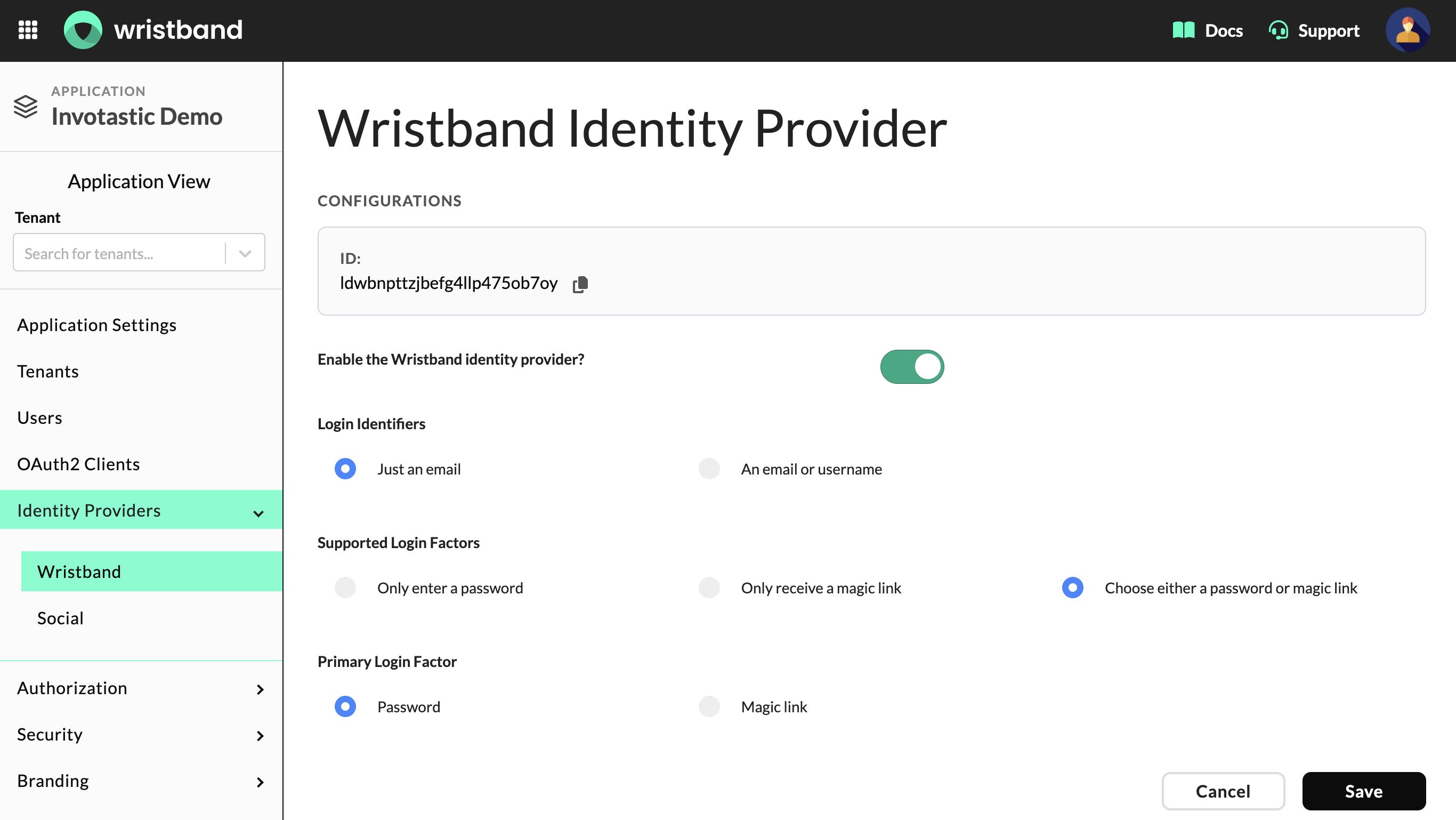
Figure 1: Wristband IdP configurations.
Password Policies
To enforce password complexity and credential requirements, manage your settings under Security → Password Policies in the Application View of your dashboard.
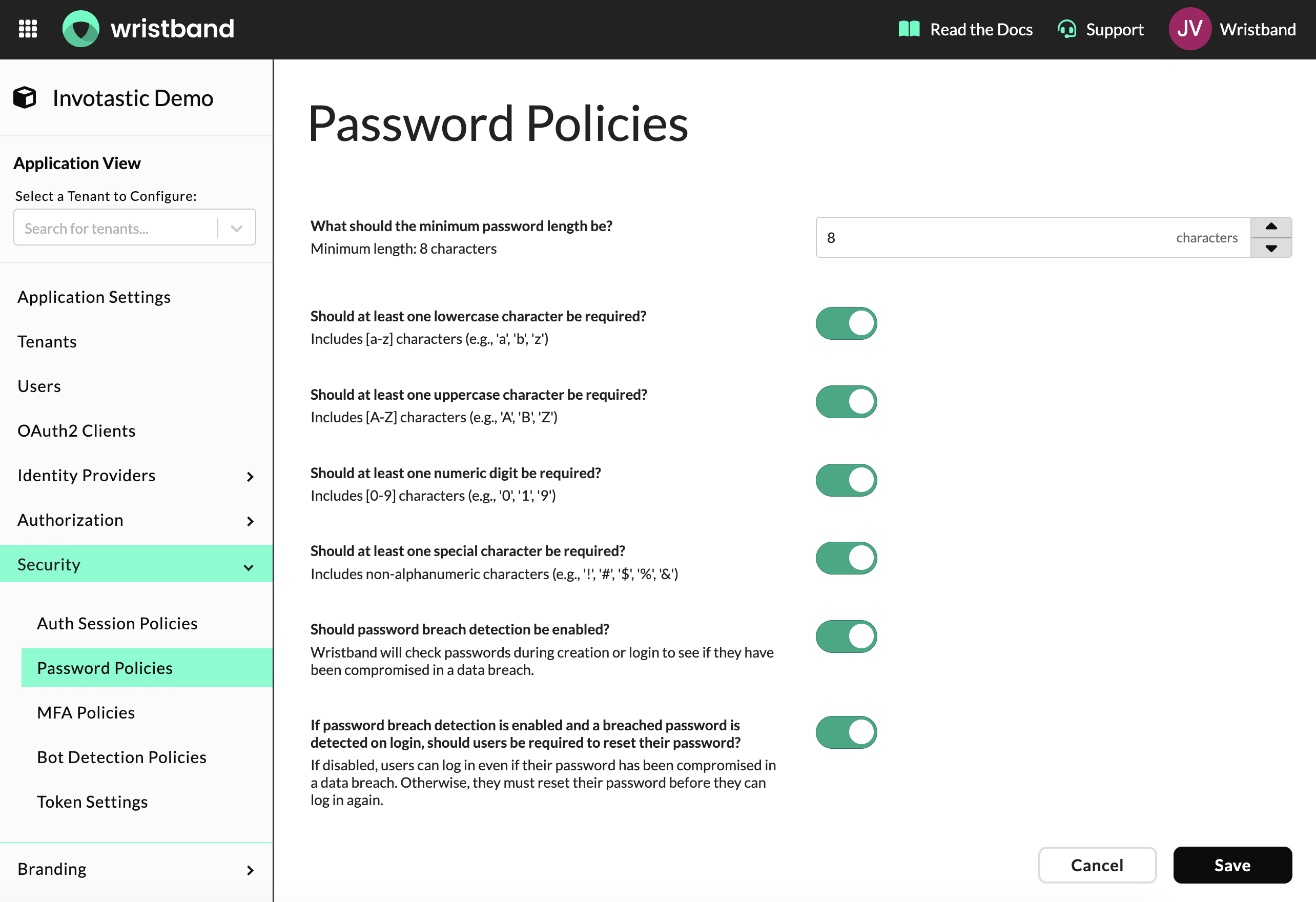
Figure 2: Password Policies configuration.
You can configure your password rules using the settings outlined below:
- Minimum Password Length: Defines the lowest number of characters allowed for a user password. This value must be between 8 and 64 characters and defaults to 8.
- Require Lowercase Character: When enabled, passwords must contain at least one lowercase letter [a-z].
- Require Uppercase Character: When enabled, passwords must contain at least one uppercase letter [A-Z].
- Require Numeric Digit: When enabled, passwords must contain at least one non-alphanumeric character (e.g.,
!,#,$,%,&). - Require Special Character: When enabled, passwords must contain at least one special character (e.g.,
!,#,$,%,&). - Password Breach Detection: Enable this setting to block weak or leaked credentials. Wristband cross-references all password creation and authentication attempts with global data breach registries.
- Force Reset on Breached Password: Mandate password updates for exposed accounts by turning this setting on (requires Breach Detection to be enabled). Active enforcement prevents users from logging in using leaked credentials until they change their password, while disabling it allows them to bypass the warning and authenticate anyway.
Tenant-Level Override
To customize password requirements for an individual customer, apply a tenant-level override:
- Select the target tenant from the dropdown menu in the Application View.
- Navigate to Security → Password Policies.
- Open the Edit Tenant Config tab.
- Switch on the tenant override toggle to define unique password complexity rules for this tenant.
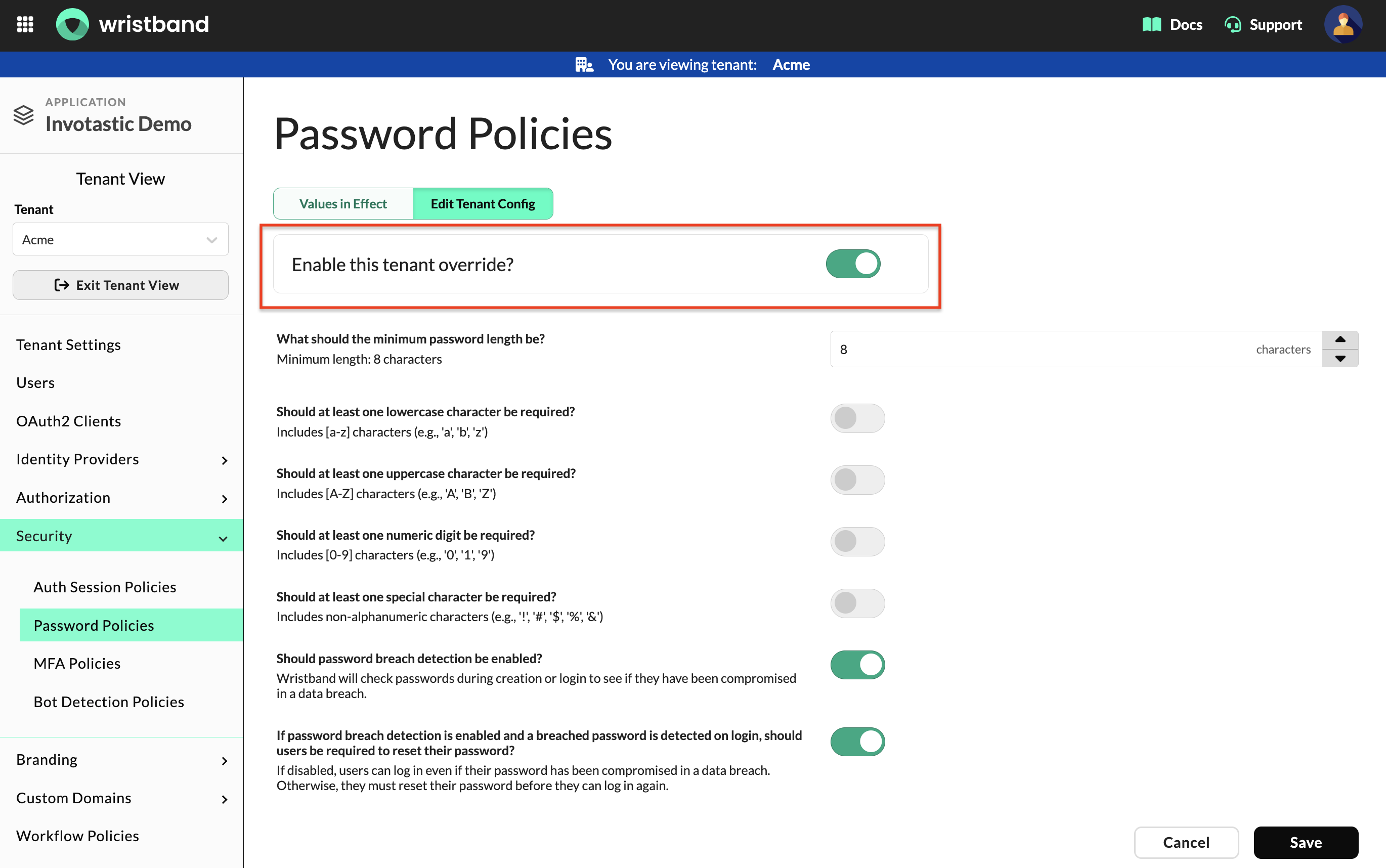
Figure 3: Password Policies configuration in Tenant View with the tenant override toggle enabled.
Updated 18 days ago