
Setting Up a Google Integration
Learn how to seamlessly configure Google social login integration within your Wristband dashboard using this step-by-step guide.
Step 1: Locate Your External IdP Redirect URL
- In the Wristband dashboard, enter Application View for the application you want to integrate with Google.
- Navigate to the
Identity Providers > Socialmenu in the side navigation. - After landing on the Social Identity Providers page, select the Google provider icon at the top.
- Copy the "Redirect URL" from the form - you'll need this value to configure the OAuth client in Google Cloud.
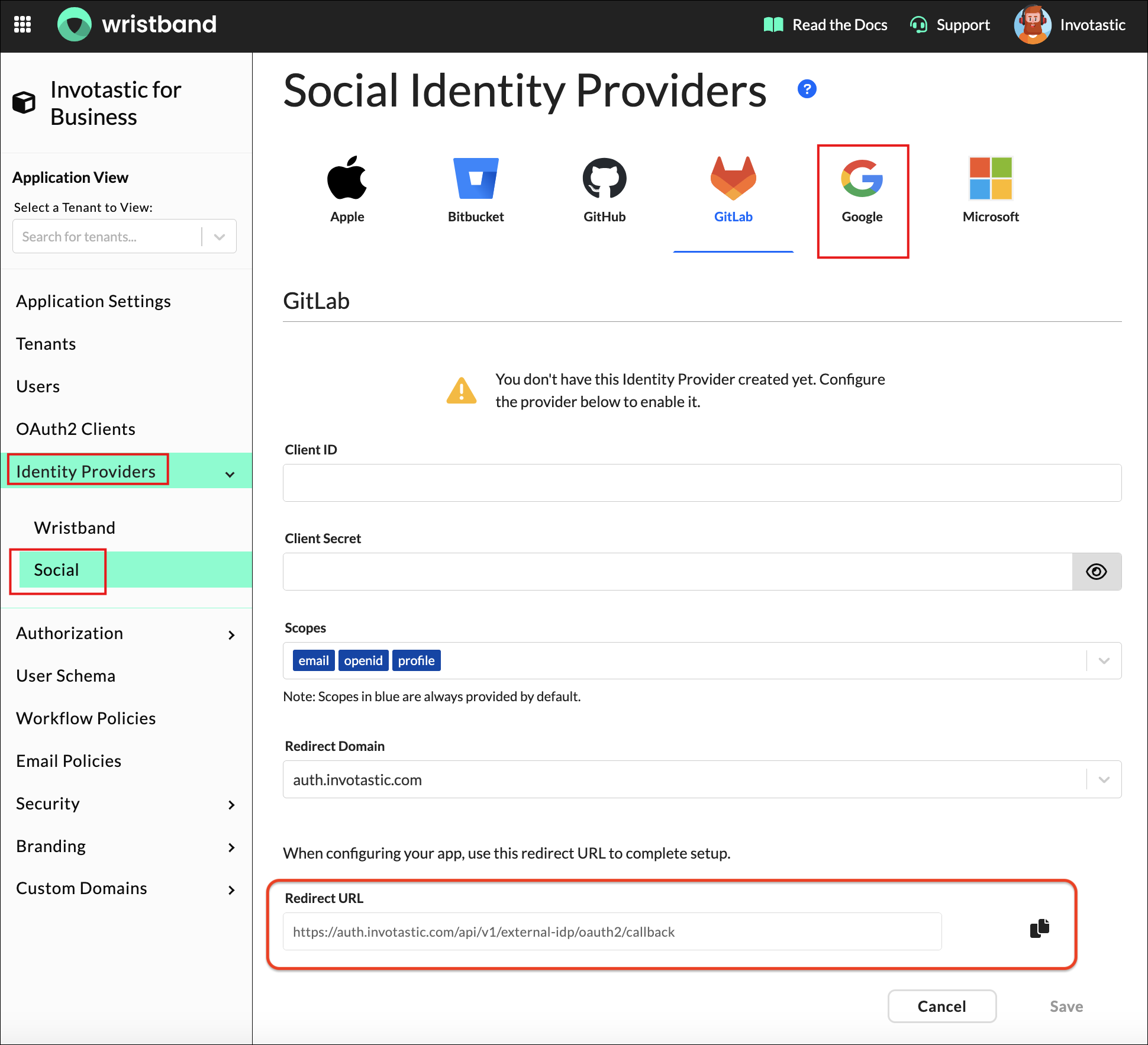
Figure 1: Copy the Google provider’s Redirect URL from Wristband.
Step 2: Sign Up/Login to Your Google Account
- Log into your Google account at the Google Cloud Developer Console.
- Create an OAuth client to finish configuring the Google Social Login Identity Provider in your Wristband dashboard.
Step 3: Create a New Project
-
In the console, click the Create Project button.
-
This will establish the project where your OAuth client lives.
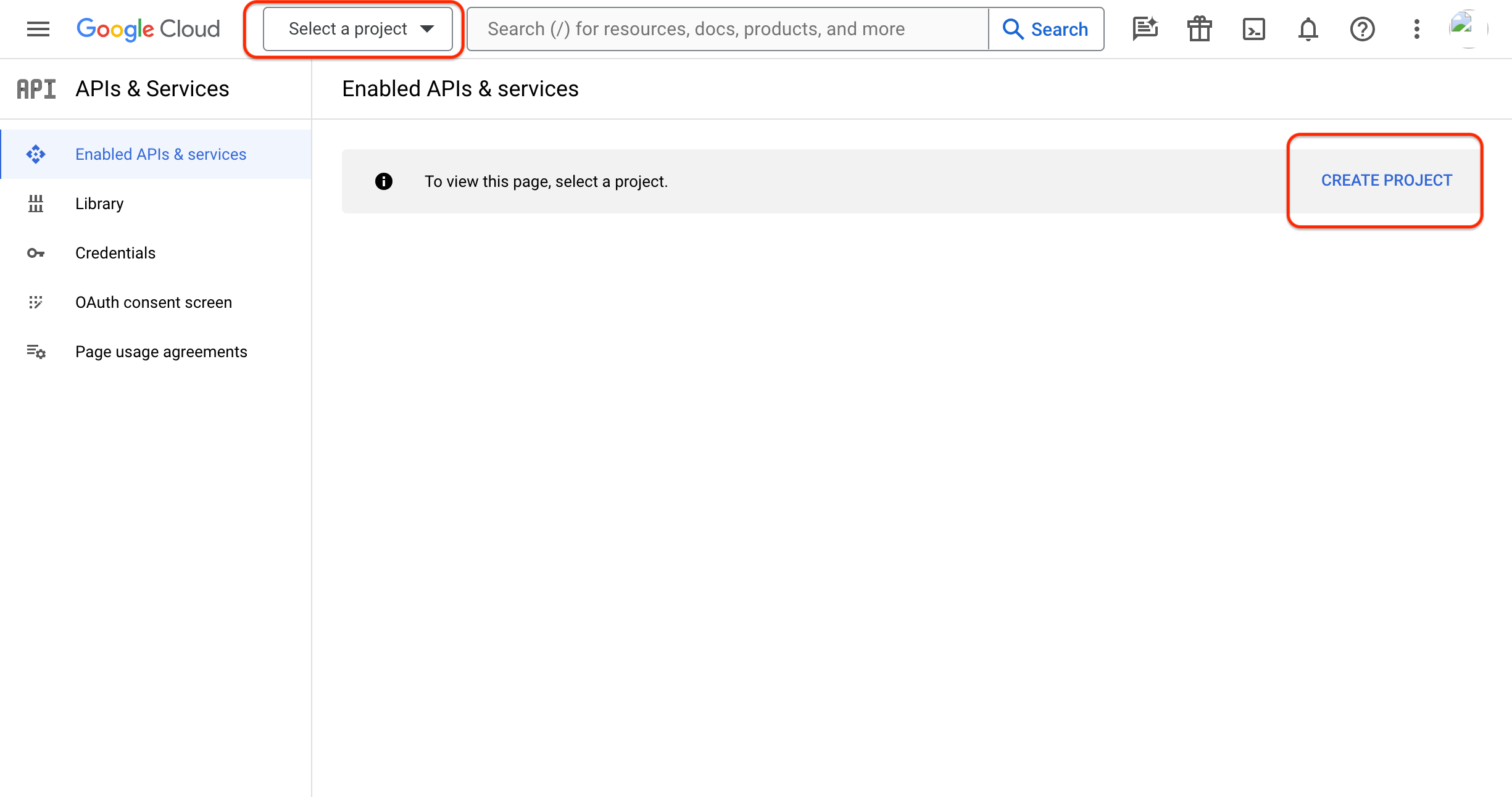
Figure 2: Create a project in the Google Cloud console.
- Enter a project name and select your organization (this defaults to
No organizationif none is selected). Then, click Create to proceed.
Existing ProjectsThis guide covers new project setups. If using an existing project, select it from the navigation bar dropdown menu to add your OAuth client.
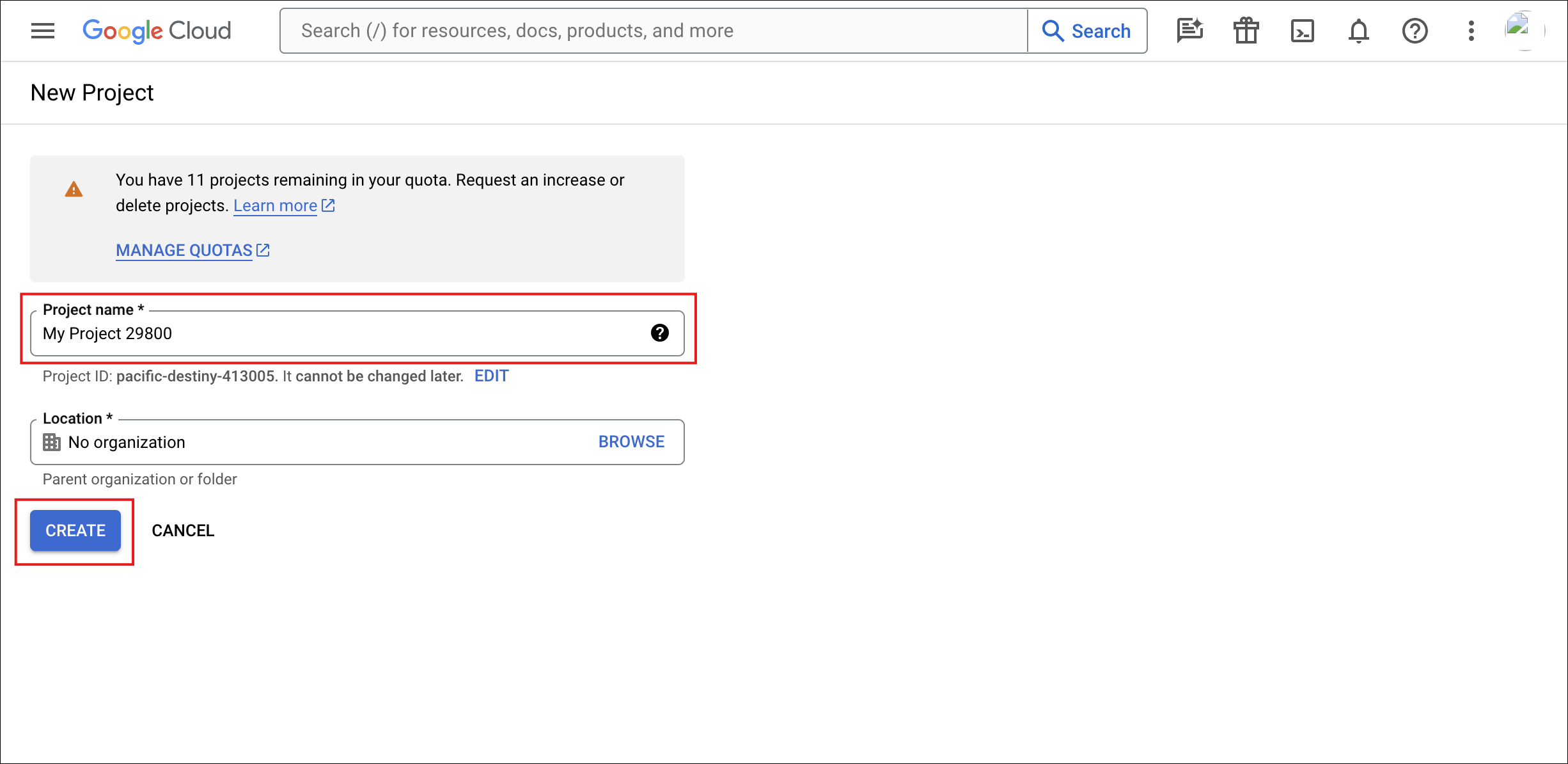
Figure 3: Enter the project name and choose an organization.
Step 4: Configure the OAuth Consent Screen
- On the "APIs & Services" page, select OAuth consent screen from the left side menu.
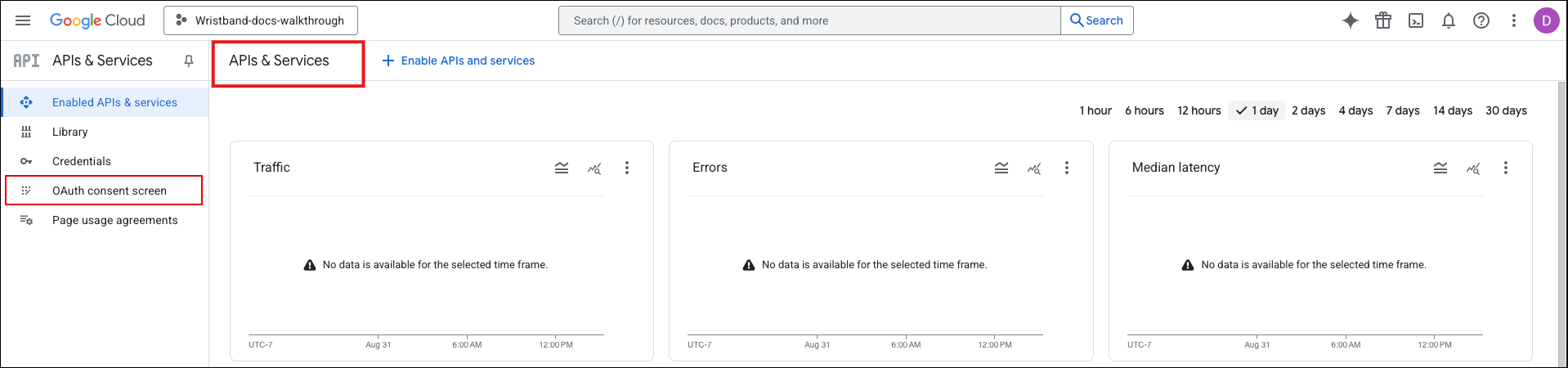
Figure 4: Open OAuth consent screen from APIs & Services.
2.Then click the Get Started button.
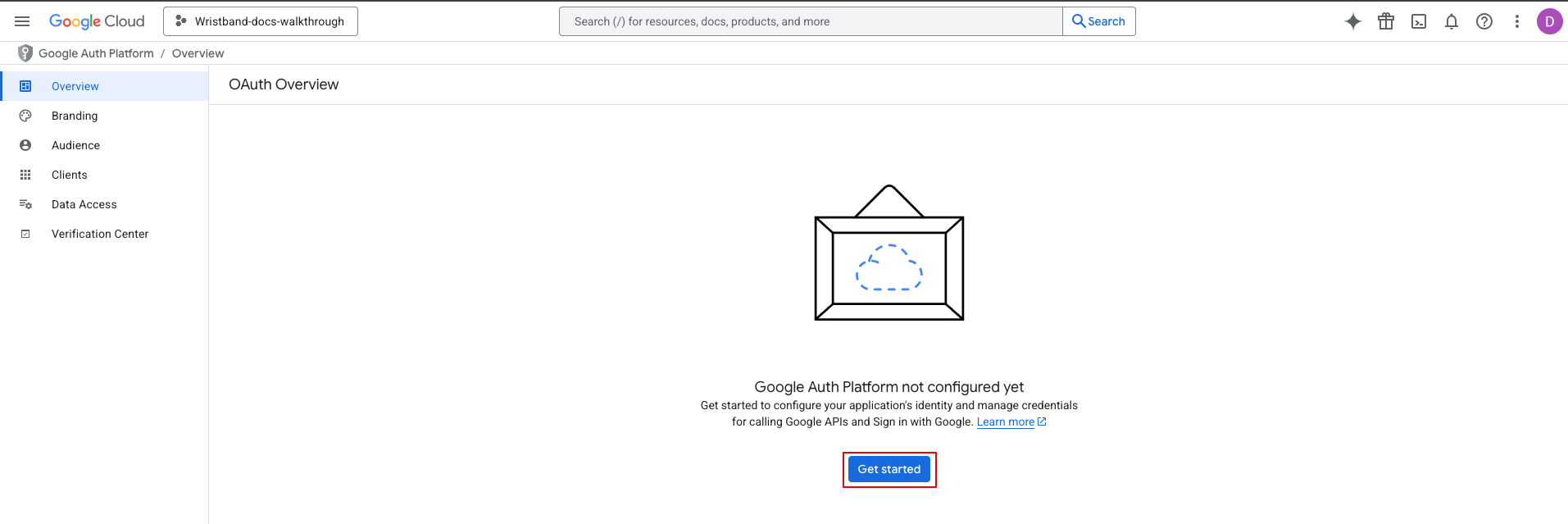
Figure 5: Select Get Started to configure the OAuth consent screen.
3. Fill out the following mandatory fields:
- App name: Any appropriate value.
- User support email: Any appropriate value.
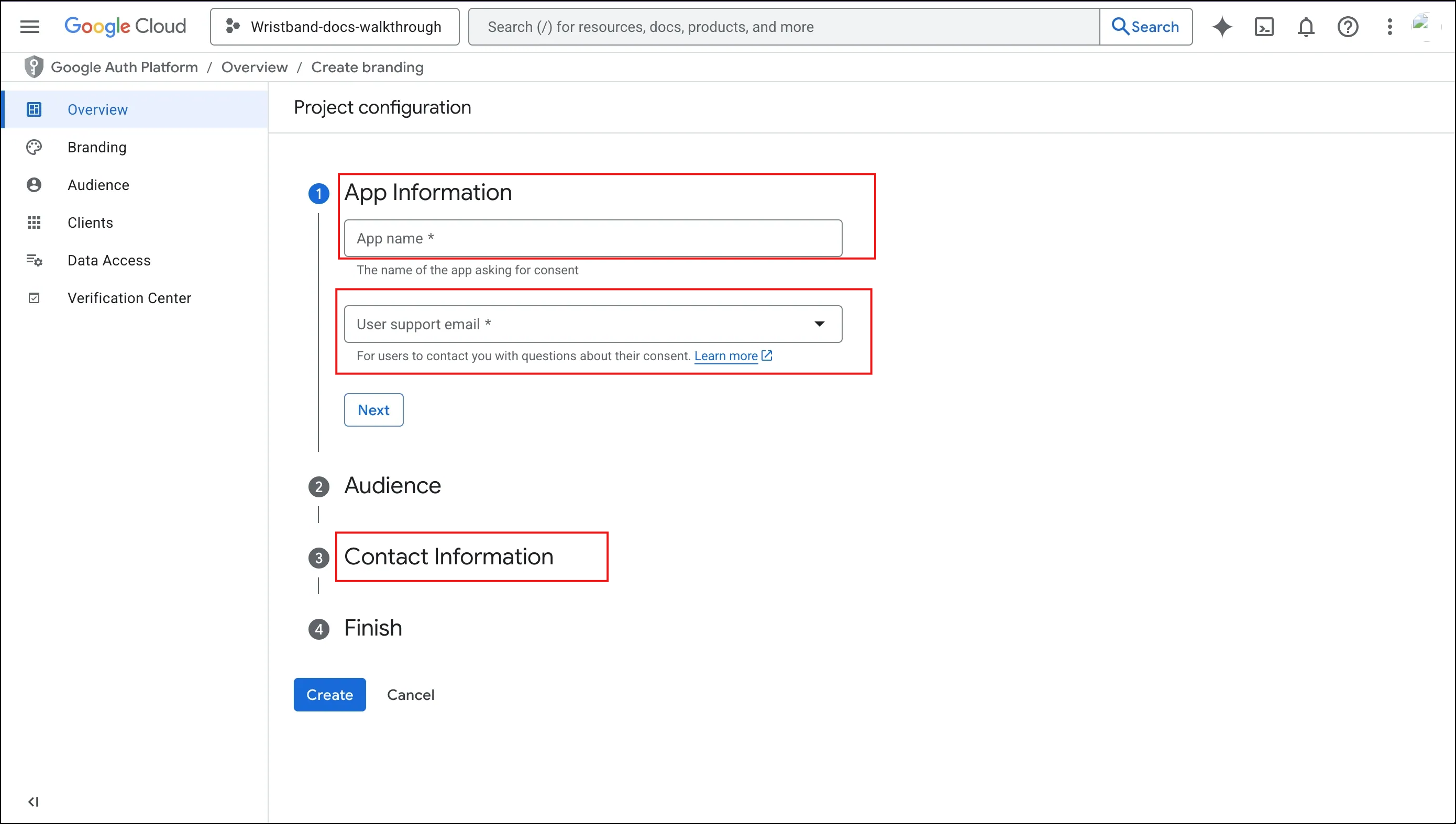
Figure 6: Enter the app name and user support email.
4. For the audience, select the External option.
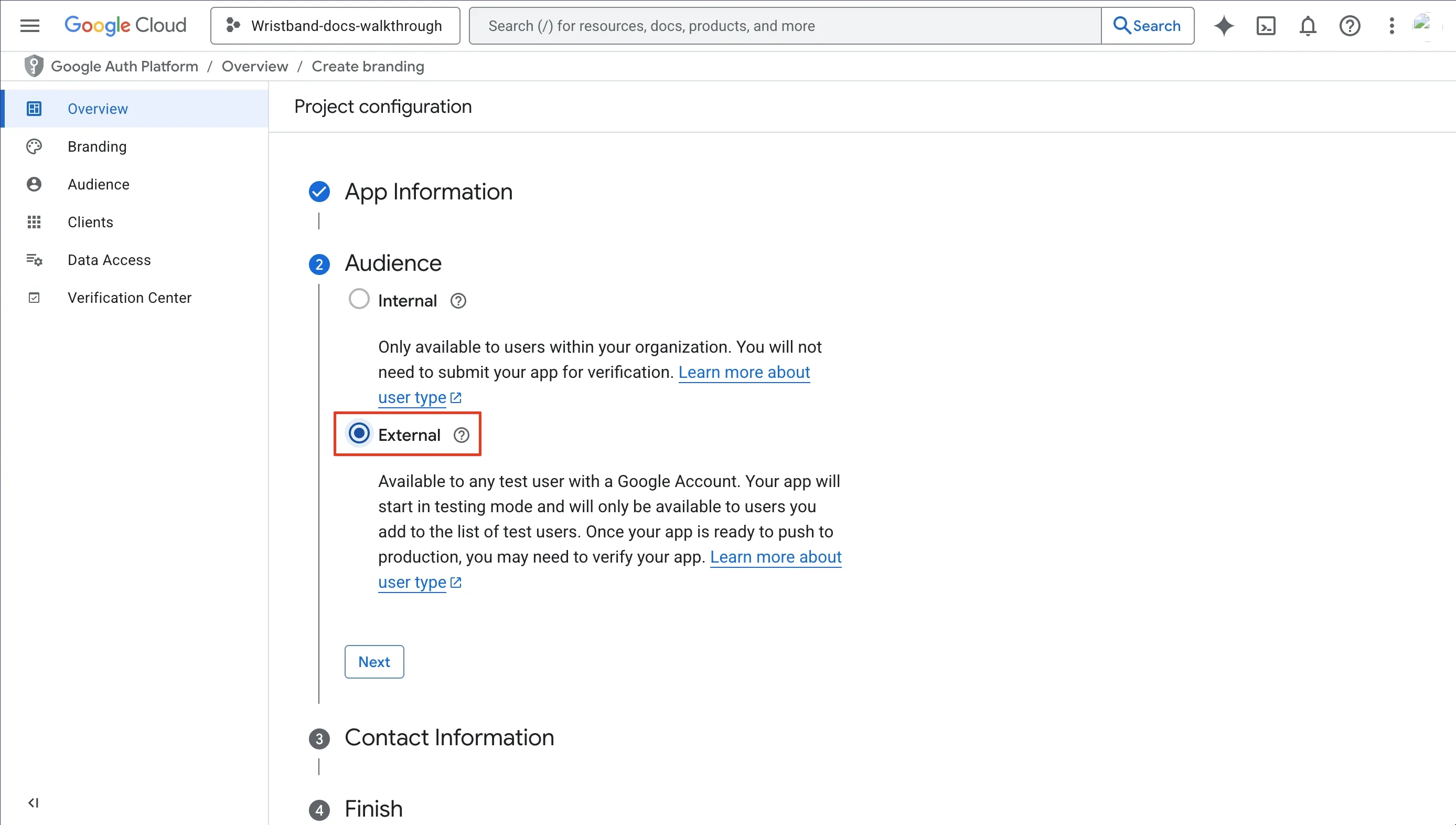
Figure 7: Select External as the audience.
- Provide contact information.
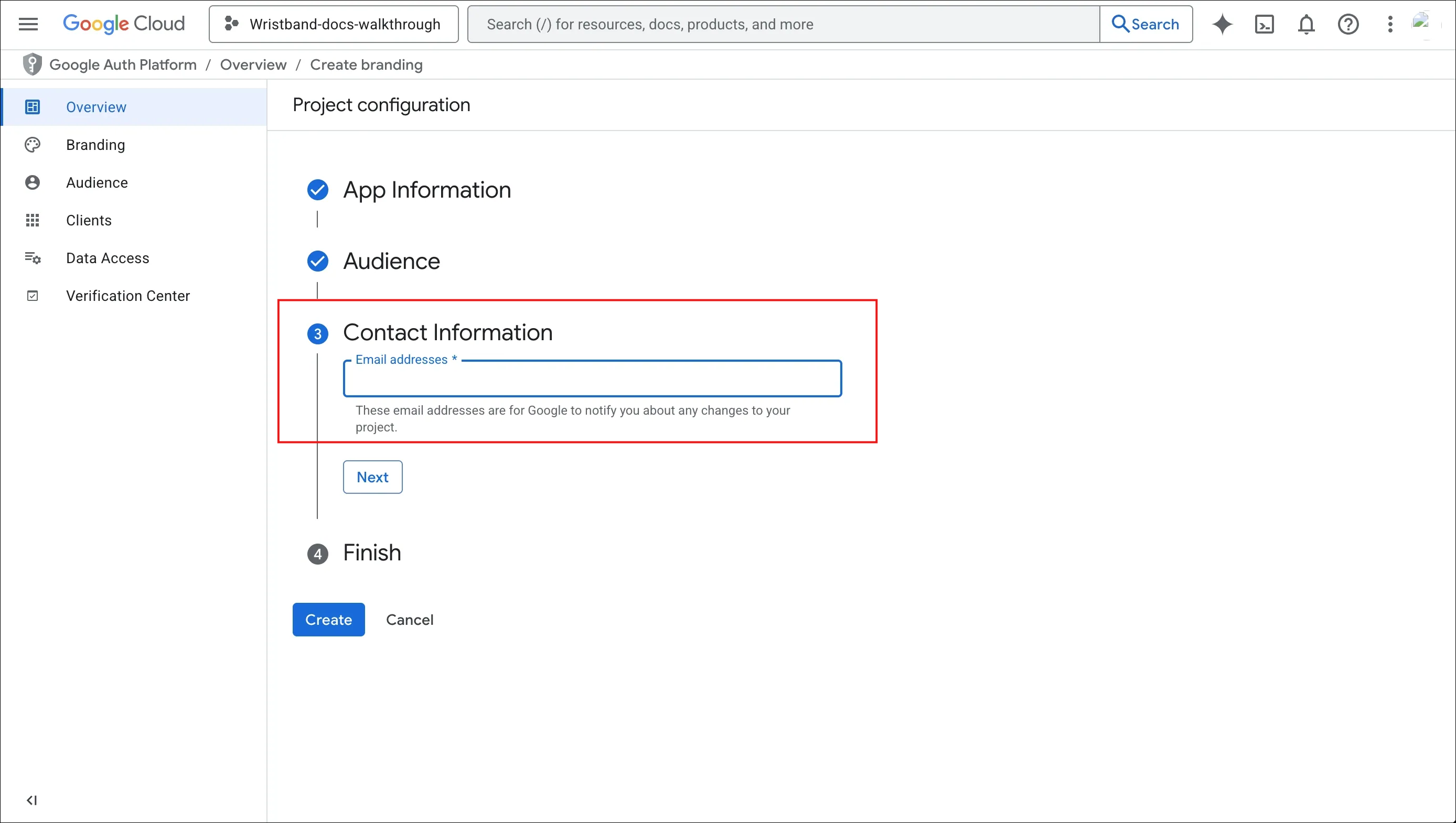
Figure 8: Provide contact information for the project.
- Agree to "Google API Services: User Data Policy".
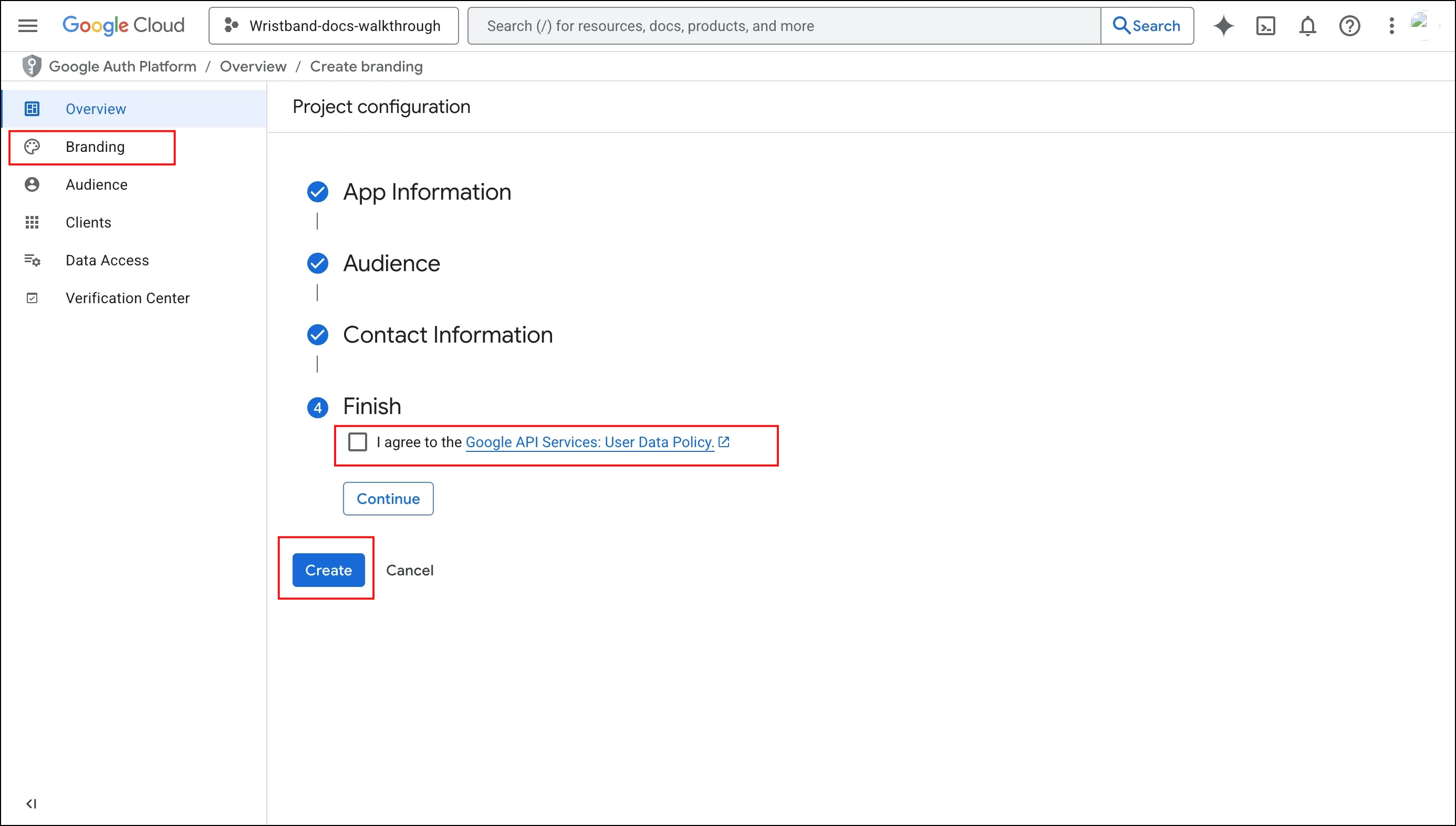
Figure 9: Agree to the Google API Services User Data Policy.
7. Click the Create button.
Step 5: Configure Branding
- Select Branding from the left navigation menu.
- Add your logo and input the links for your website, privacy policy, and terms of service.
- Add the domains of any links you configure to the Authorized domains list.
Authorized DomainsWhen you register authorized redirect URIs for your OAuth client in Step 6, Google automatically adds the associated domains to the Authorized domains list. You don't need to add them manually.
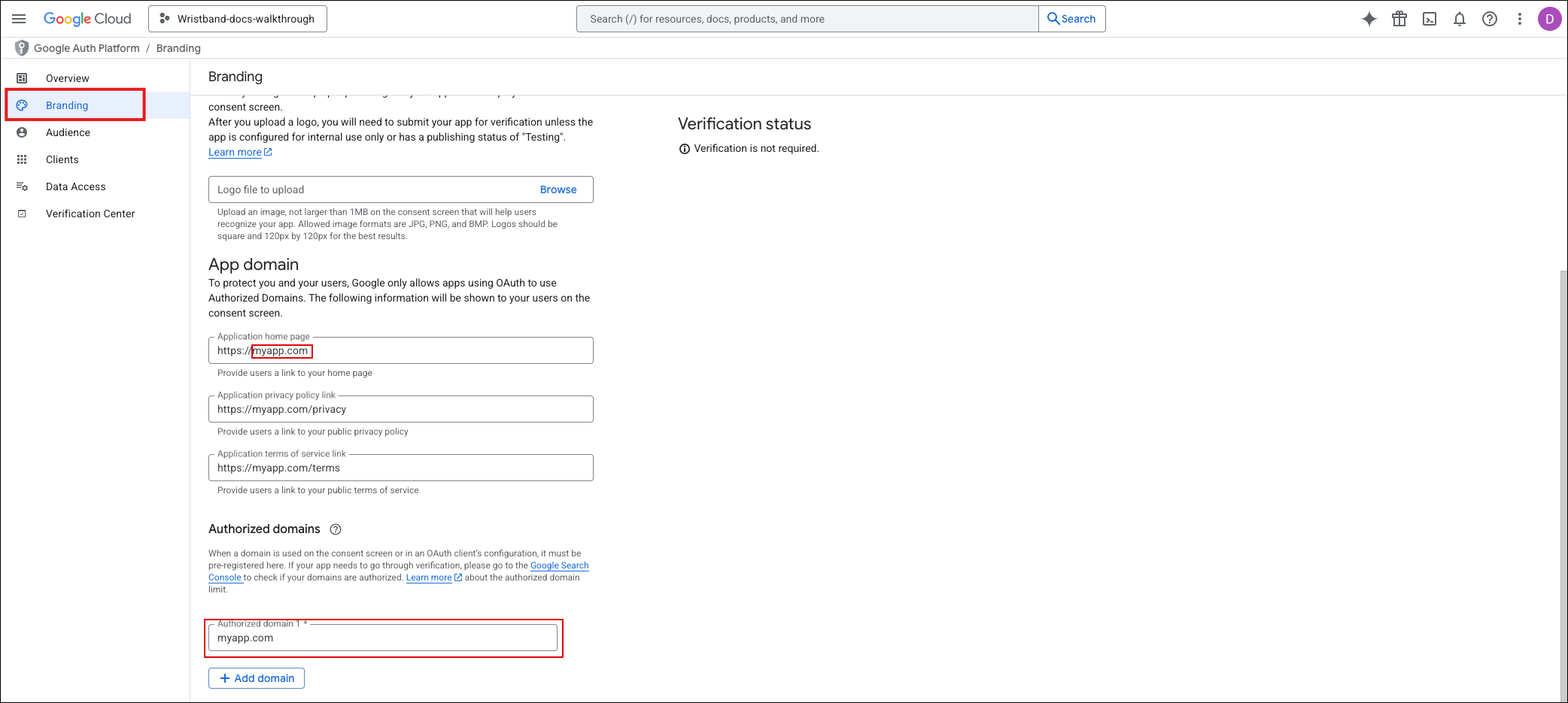
Figure 10: Provide your application URLs and authorized domains.
Step 6: Create OAuth Client
- Complete the consent screen configuration to return to the OAuth Overview page.
- Click the Create OAuth client button to generate the credentials needed for Wristband.
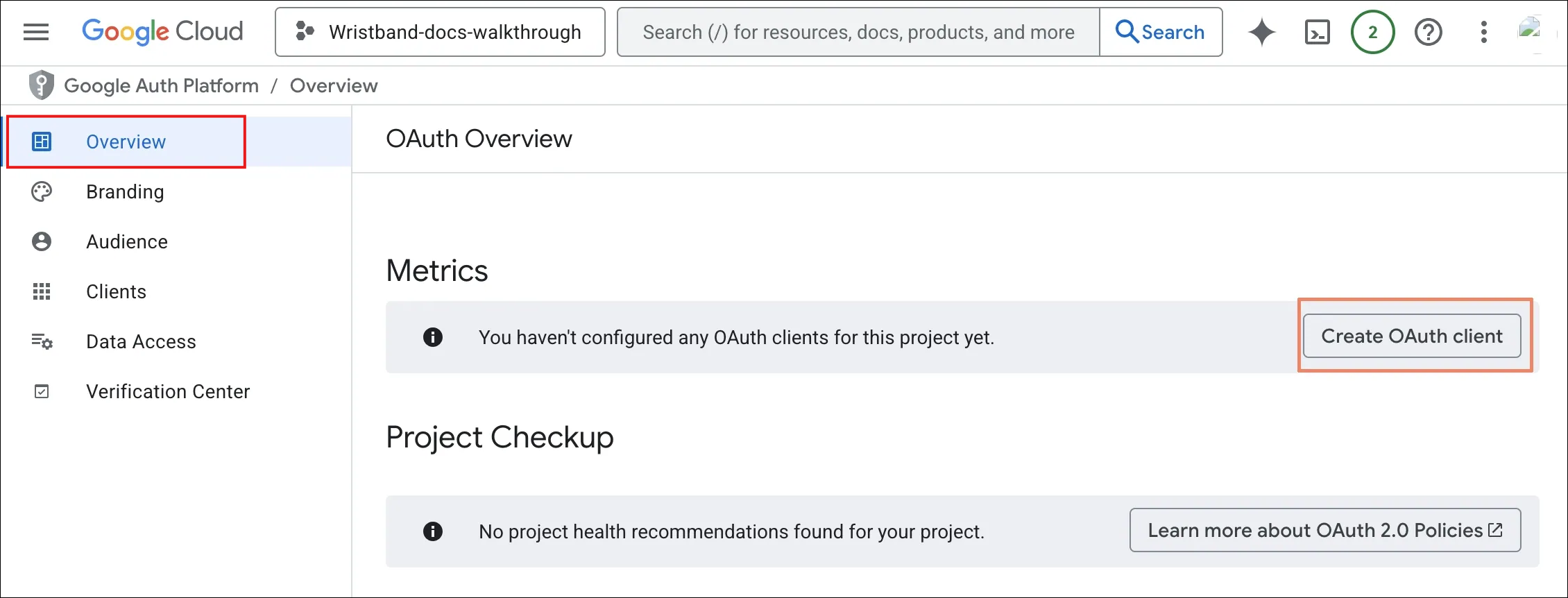
Figure 11: Select Create OAuth client from the OAuth overview.
You will now be in the Clients section. Here, you will need to select the application type for your client.
- In the Clients section, select the appropriate Application type for your OAuth client.
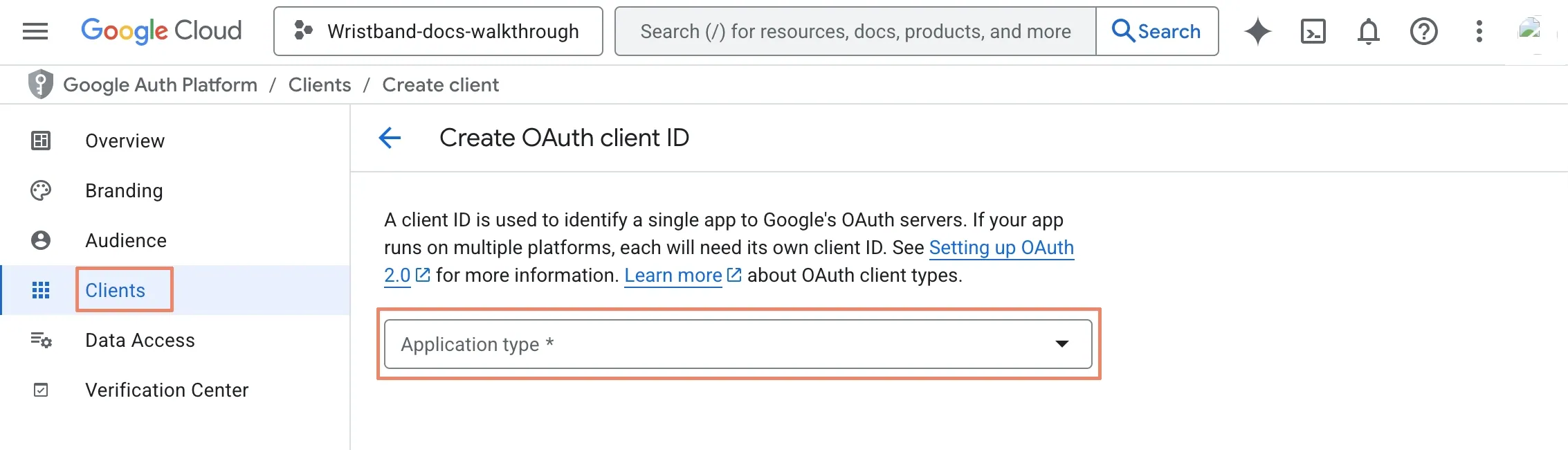
Figure 12: Choose an application type for the OAuth client.
- Fill out the following mandatory fields:
- Application type:
Web application - Name: Any appropriate value.
- Authorized redirect URIs: Use the External IdP Redirect URL copied from step 1.
- Click the Create button.
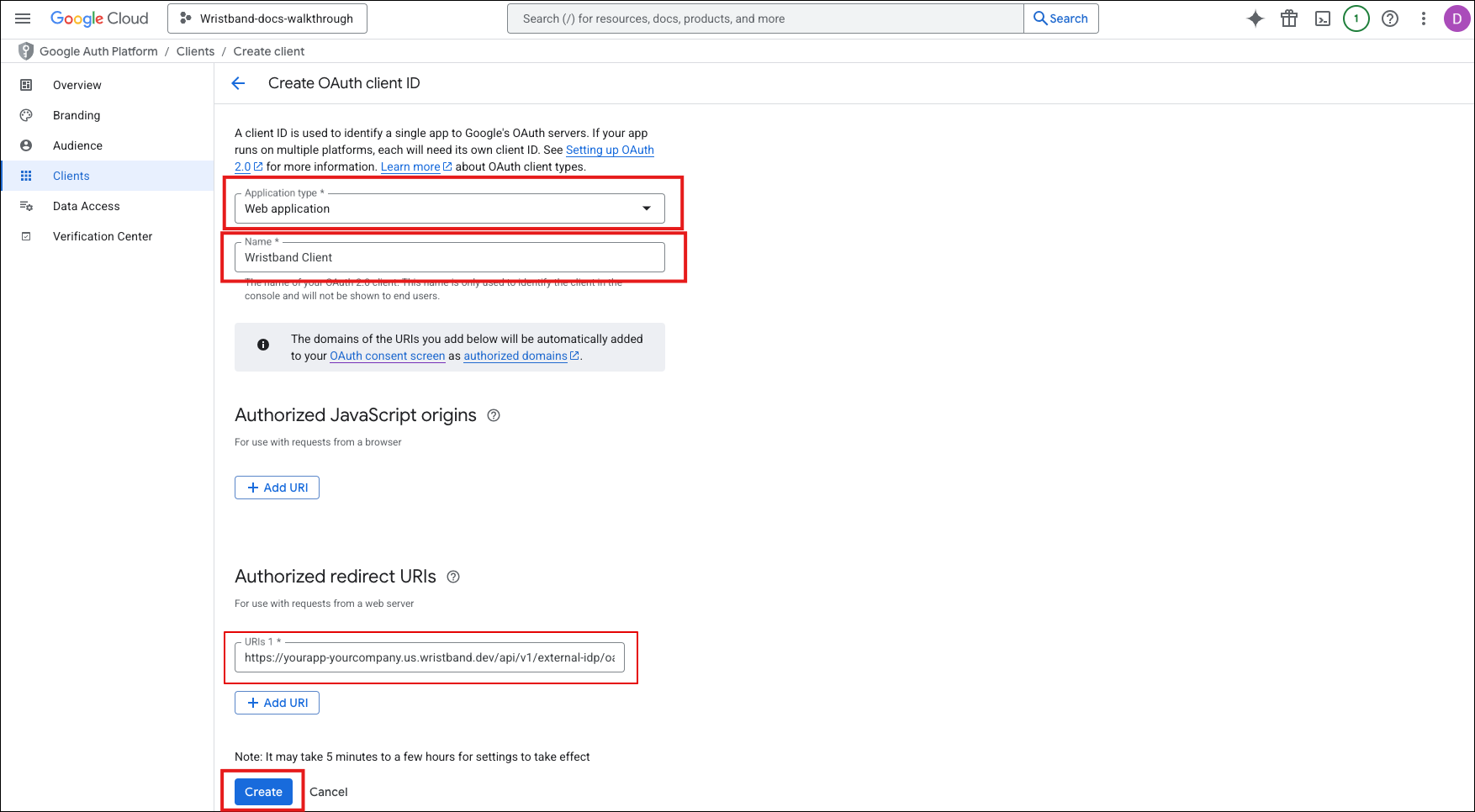
Figure 13: Create a Web application client using the Wristband Redirect URL.
A modal will open displaying your Client ID and Client secret. Make sure to copy both values immediately, as you will need them for the next step.
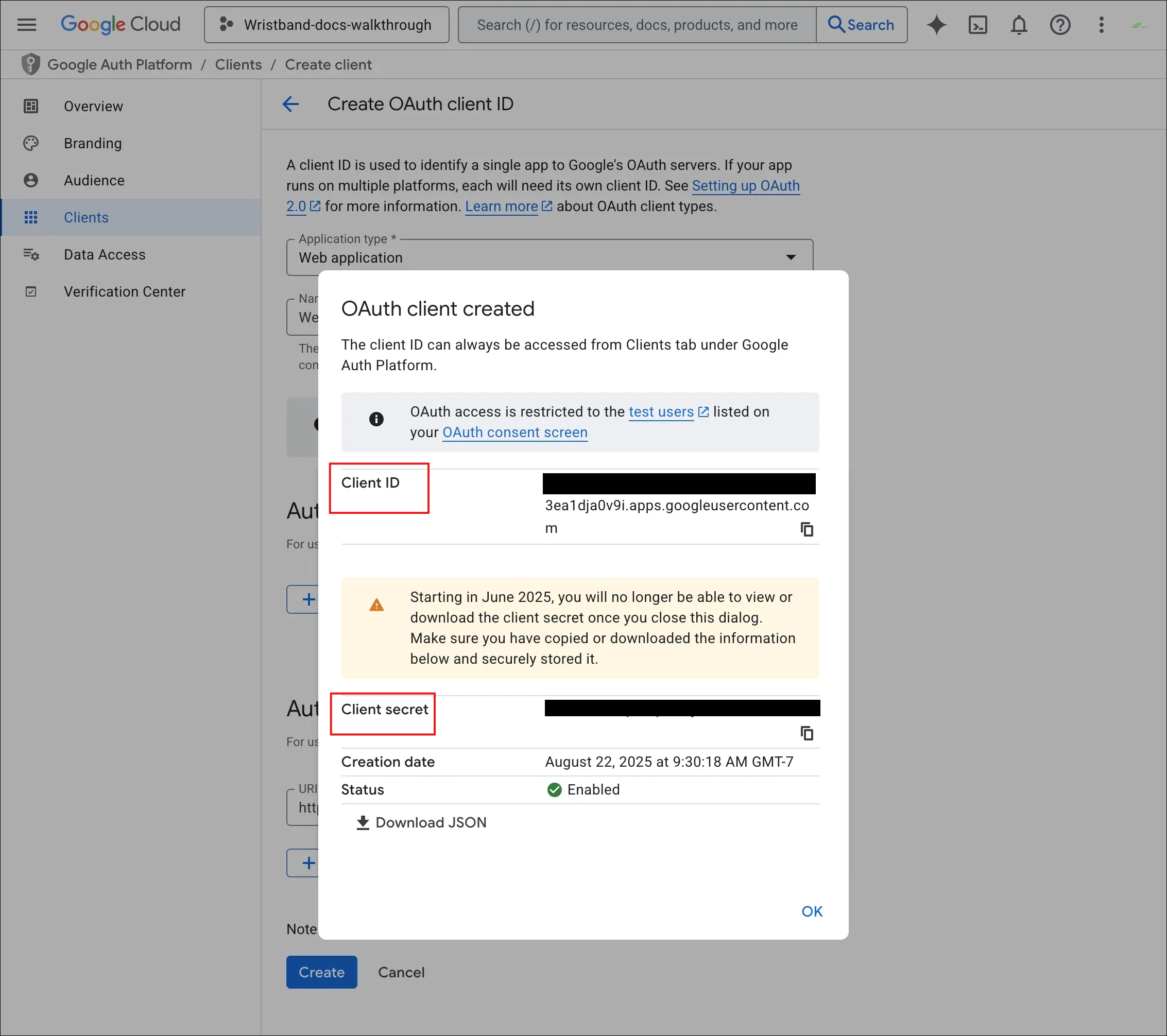
Figure 14: Copy the OAuth client’s Client ID and Client secret.
You have now configured everything necessary on Google's side for social login integration.
Step 7: Configure the Google IdP in Wristband
- Return to the Wristband dashboard to the Social Identity Provider Page from step 1. Fill out the form with the following values:
- Client ID: The Client ID from step 6.
- Client Secret: The Client secret from step 6.
- Adding extra scopes is optional and usually unnecessary. By default, the authorization request to Google always includes the following scopes:
- openid
- profile
- Click Save to finish.
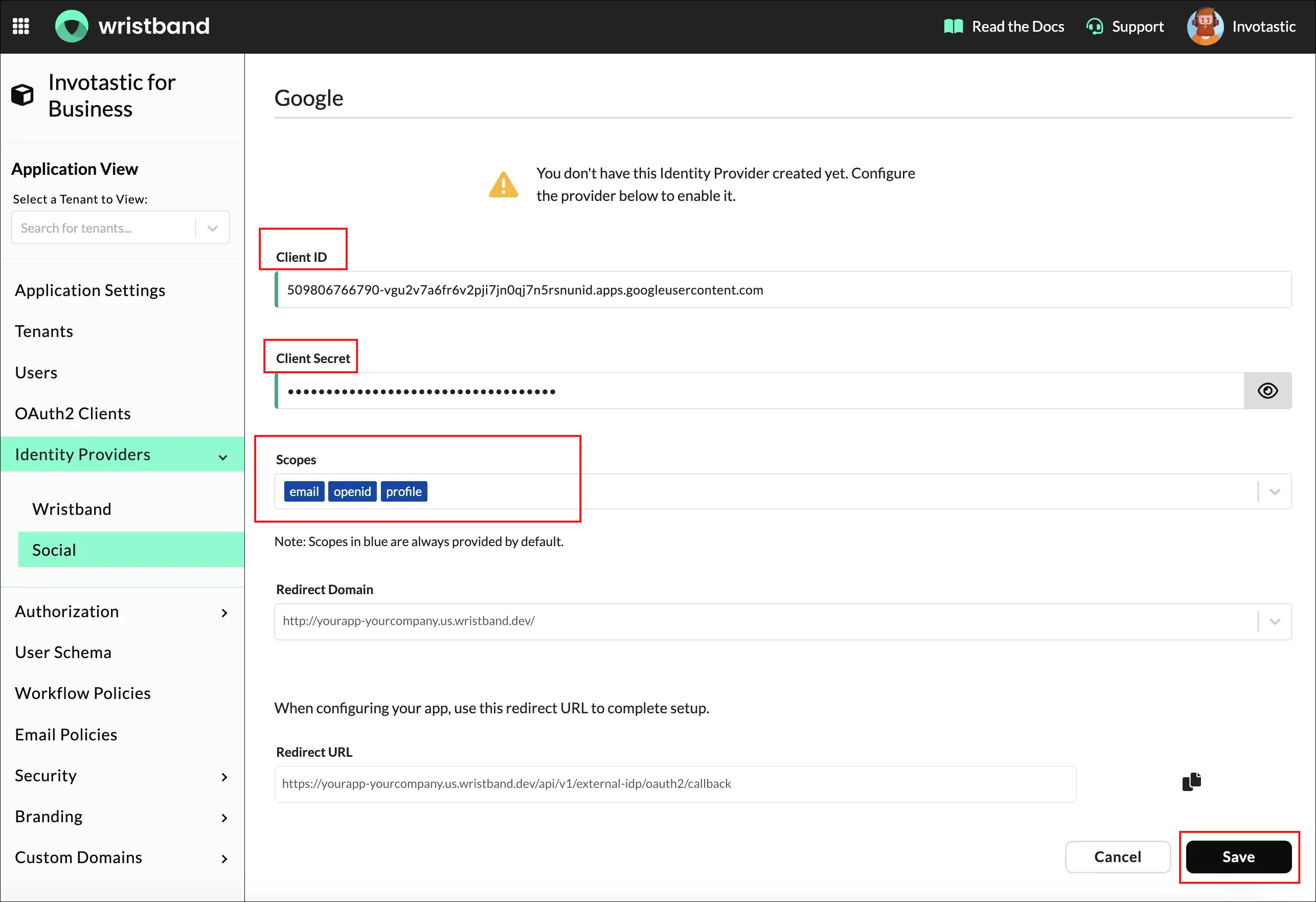
Figure 15: Enter the Google OAuth credentials in Wristband and save the provider.
You have successfully enabled Google social login for your application. When users reach your tenant-level Login Page, they will now see a Sign in with Google button, as illustrated below.
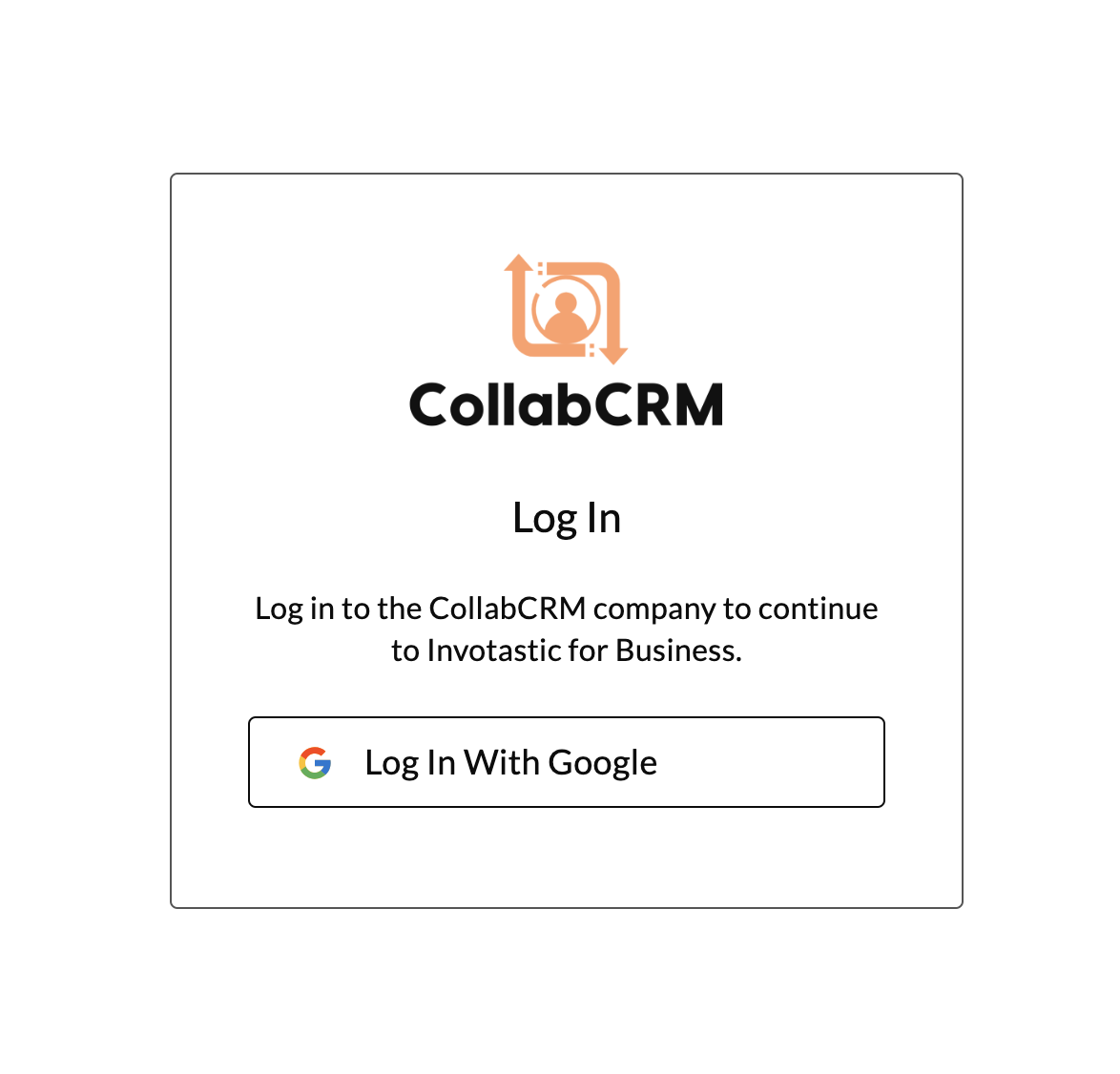
Figure 16: Sign in with Google button on the tenant-level Login Page.
Updated 8 days ago