
Microsoft Entra ID
Setting Up a Microsoft Entra ID Integration
This documentation outlines the setup process for integrating Microsoft Entra ID single sign-on into Wristband.
1. Locate Your External IdP Callback URL
- In the Wristband dashboard, enter Tenant View for the tenant.
- Navigate to
Identity Providers > Enterprise. - Select the Microsoft provider icon and click Add IDP.
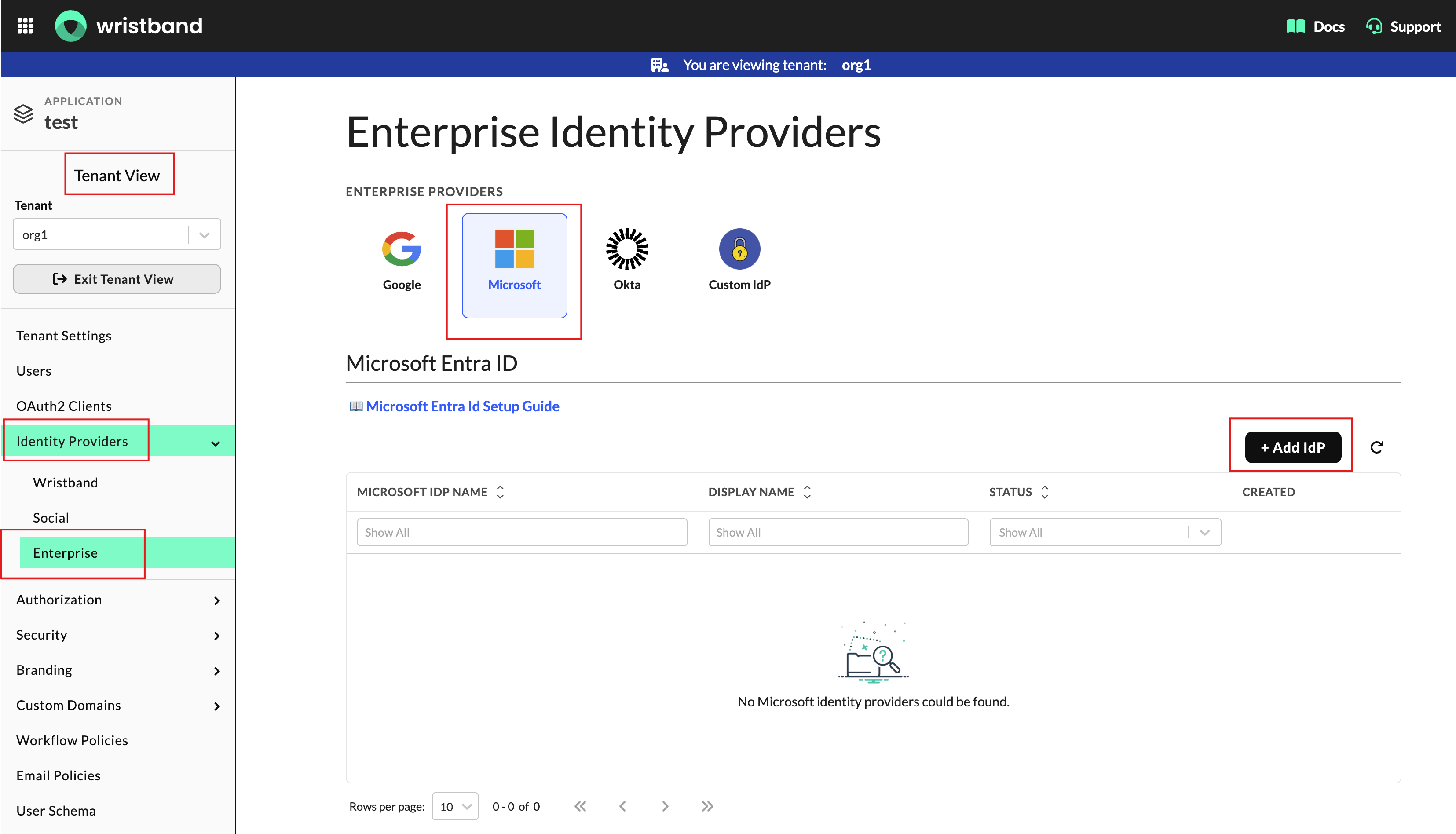
Figure 1: Select Microsoft under Enterprise Identity Providers and click Add IdP.
- Copy the Redirect URL from the form.

Figure2: Copy the Redirect URL from Wristband’s identity provider form.
2. Sign Up For An Account
- Sign up for a free Microsoft account here, complete the registration form, and then navigate to the Microsoft Azure dashboard.
3. Copy Your Tenant Identifier
- In the Azure dashboard, search for the Microsoft Entra ID service.

Figure 3: Search for Microsoft Entra ID in the Azure dashboard.
- Copy the Tenant ID from the Entra ID Overview page.

Figure 4: Copy the Tenant ID from the Microsoft Entra ID Overview page.
4. Register a New Application
- Navigate to the side menu, select App registrations, and then click New registration.

Figure 5: Open App registrations and click New registration.
Complete the following fields:
- Name: Any appropriate value.
- Supported account types: Select
Accounts in this organizational directory only (Default Directory only - Single tenant). - Redirect URI: Select the
Webplatform option and paste the External IDP Callback URL from step 1.
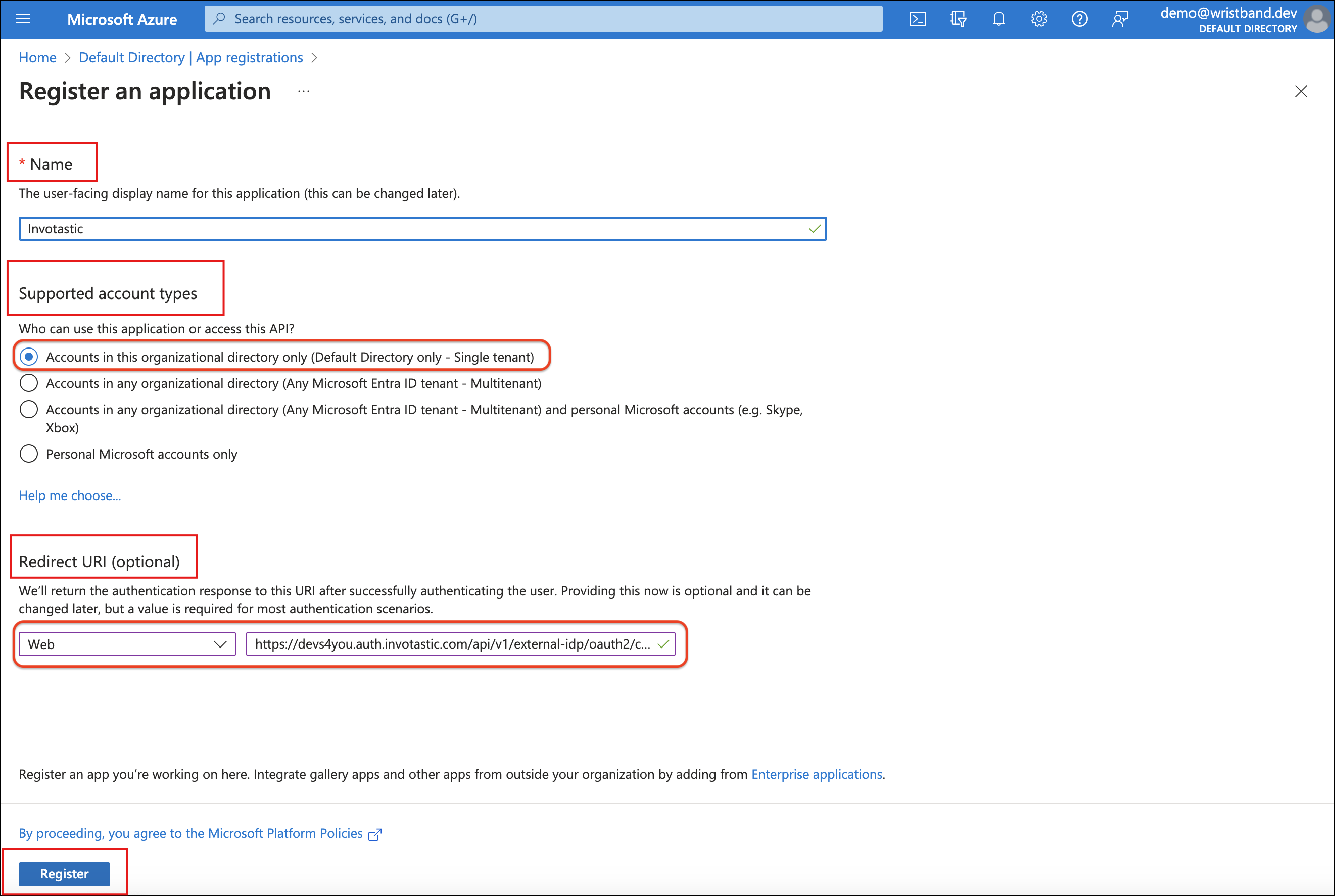
Figure 6: Register a single-tenant application with the Wristband Redirect URL as its Web redirect URI.
- Click Register to finish the process; you will then be automatically redirected to the app's Overview page.
5. Get the Client Information
- On the application Overview page, find the field labeled Application (client) ID and copy its value to your clipboard.
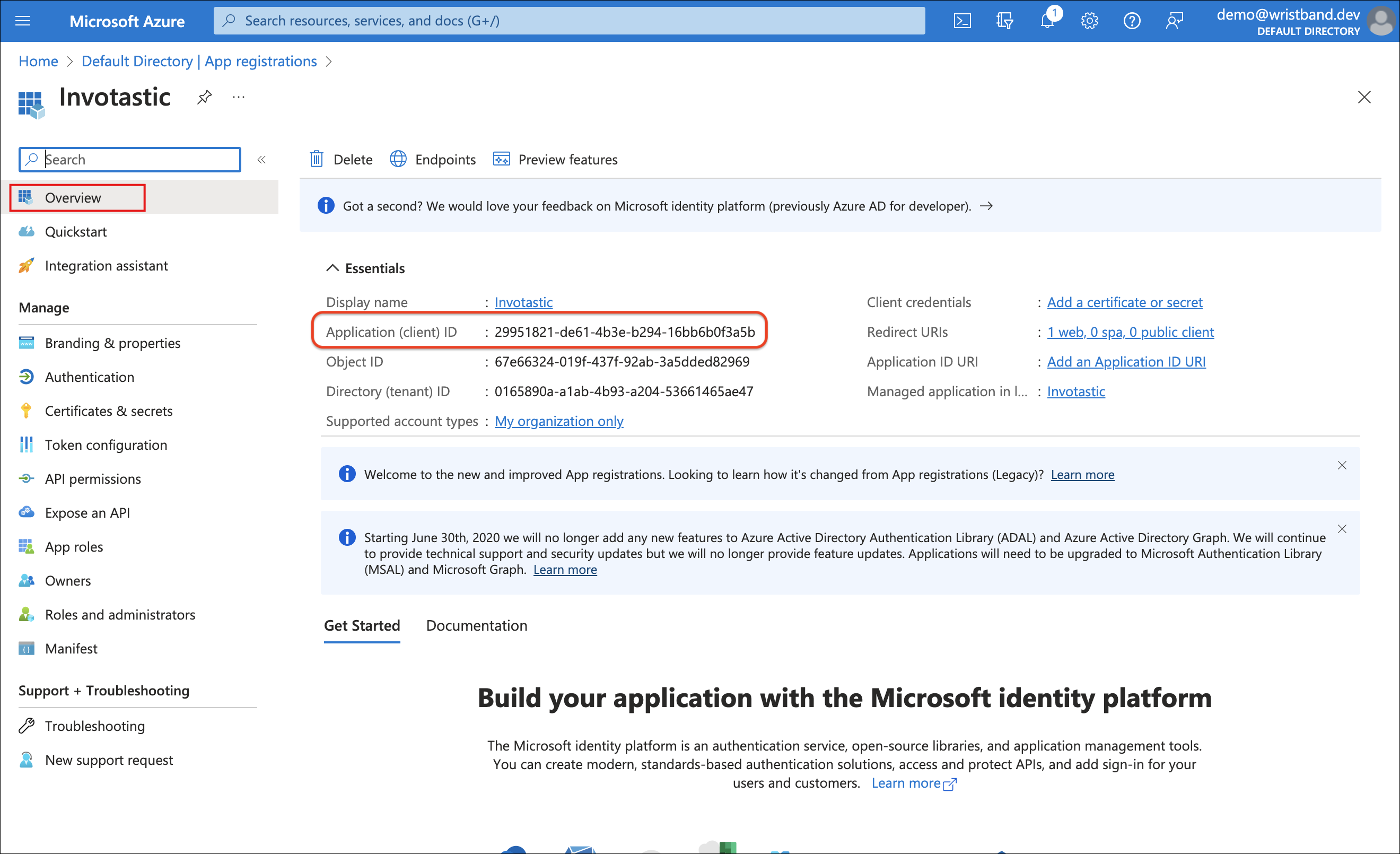
Figure 7: Copy the Application (client) ID from the registered application.
- In the left-hand navigation pane, click on Certificates & secrets. Under the Client secrets tab, select the New client secret button to create your credentials.
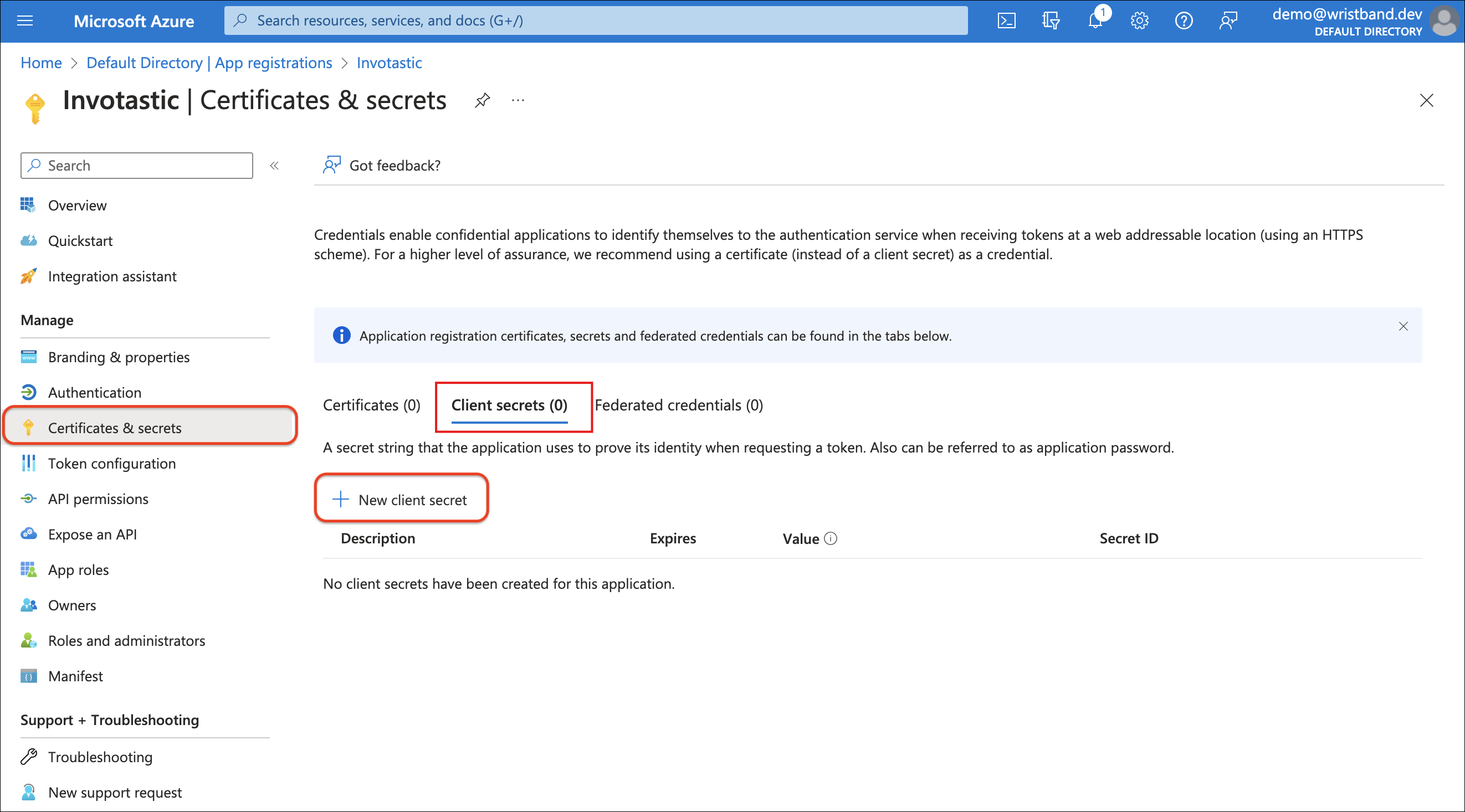
Figure 8: Open Certificates & secrets and select New client secret.
- Complete the form fields and choose a longer Expires duration if you want to avoid frequent credential rotations.

Figure 9: Enter the client secret description and choose an expiration period.
- Copy the Value of the newly created client secret immediately.
6. Configure the Groups Claim (Optional)
- To enable Wristband's Role Mapping with Microsoft Groups, configure your Microsoft application to include a
groupsclaim in its ID token. - Select Token configuration from the side menu and click Add groups claim.

Figure 10: Open Token configuration and select Add groups claim.
-
Configure the following settings in the Edit group claims panel:
- Select
Security Groupsfor Select group types to include in Access, ID, and SAML tokens. - Select
Group IDunder the ID accordion dropdown in Customize token properties by type.
- Select
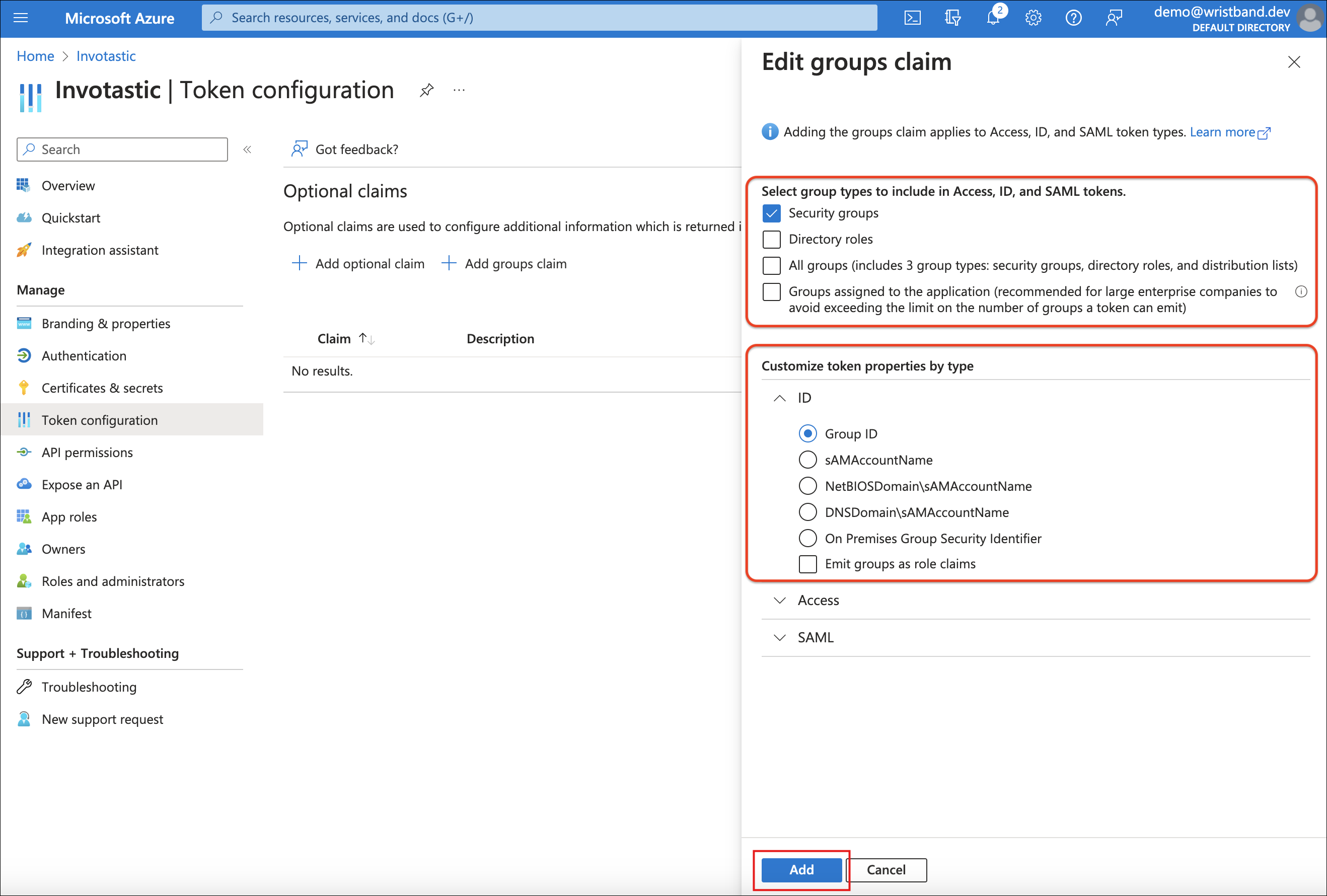
Figure 11: Include Security Groups and select Group ID for the ID token.
- Click Add to complete the configurations.
7. Create a Microsoft IdP in Wristband
-
Navigate back to the Wristband dashboard and locate the Create External IdP modal from your previous step. Complete the form configuration using the specific values listed below.
- IdP Name: Any value desired (must be unique within the tenant).
- Display Name: Any value desired,
Microsoftis a safe default. - Microsoft Tenant ID: The Tenant ID from step 3.
- Client ID: The Client ID from step 5.
- Client Secret: The Client Secret from step 5.
-
Click Create to complete. The Microsoft External IdP will be in an
ENABLEDstatus.
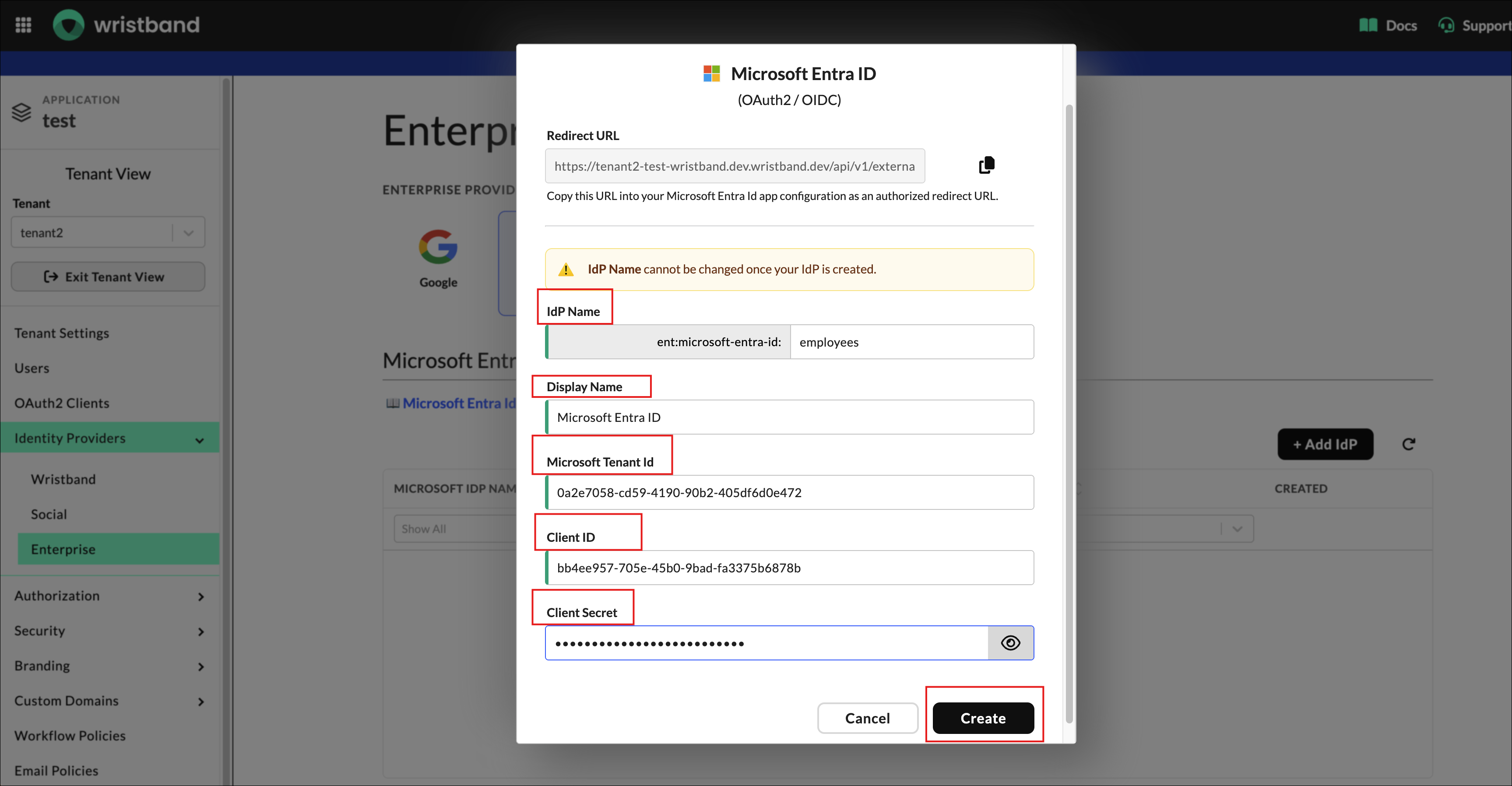
Figure 12: Enter the Microsoft tenant ID, client ID, and client secret in Wristband, then click Create.
8. Enable Tenant Overrides for IdP
In the Wristband dashboard, enable the identity provider overrides for your tenant.
- Select Identity Providers from the left navigation menu.
- Enable the toggle next to Enable this tenant override.
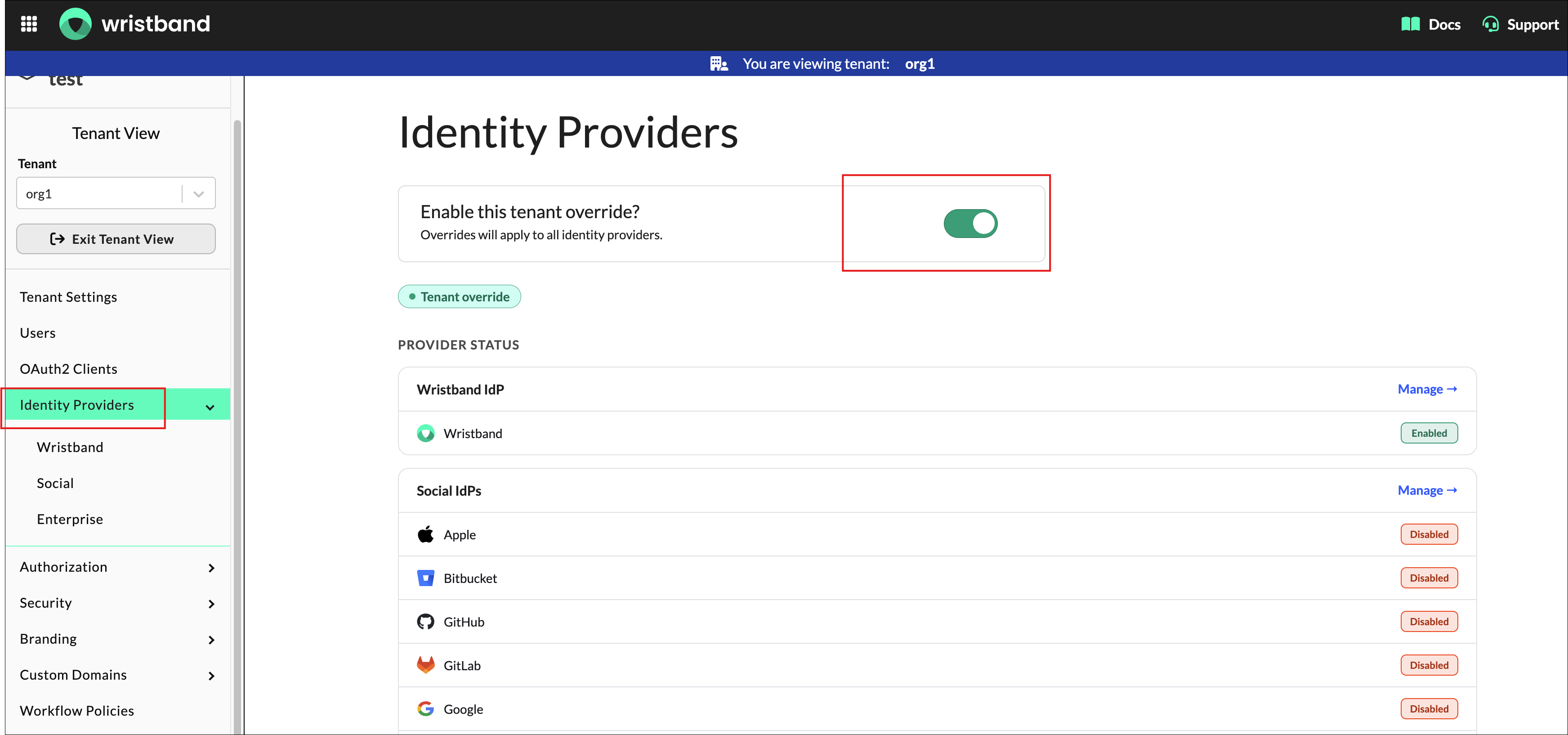
Figure 13: Enable the Identity Providers tenant override in Wristband.
The integration process is complete. Microsoft Entra ID is now configured as an identity provider, and users can access the system via the Microsoft login button on the tenant-level login page.

Figure 14: Microsoft sign-in button on the tenant-level login page.
Updated 5 days ago