
Add Auth Endpoints
This guide walks through creating the auth endpoints required to integrate your application with Wristband.
To enable login and logout functionality, use the Wristband SDK to implement the following four authentication endpoints in your Go application:
- Login Endpoint
- Callback Endpoint
- Logout Endpoint
- Session Endpoint
Login Endpoint
The Login Endpoint initiates the authentication flow by constructing an authorization request and redirecting the user to Wristband's Authorize Endpoint. Wristband then displays its hosted login page, where the user can authenticate.
The following example demonstrates how to implement the Login Endpoint using the Wristband Go SDK.
// The SDK provides a pre-built login handler
http.Handle("/api/auth/login", app.LoginHandler())
Callback Endpoint
After the user authenticates, Wristband redirects to your application's Callback Endpoint. The SDK's CallbackHandler exchanges the authorization code for tokens, fetches user information, and creates the application session.
Configure where the user is redirected after a successful login usinggoauth.WithCallbackRedirectURL. The following code snippet shows how to implement the Callback Endpoint with Wristband's SDK:
// The SDK provides a pre-built callback handler.
http.Handle("/api/auth/callback",
  app.CallbackHandler(
    // Replace with your own default return URL.
    goauth.WithCallbackRedirectURL("http://localhost:5173/home"),
  ),
)
Logout Endpoint
When a user logs out of your application, clear all authenticated state associated with the user. The Logout Endpoint performs the following three tasks to complete the logout process:
- Clear the application's local session state.
- Revoke any refresh tokens associated with the user.
- Redirect to Wristband's Logout Endpoint to terminate the user's Wristband auth session.
The following example demonstrates how to implement the Logout Endpoint using the Wristband Go SDK.
// The SDK provides a pre-built logout handler
http.Handle("/api/auth/logout", app.LogoutHandler())
Session Endpoint
The Session Endpoint verifies that an incoming request contains a valid session. If a valid session exists, it returns the user's session data.The frontend uses this endpoint primarily for two purposes:
- To allow the frontend to determine whether the user has a valid session.
- To provide the frontend with the user's session data for use within the browser.
The following code snippet shows how to implement the Session Endpoint with Wristband's SDK:
Important: This endpoint must be protected with authentication middleware.
// Apply the auth middleware to the session handler
http.Handle("/api/auth/session", authMiddlewares.Apply(app.SessionHandler()))
You can also include custom metadata in the session response using the WithSessionMetadataExtractor option:
http.Handle(
  "/api/auth/session",
  authMiddlewares.Apply(app.SessionHandler(
    goauth.WithSessionMetadataExtractor(
      func(session goauth.Session) any {
        return map[string]any{
          "email": session.UserInfo.Email,
          "tenantName": session.TenantName,
        }
      },
    ),
  )),
)
Map Auth Endpoints
After implementing the auth endpoints, add them to your Go application's main.go file.
// main.go

package main

import (
  "log"
  "net/http"

  goauth "github.com/wristband-dev/go-auth"
)

func main() {
  cfg := goauth.NewAuthConfig(
    "<WRISTBAND_CLIENT_ID>",
    "<WRISTBAND_CLIENT_SECRET>",
    "<WRISTBAND_APPLICATION_VANITY_DOMAIN>",
    goauth.WithDangerouslyDisableSecureCookies(),
  )
  auth, err := cfg.WristbandAuth()
  if err != nil {
    // Handle error
  }
  sessionManager := NewSessionStore("<your-generated-secret>", true)
  app := wristbandAuth.NewApp(sessionManager)
  authMiddlewares := goauth.Middlewares{
    app.RequireAuthentication
  }

  // ADD: Register auth endpoints
  http.Handle("/api/auth/login", app.LoginHandler())
  http.Handle(
    "/api/auth/callback",
    app.CallbackHandler(
      goauth.WithCallbackRedirectURL("<default_return_url>")
    )
  )
  http.Handle("/api/auth/logout", app.LogoutHandler())
  http.Handle(
    "/api/auth/session",
    authMiddlewares.Apply(app.SessionHandler())
  )

  // Start the server
  log.Println("Server starting on :8080")
  log.Fatal(http.ListenAndServe(":8080", nil))
}
Register Your Login Endpoint and Callback Endpoint With Wristband
Wristband redirects users to your application's Login Endpoint and Callback Endpoint during several authentication flows. To enable these redirects, configure both endpoint URLs in the Wristband Dashboard by updating the following settings:
- Application Login URL
- Client Redirect URIs
The sections below explain how to configure each setting.
Updating the Application Login URL
To update the Application Login URL, follow these steps.
-
From the Dashboard Home Page, select the appropriate application.
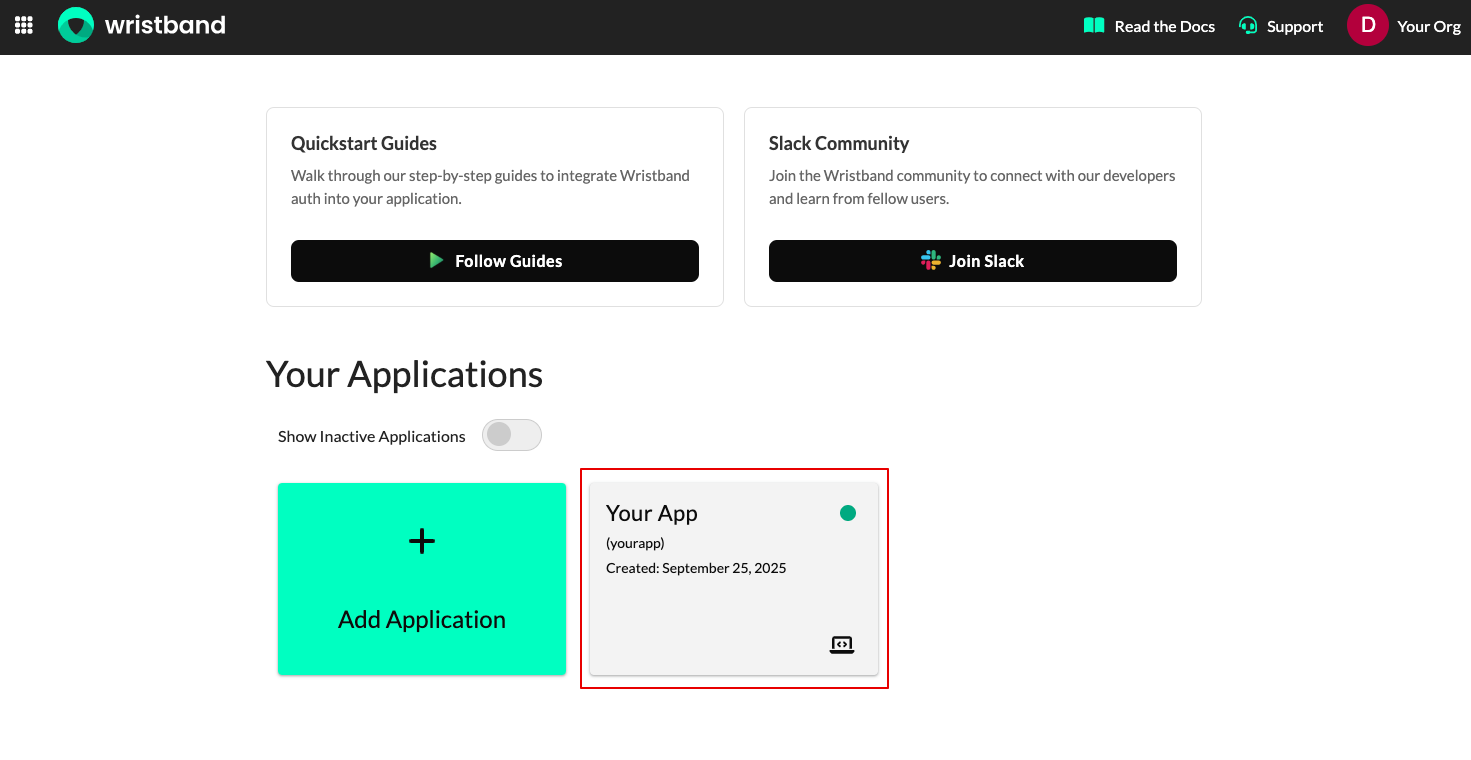
Figure 1: Select your Wristband application.
-
On the Application Settings page, locate the Login URL field and set it to the URL of your application's Login Endpoint. Click Save when finished.
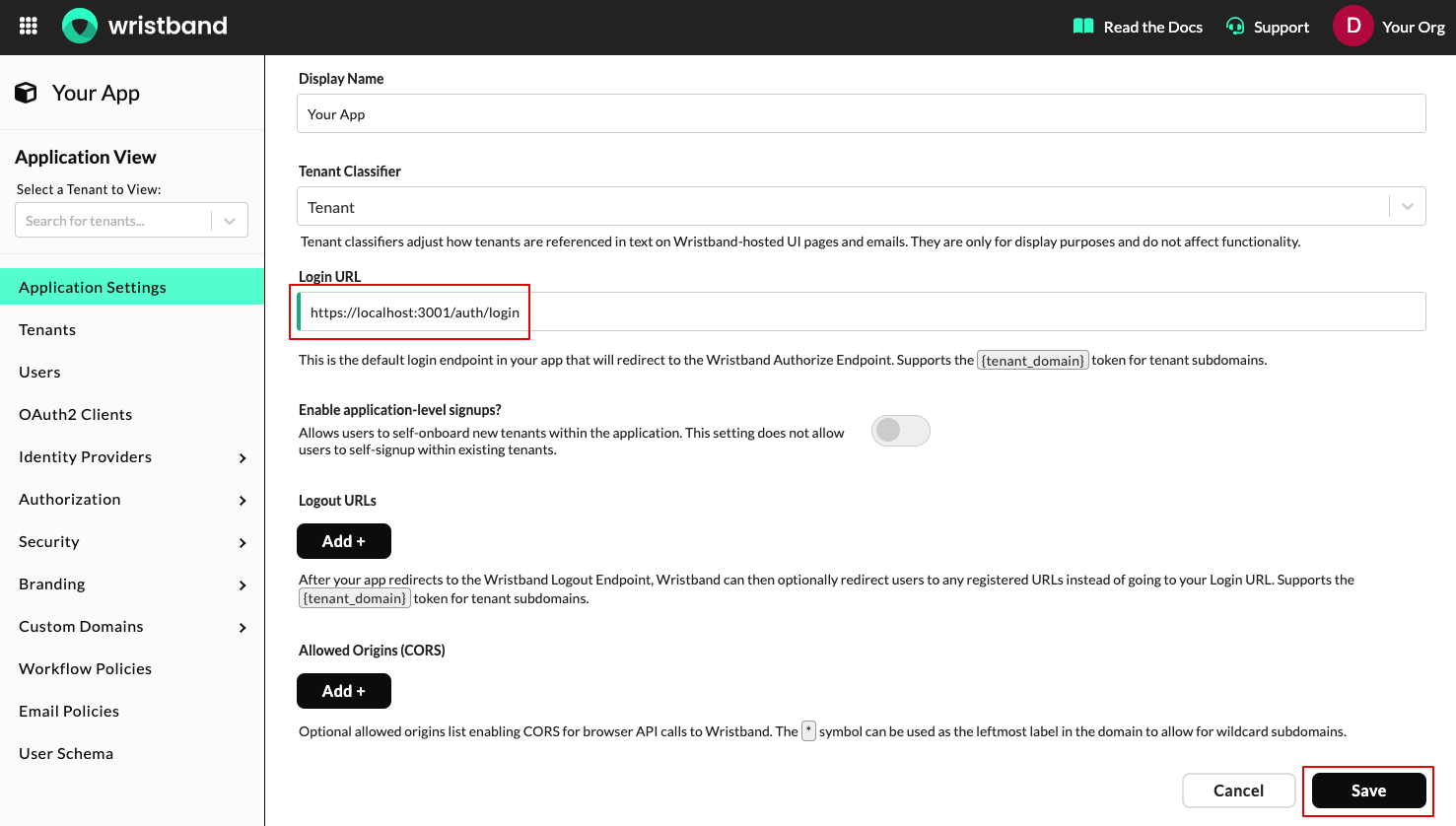
Figure 2: Configure the application Login URL.
Updating the Client Redirect URIs
To update the Client Redirect URIs, follow these steps.
-
On the left navigation menu, select OAuth2 Clients, then select the client whose ID matches the client ID configured in the SDK.
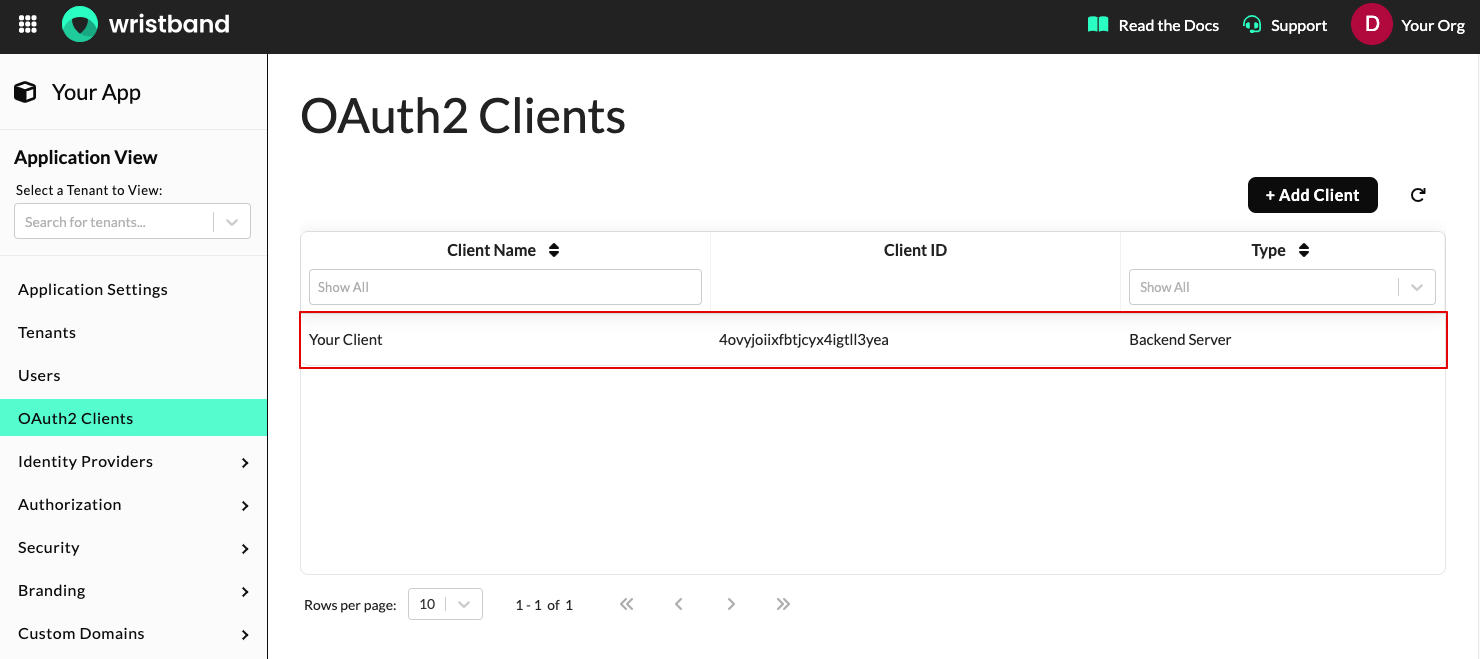
Figure 3: Select the matching OAuth2 client.
- On the Edit Client page, go to the Redirect URIs section and click Add +. Enter the URL of your application's Callback Endpoint, then click Save.
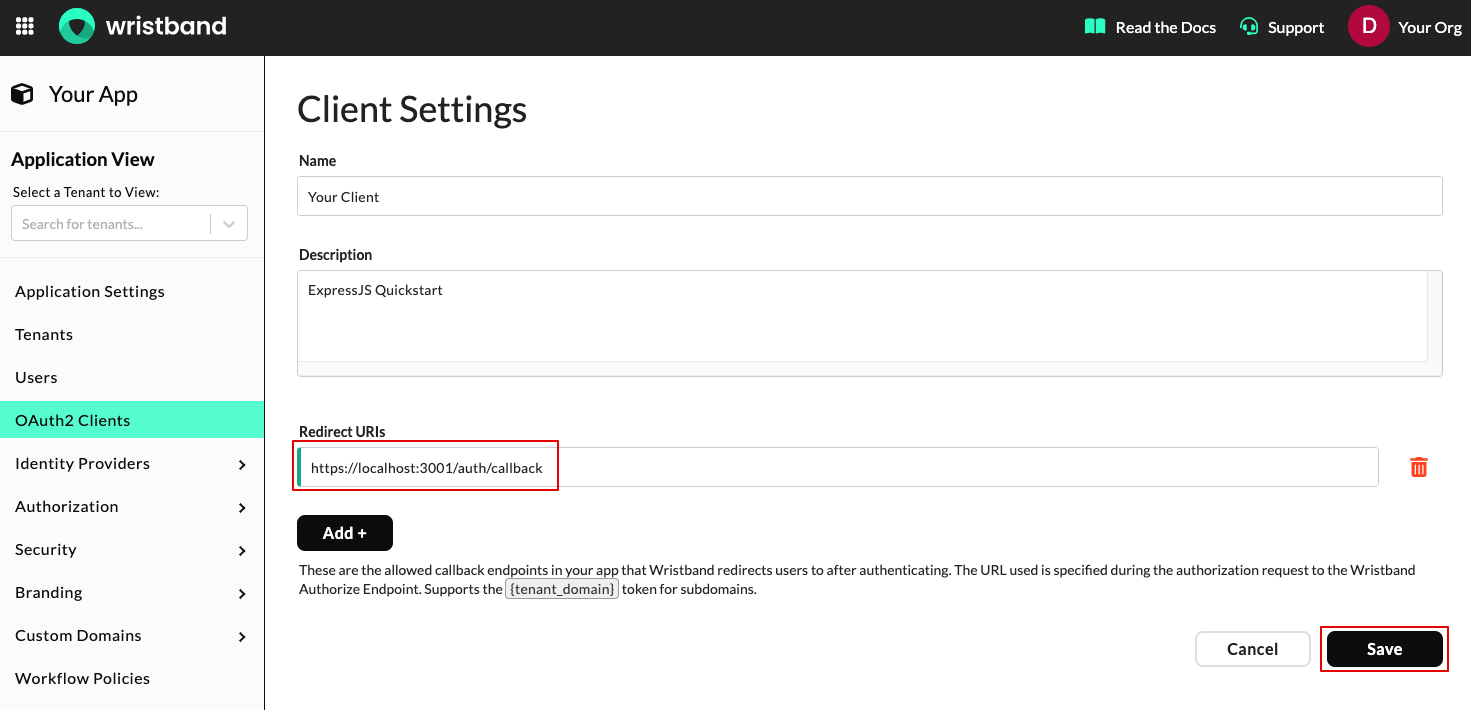
Figure 4: Add the Callback Endpoint as a Redirect URI.
Updated about 2 months ago
What’s Next
Now that your authentication endpoints are set up and configured, let's verify that they're working correctly.