
Identity Broker
Broker enterprise SSO to any IdP while keeping full ownership of users and sessions outside of Wristband.
Overview
By default, Wristband manages users, sessions, and tokens end-to-end. Identity Broker mode is a lighter integration where Wristband handles only the SAML/OIDC handshake with enterprise IdPs. Tenants exist in Wristband solely to hold IdP configuration and map to your application's own tenant model, not as a source of truth for users or sessions. Wristband returns verified identity claims to your application and hands off from there.
Why Use This Pattern
This pattern is a good fit when you already have an auth system handling email-based authentication (passwords, magic links, etc.) and need to layer SSO on top without migrating your entire auth stack or splitting user records across two systems. Wristband plugs in as a broker for SSO tenants only, leaving your existing session model intact for all users.
How It Works
At a high level, the flow works as follows:
- User enters their email on a login page you control and self-host
- Your app parses the email domain to determine whether SSO applies
- If so, your app initiates the login flow with Wristband
- Wristband validates the request and passes control to your Tenant Login page
- Your app identifies the tenant's IdP and hands off to Wristband to begin authentication
- Wristband brokers the SAML/OIDC handshake and the user authenticates with their corporate credentials
- Wristband passes the result back to your app via your External IDP Login URL
- Your app retrieves the verified user identity from Wristband
- Your app revokes the auth code and provisions the user if they don't exist yet
- Your app mints a session and redirects the user into the application
Wristband Setup
1. Create a Wristband Application
From the Wristband dashboard, create a new manual application. Once created, navigate to the "Application Settings" side navigation menu.
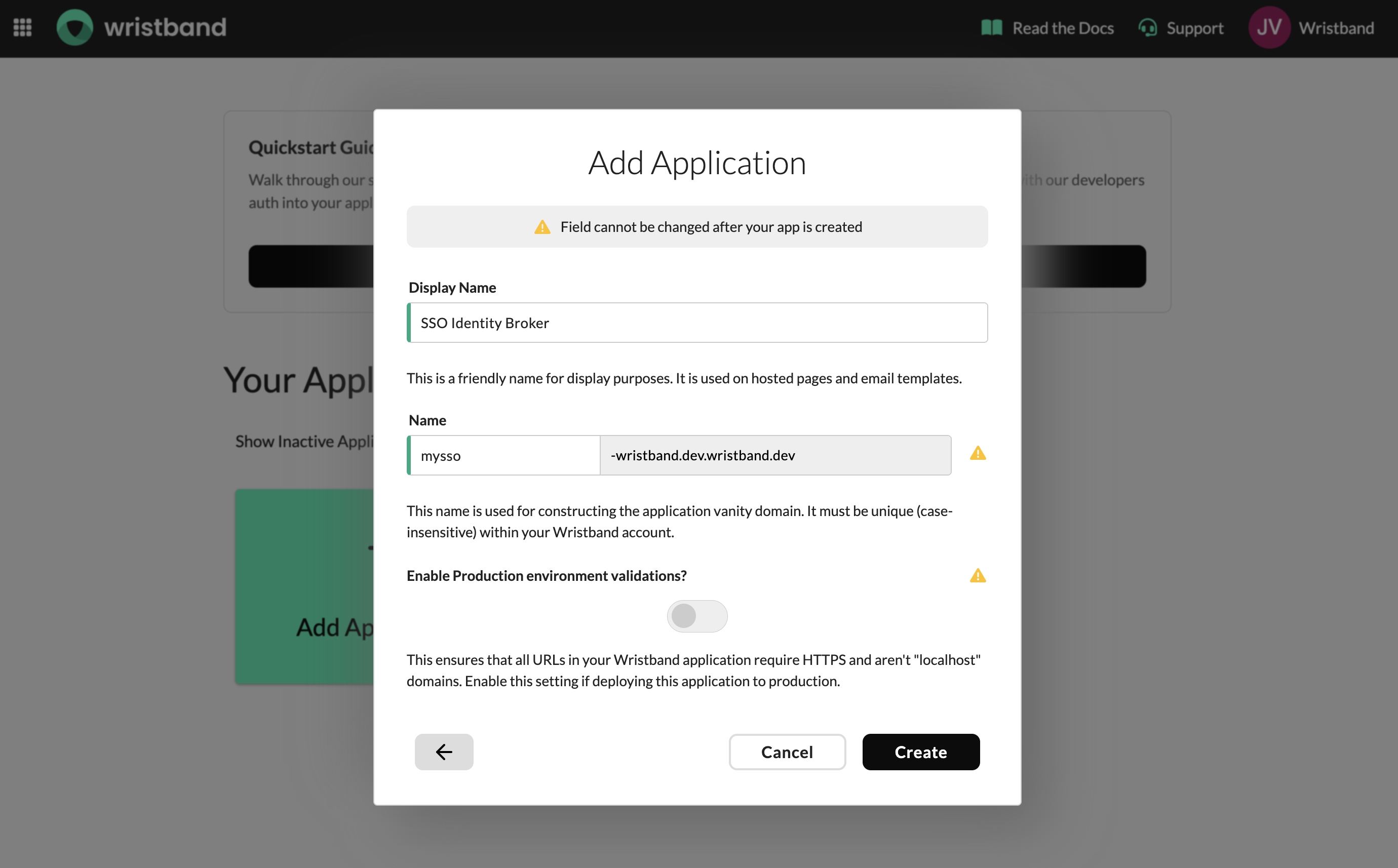
Create an app manually in the Wristband dashboard.
2. Configure Application Settings
Copy The Application Vanity Domain
On the Application Settings page you will find your application's Default Vanity Domain. Copy this value and store it — it will be needed when making API calls to Wristband during the SSO flow.
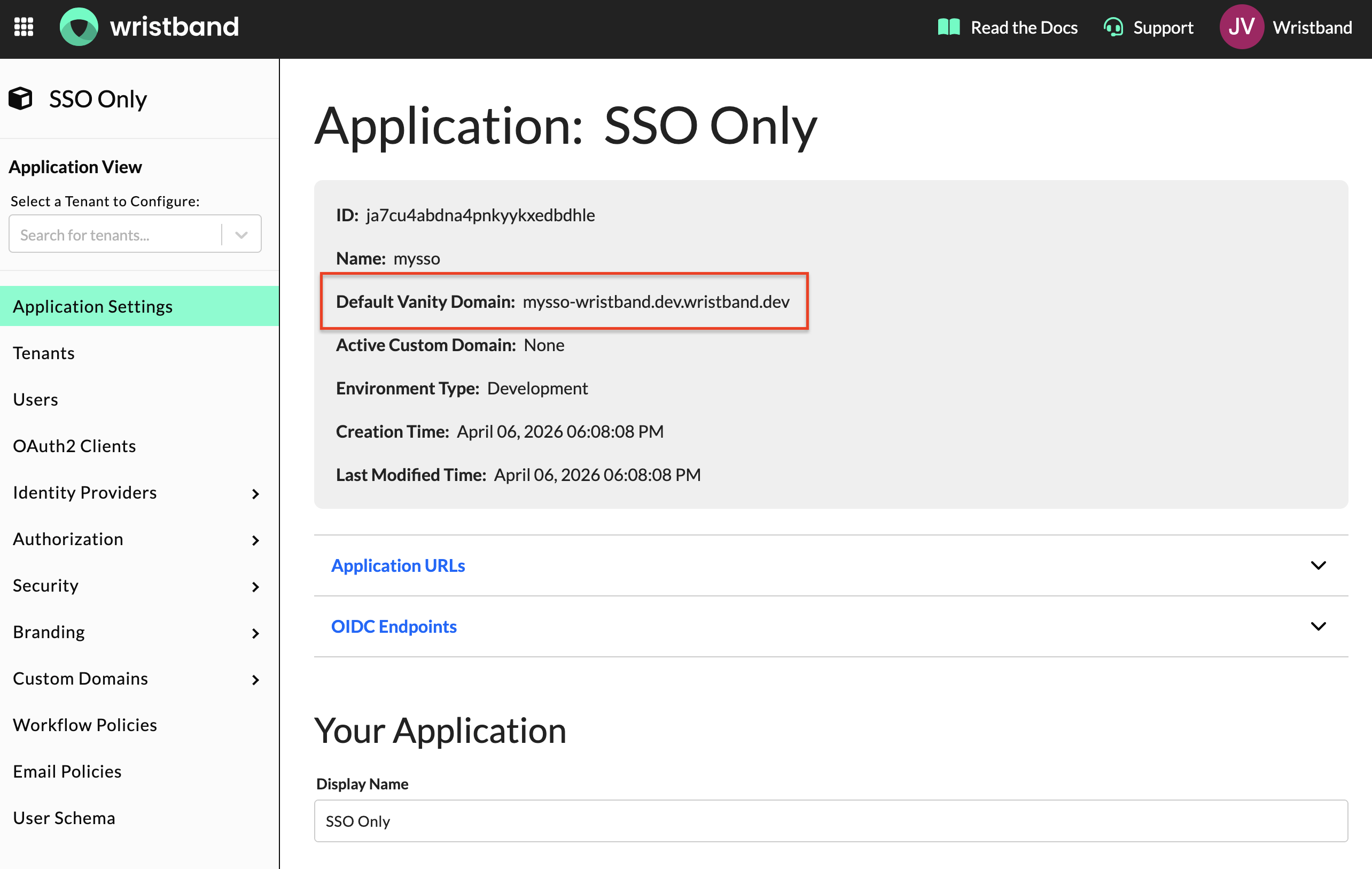
Copy the Default Vanity Domain value from the Application Settings page.
General Settings
Leave all general settings at their default values. The Login URL field is pre-populated with a placeholder; there is no need to change it. This endpoint is not invoked in Identity Broker mode.
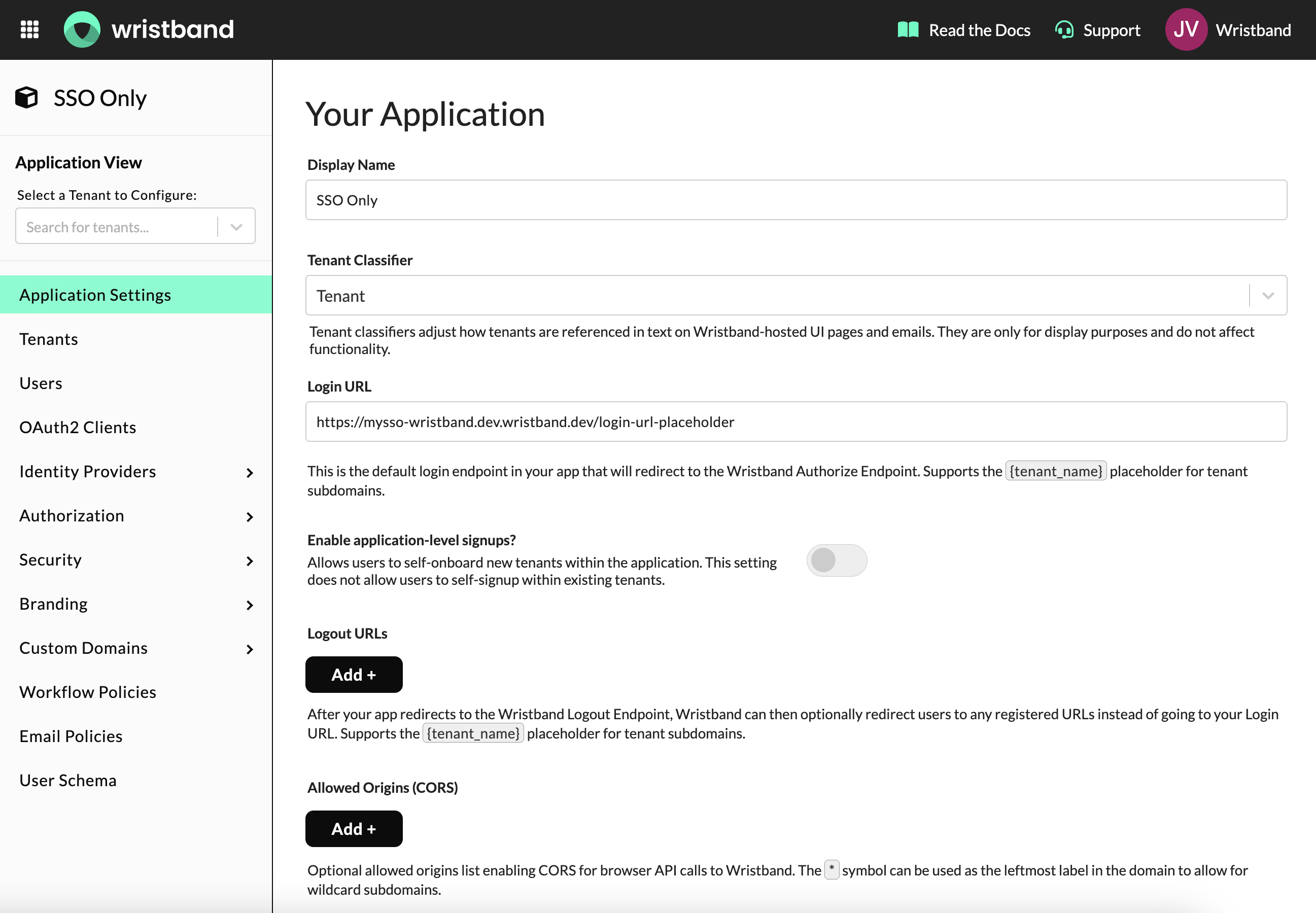
Application settings: Login URL can be left as the default placeholder value.
Custom Page URLs
Wristband provides two required URLs to configure as part of this flow. In the event error cases are encountered during setup or during the login flow, you can customize the error page as well.
Configure the following URLs:
-
Tenant Login Page URL: This value should be set to an endpoint in your server. It receives the authorization request token from Wristband after it validates the authorize request, passed as the
reqquery parameter. No UI is rendered here. Example:https://myapp.com/auth/tenant-login. -
External IDP Login Page URL: This value should be set to an endpoint in your server. It receives the external IDP auth code from Wristband after the user successfully authenticates with the enterprise IdP, passed as the
codequery parameter. No UI is rendered here. Example:https://myapp.com/auth/sso/callback.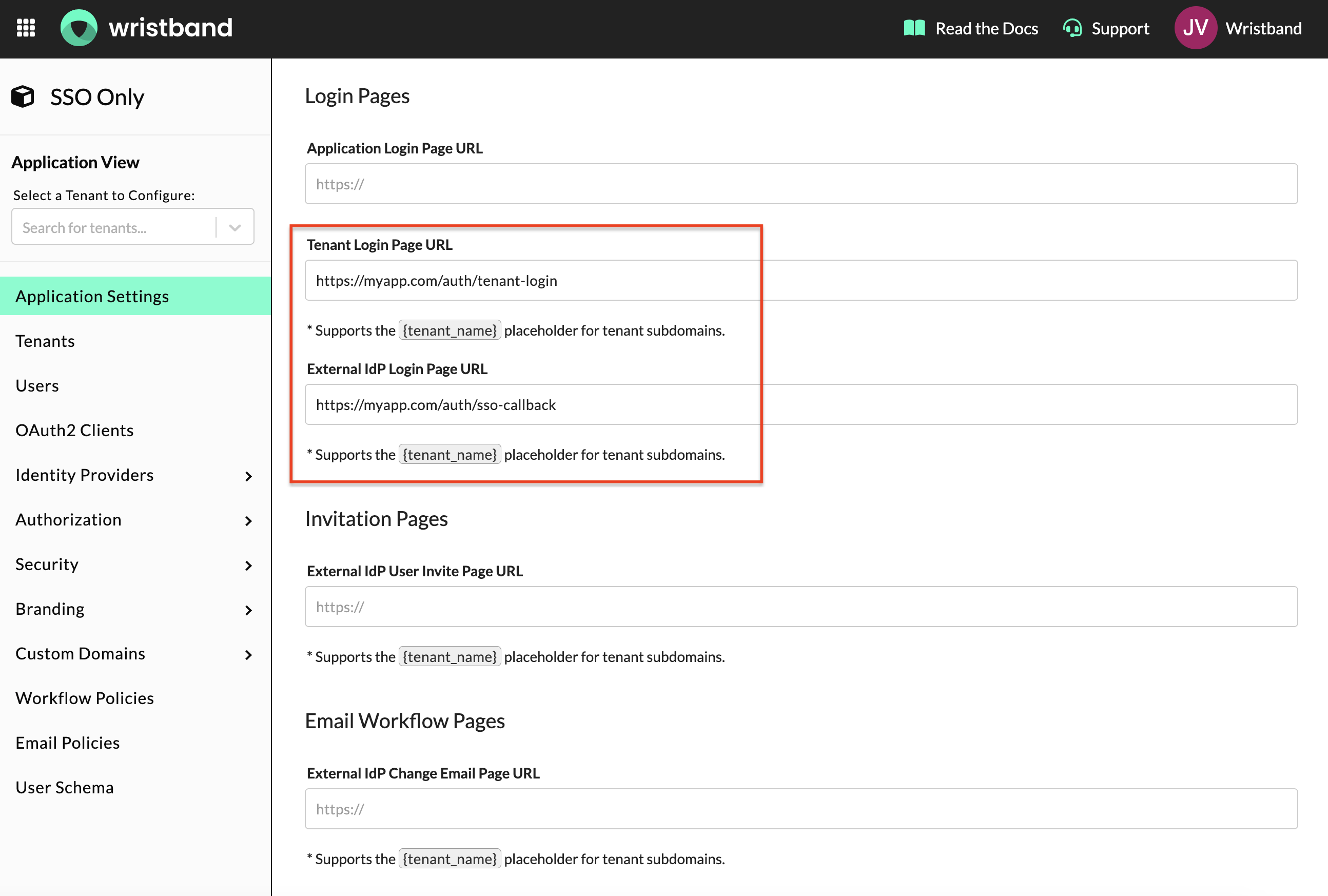
Custom page URL settings: Tenant Login Page URL and External IDP Login URL must both be configured.
-
Tenant Error Page URL (optional): If you want to display a custom error experience with your own visuals or error handling logic, set this value to a page in your own application. Example:
https://myapp.com/auth/tenant-error.NOTE: If you only need visual customization without custom logic, you can alternatively configure page branding in the Wristband dashboard to match your brand instead of using this URL.
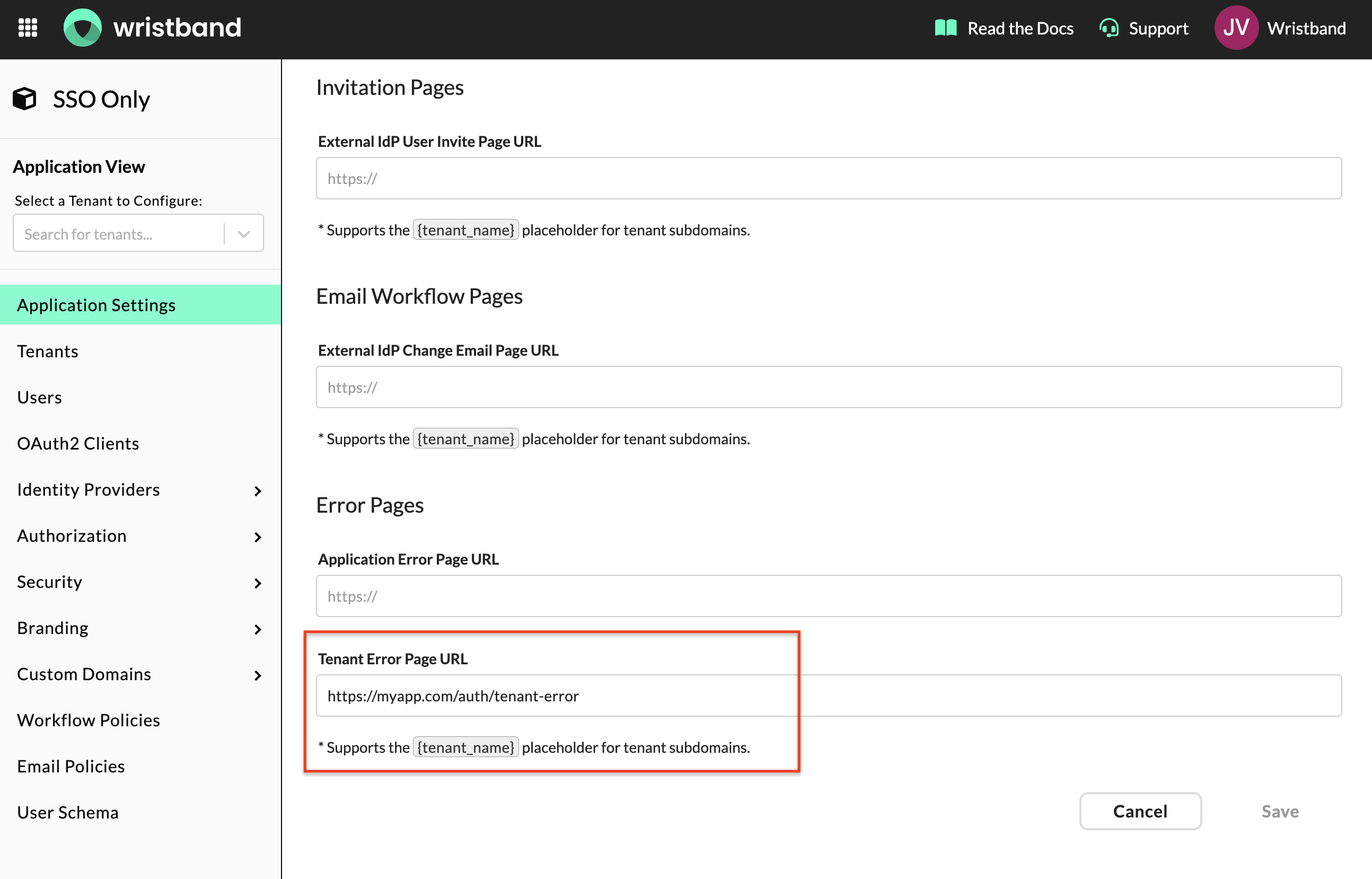
(Optional) Tenant Error Page URL: Configure this if you want a custom error experience.
3. Create a Role and Assign Permissions
Next, create a custom role in the Wristband dashboard. This role grants your application the access needed to execute the SSO flow.
In the Wristband dashboard, navigate to Authorization > Roles in the side navigation and click "Add Role". Fill out the following fields:
- Name: Any value (e.g.
sso-login-executor). Note that this field is immutable once set. - Display Name: Any value (e.g.
SSO Login Executor). - Tenant Visibility:
All
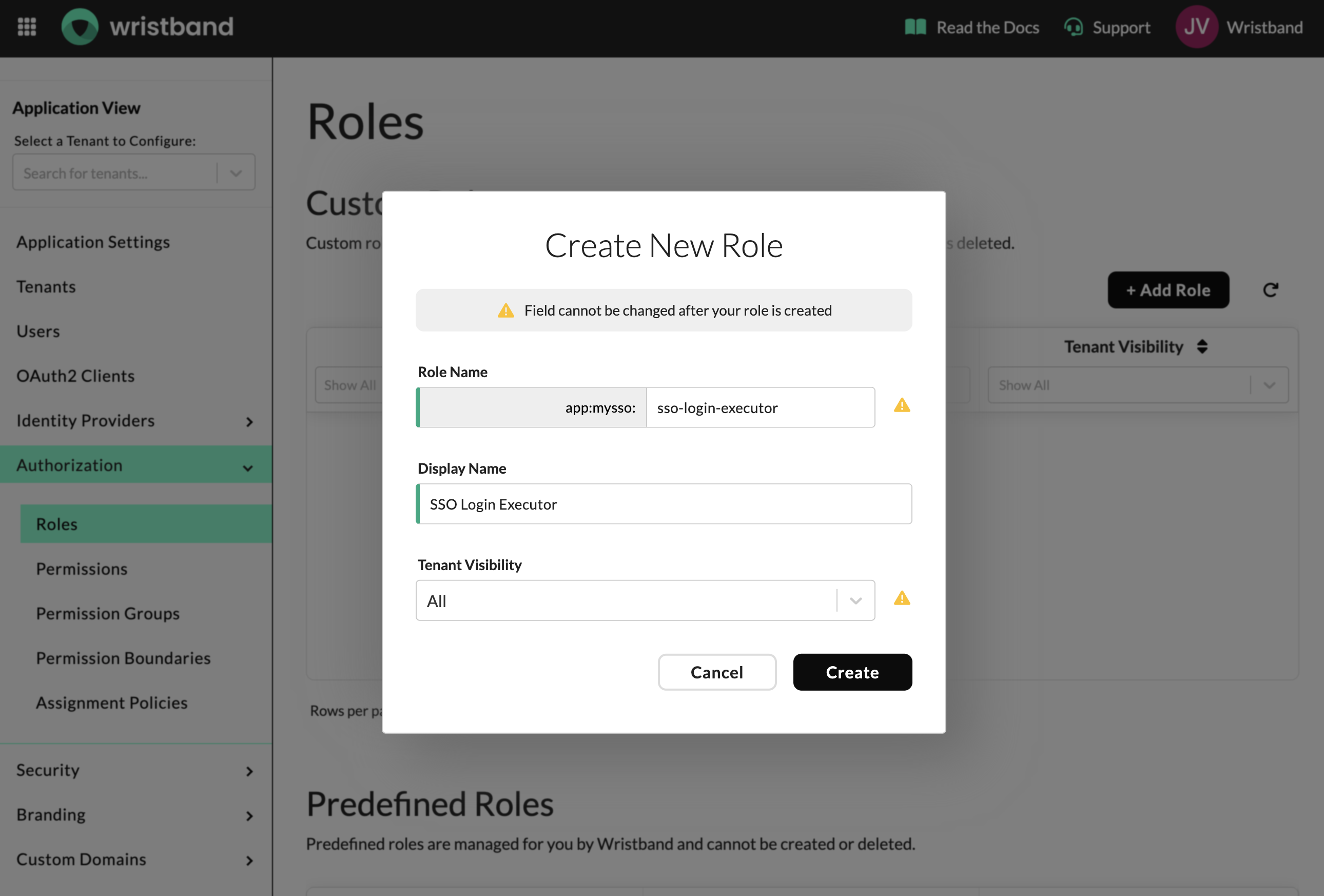
Role creation form. Name is immutable once set.
Once created, the role will appear in the table. Click the row to open the role and continue configuration.
Once you've opened the role, set the Permission Boundary to Application. This scopes the role to application-level access, meaning it applies across all tenants.
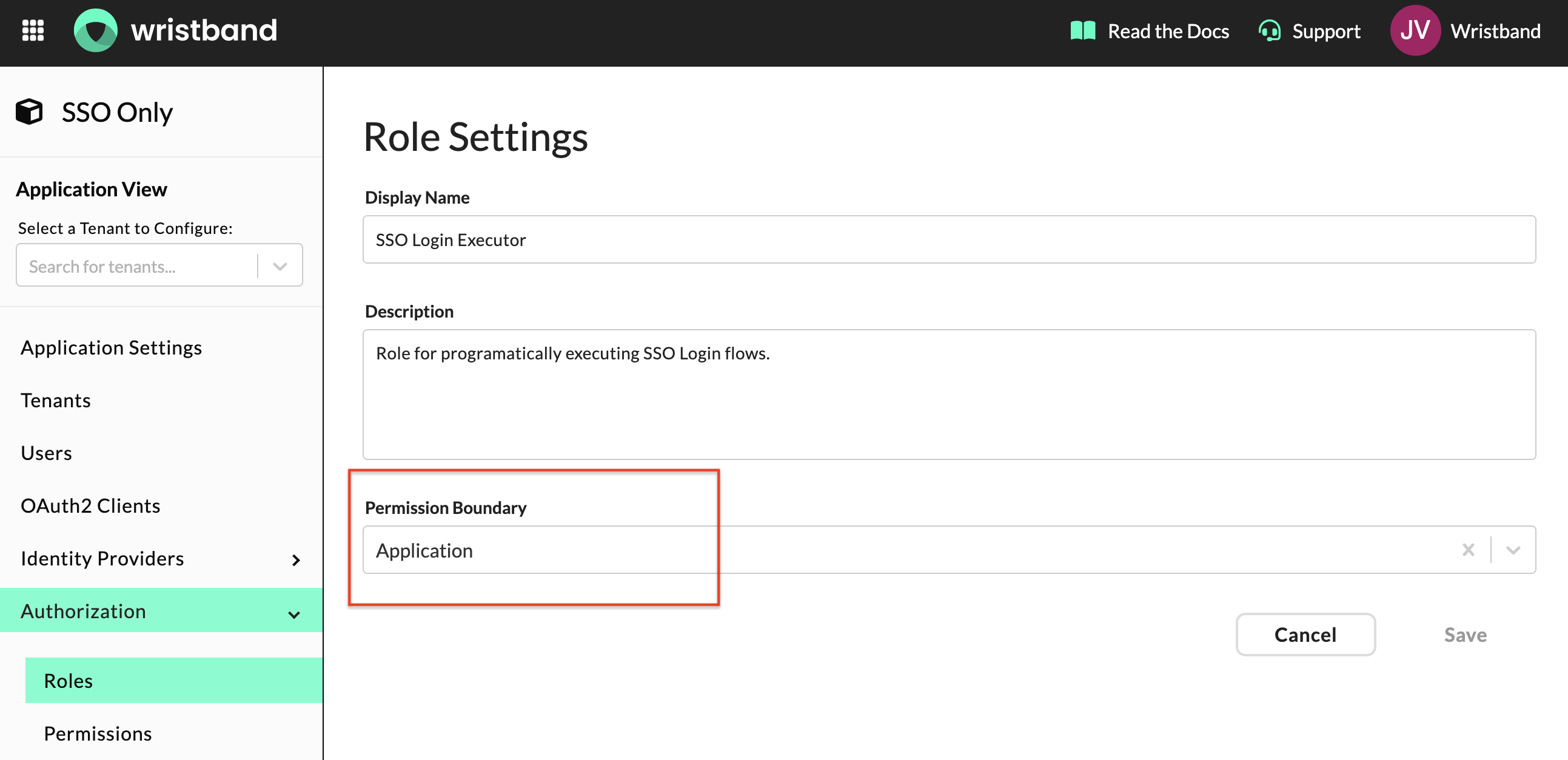
Permission boundary set to Application to enable access across all tenants.
Scroll down to the Permissions section and assign the following permissions to this role:
external-idp-login-workflow:execute: Allows your application to execute the SSO broker flow on behalf of a tenant.identity-provider:read: Allows your application to read the tenant's identity provider configuration.
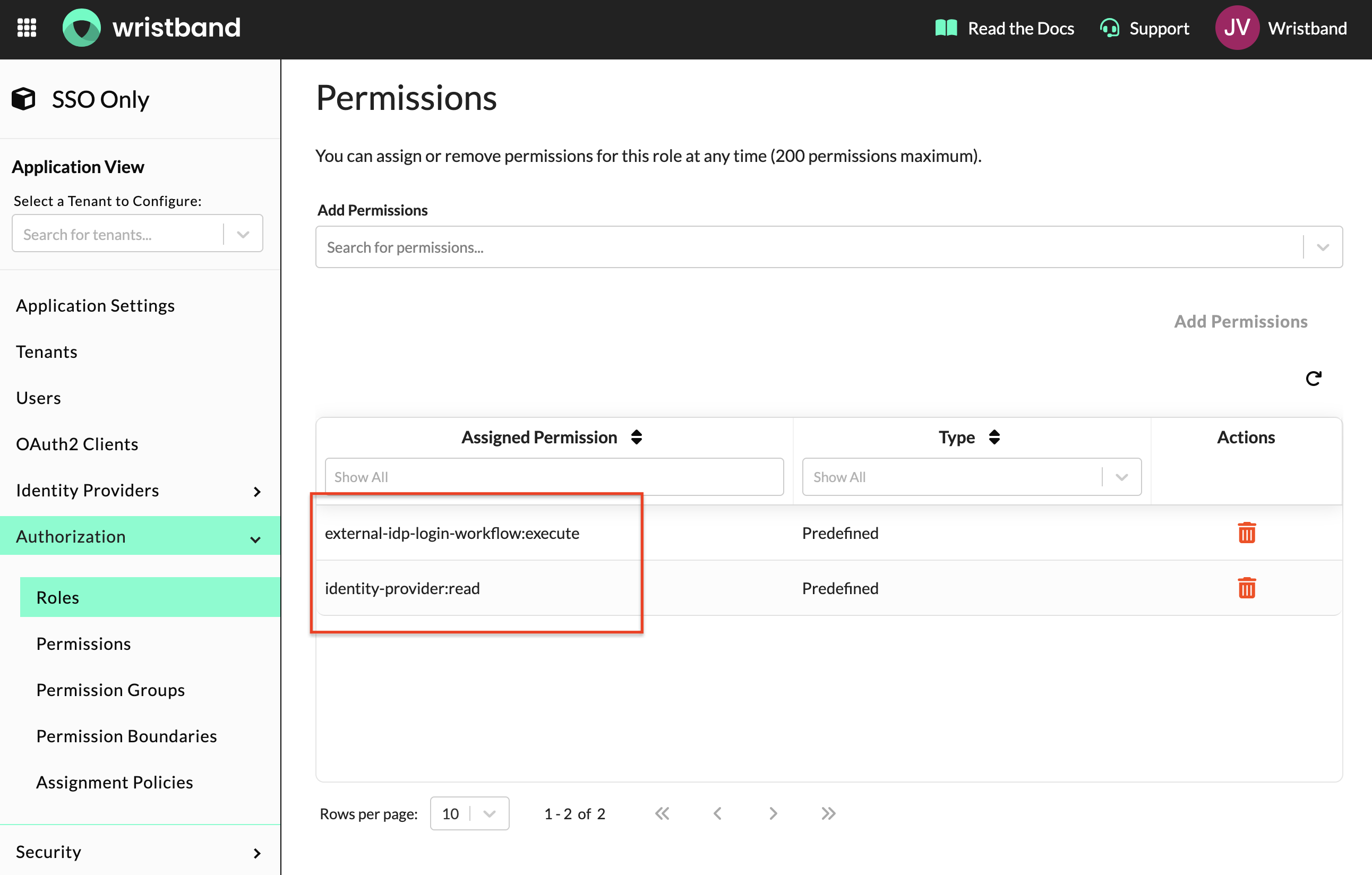
Assign all required permissions to the role.
4. Create and configure an OAuth2 Client
Copy Client ID and Secret
Navigate to OAuth2 Clients in the side navigation and click "Add Client". Fill out the following fields:
- Type:
Backend Server - Name: Any value (e.g.,
SSO Client).
Upon creation, your Client ID and Client Secret will be displayed. Copy these values and store them securely — the Client Secret is only shown once. These credentials are used to obtain an access token for making authenticated API calls to Wristband during the SSO flow.
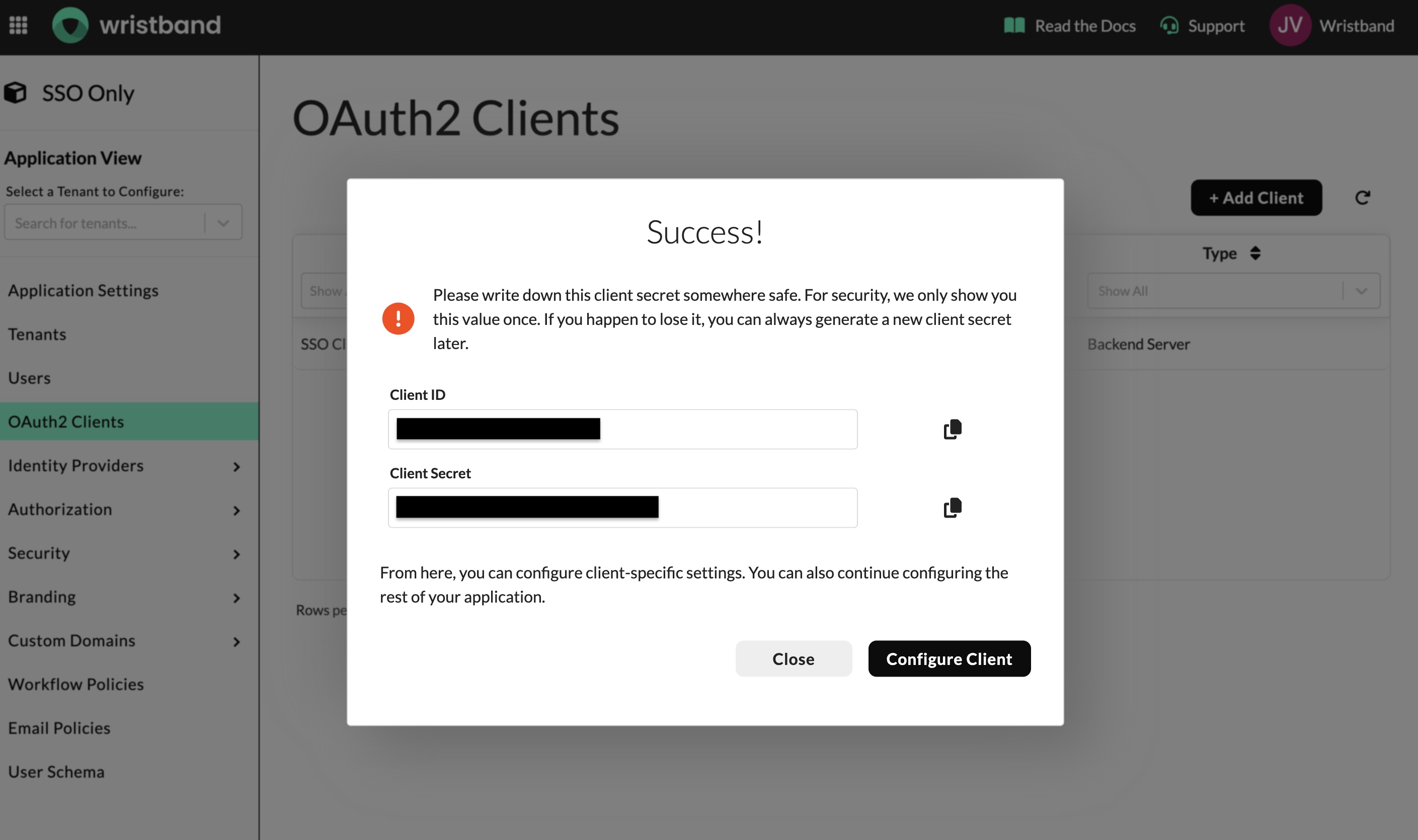
Copy both Client ID and Client Secret before proceeding.
Click "Configure Client" to continue setting up the client.
Enable Client Credentials
In the Advanced Settings section, enable the Client Credentials grant type. This allows your application to obtain an access token using its Client ID and Client Secret, which is required for making authenticated API calls to Wristband during the SSO flow.
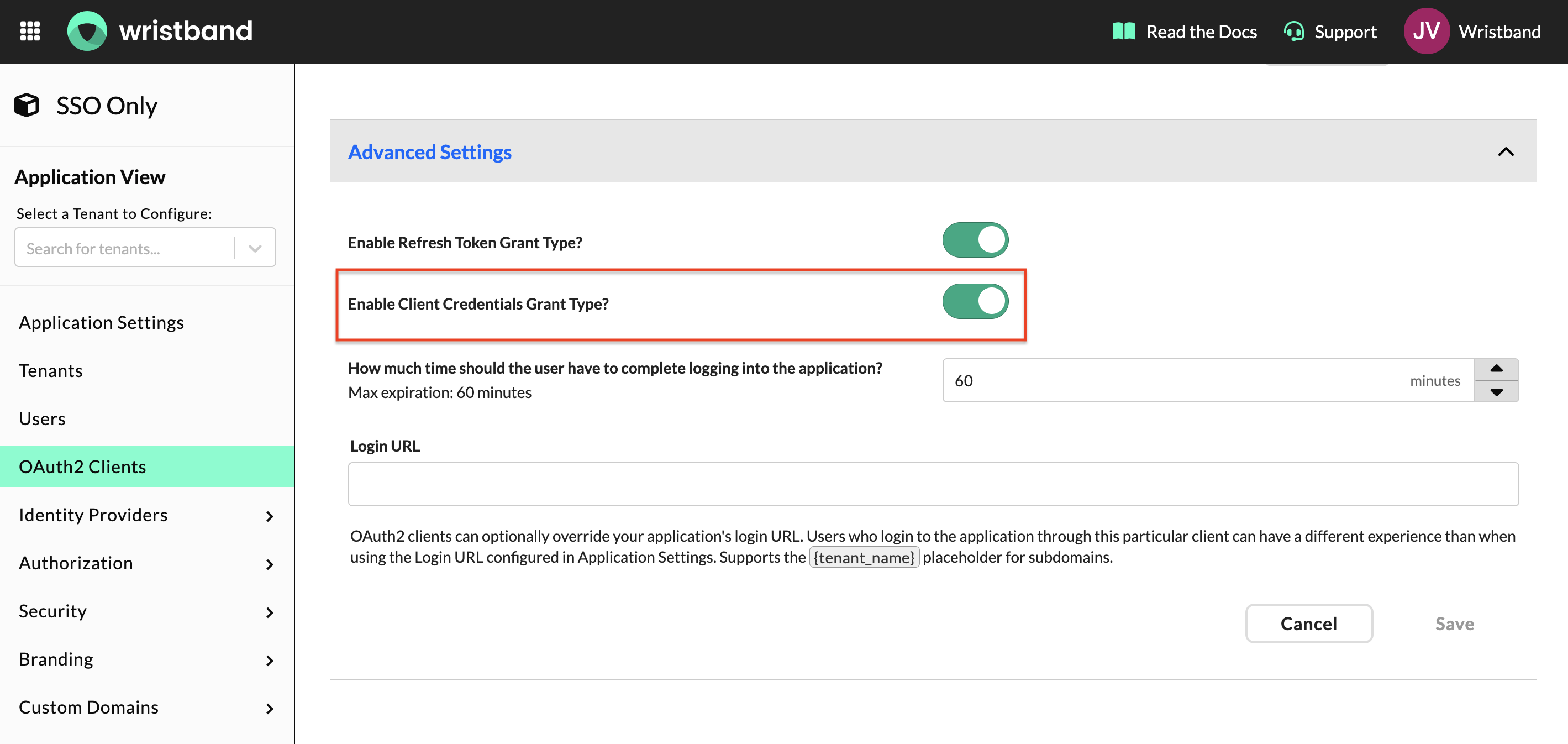
Enable the Client Credentials grant type under Advanced Settings.
Assign Role
Scroll down to the Assigned Roles section and assign the role created in step 3. This grants the client the permissions required to execute the SSO flow.
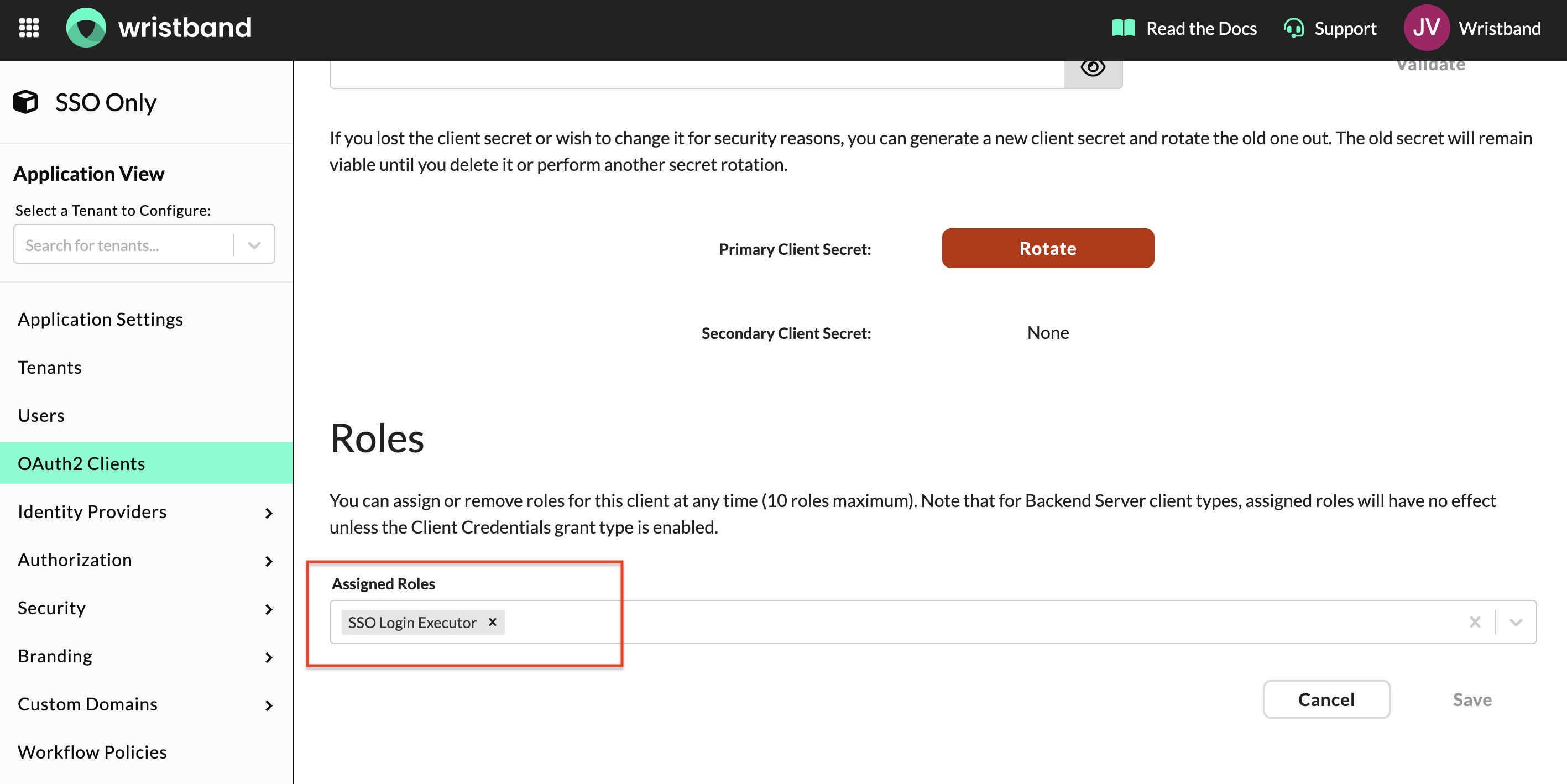
Assign your role to the OAuth2 client.
5. Create a Tenant and Configure an Enterprise IdP
NOTE: Repeat this step for each new SSO tenant you need to onboard.
Create a Standard Tenant
In the Wristband dashboard, navigate to Tenants in the side navigation and click "Add Tenant". Fill out the following fields:
- Type: Standard
- Display Name: Any value.
- Name: This value is used to generate the tenant's vanity domain, which is used when redirecting to the Wristband Authorize endpoint.
Click "View Tenant" at the bottom of the modal to open the Tenant View and continue configuration.
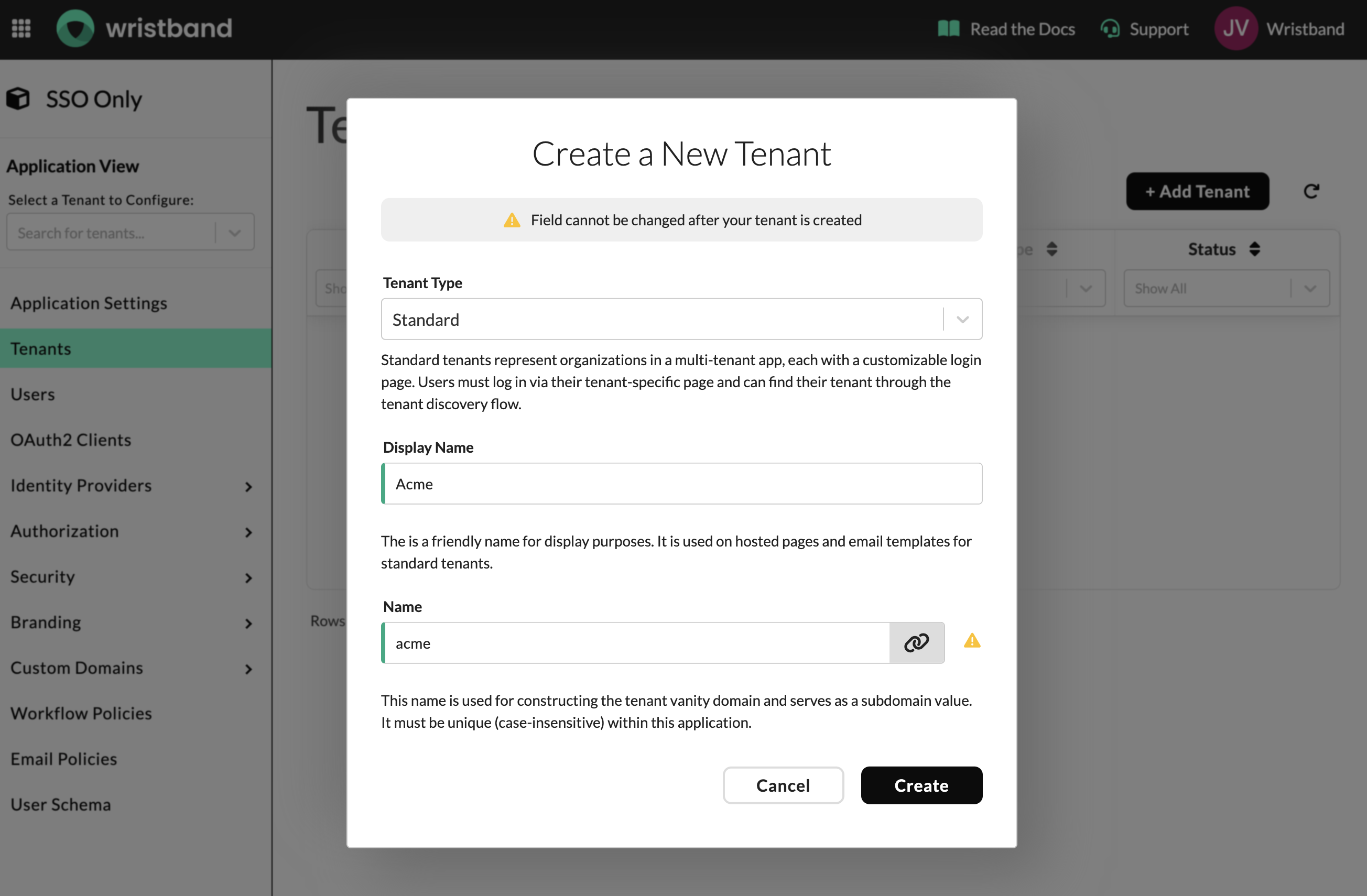
Create a Standard tenant for each enterprise SSO customer.
Enable the Tenant-level IdP Override
From the Tenant View, navigate to Identity Providers > Wristband in the left side navigation and enable the tenant-level IdP override toggle at the top of the page. This overrides the default app-level IdP settings specifically for this tenant, allowing each tenant to have its own IdP configuration.
Disable the Wristband Identity Provider
While still on Identity Providers > Wristband, disable the Wristband IdP. Since enterprise SSO is the only desired login method for this tenant, this prevents email-based login for users in this tenant.
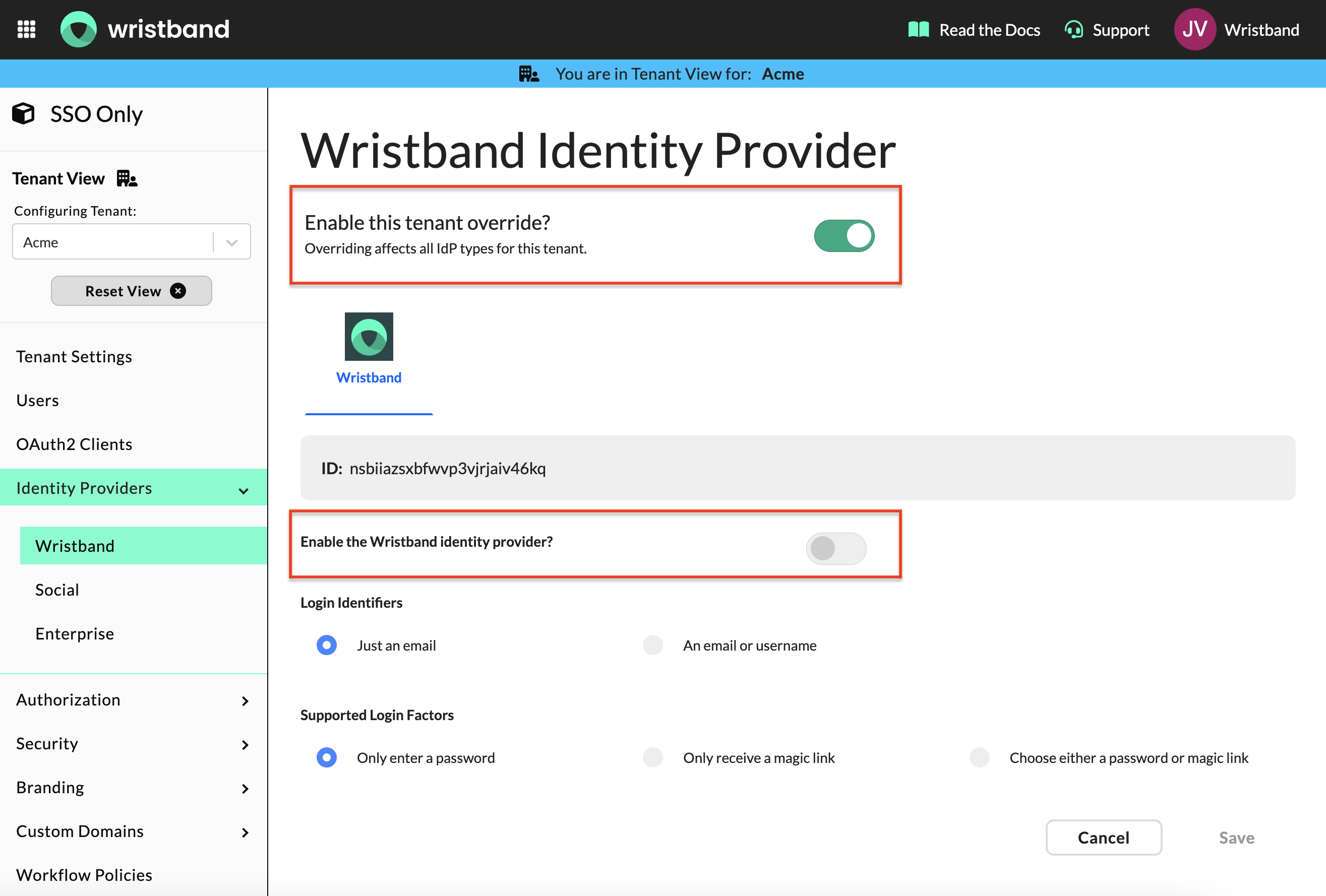
Enable the tenant-level IdP override and disable the Wristband IdP on the same page.
Create an Enterprise Identity Provider
Navigate to Identity Providers > Enterprise and add an enterprise IdP for your customer's SSO provider (e.g. Okta, Azure AD). Follow the relevant setup guide in the Wristband documentation for how to configure both sides of the connection.
NOTE: While this guide covers enterprise SSO, the same configuration can be done for social login providers if needed. Navigate to Identity Providers > Social and follow the relevant setup guide.
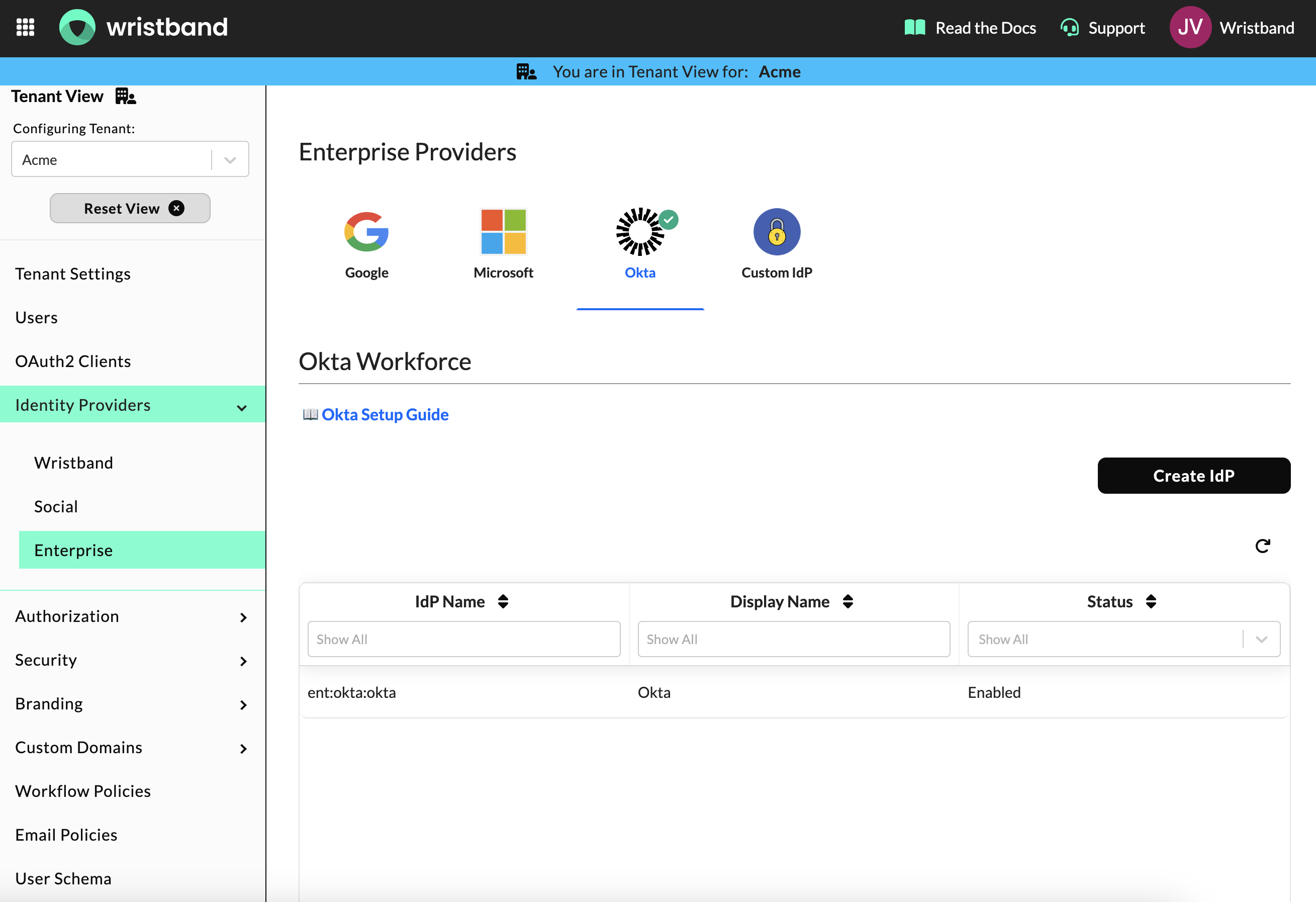
Add an enterprise IdP for your customer's SSO provider.
Data Schema
Before implementing the SSO login flow, ensure your application has the following database tables in place.
Tenant Mapping Table
This table maps email domains to their corresponding Wristband tenant and authentication method. Your app uses this on every login to determine whether to route the user through SSO or your existing auth flow. Throughout this guide it is referred to as tenant_mapping, but you can name it anything that fits your conventions.
| Column | Type | Notes |
|---|---|---|
email_domain | string | e.g. acmecorp.com |
tenant_name | string | Name of the Wristband tenant used to construct the Wristband Authorize URL |
User Table
Your user table must include a field to store the IdP's stable external ID. This is used to look up existing users on login and provision new ones on first login. Throughout this guide it is referred to as user, but you can name it anything that fits your conventions.
NOTE: Additional fields can be added to your user table to store attributes from the enterprise IdP. Available attributes depends on what your customers' IdP is configured to return. You will see the full set when you call the Fetch External IDP Userinfo endpoint later in this guide.
| Column | Type | Notes |
|---|---|---|
id | uuid | Internal primary key |
external_id | string | Stable unique ID issued by the customer's enterprise IdP (e.g. Okta, Azure AD, etc.); indexed for fast SSO lookup |
company_id | uuid | Your application's internal company/organization ID (not the Wristband tenant identifier). |
email | string | The user's email that is synced from the IdP on each login |
created_at | timestamp | An auto-set timestamp recording when the user was first provisioned in your application |
Tenant Association
Your application needs a way to associate users with their corresponding Wristband tenant. How you model this depends on your application's complexity:
- Dedicated company table: If your app is multi-tenant with company-level data, a separate table (e.g. companies, organizations, workspaces) is recommended. This allows you to store company-level metadata and associate multiple users with the same tenant.
- User table: If your app is simpler and tenant association is only needed at the user level, you can store the Wristband tenant identifier directly on the user record.
In either case, you need to be able to map a Wristband tenant identifier to the correct entity in your database during the JIT provisioning step later in this guide.
Example: dedicated table (e.g., company)
| Column | Type | Notes |
|---|---|---|
id | uuid | Internal primary key |
external_id | string | Maps to the Wristband tenant identifier |
name | string | Company name |
created_at | timestamp | An auto-set timestamp recording when the company was first provisioned in your application |
Example: user table with tenant association
| Column | Type | Notes |
|---|---|---|
id | uuid | Internal primary key |
external_id | string | Stable unique ID issued by the customer's enterprise IdP (e.g. Okta, Azure AD, etc.); indexed for fast SSO lookup |
company_id | uuid | Your application's internal company/organization ID (not the Wristband tenant identifier). |
external_tenant_id | string | Maps to the Wristband tenant identifier |
email | string | The user's email that is synced from the IdP on each login |
created_at | timestamp | An auto-set timestamp recording when the user was first provisioned in your application |
For the remainder of this guide, we assume a dedicated company table. If your application stores tenant association directly on the user record, adjust the implementation accordingly.
Implementing SSO Login
The following steps walk through the complete SSO login flow from the moment a user enters their email to the point where they have an authenticated session in your application. Your app self-hosts all login pages and orchestrates every step.
1: Email Entry and Tenant Resolution
Your application needs a self-hosted app-level login page with a single email input. This is the entry point for all users, both SSO and non-SSO. When the user submits their email, your app parses the domain and looks it up in the tenant_mapping table to determine how to route them.
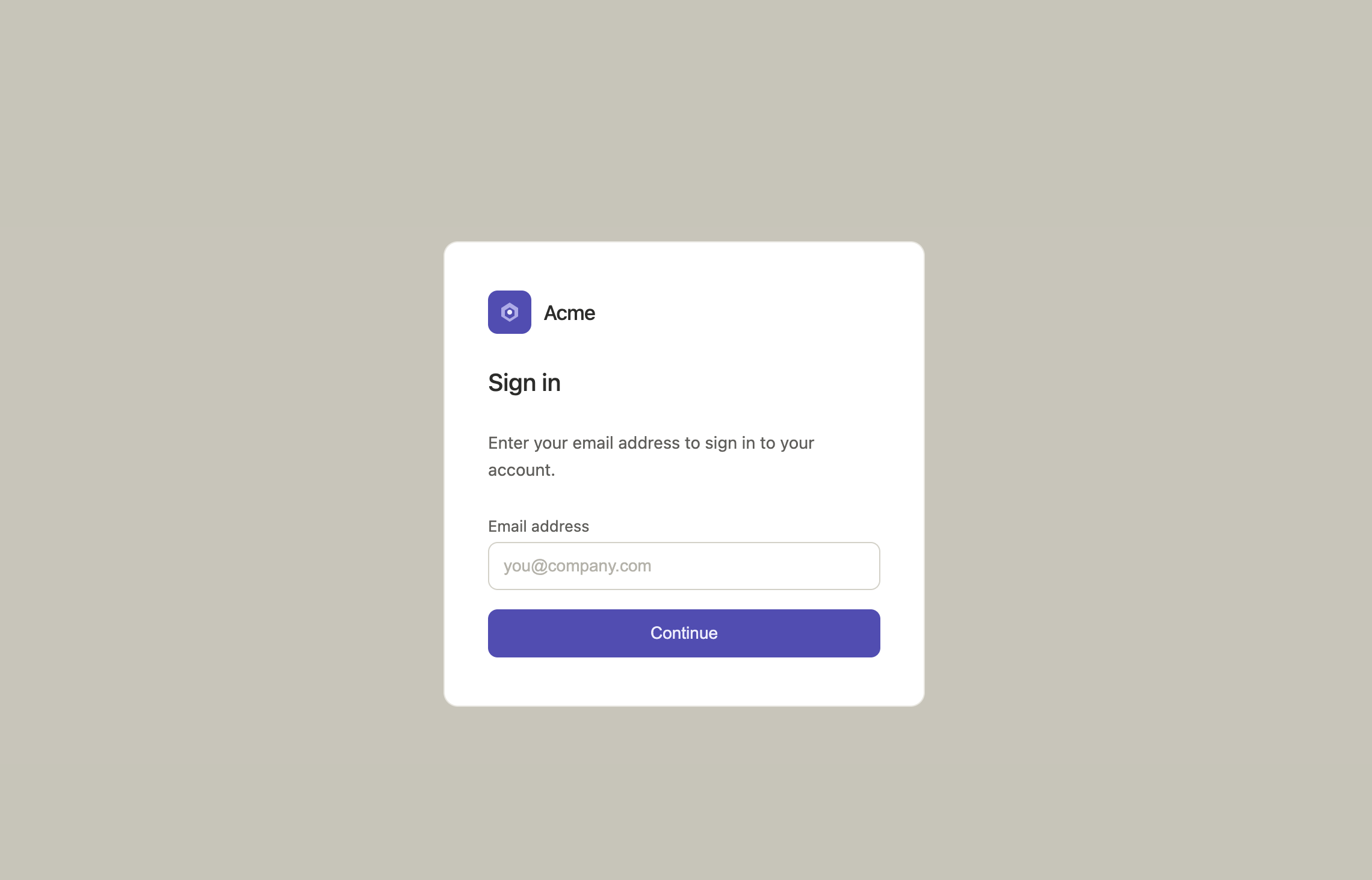
Example of an app-level login page that your application controls and hosts.
If the email domain maps to a Wristband tenant name, redirect the user to the Wristband Authorize Endpoint using the tenant's vanity domain as the host. If the email domain maps to your existing auth flow (e.g. magic links, passwords), handle it as you normally would in your application.
// Handle this logic in a server-side endpoint, not in the browser.
const emailDomain = email.split('@')[1];

// Lookup the email domain/tenant name mapping in your app's database
const tenant_mapping = await db
  .from('tenant_mapping')
  .select('tenant_name')
  .eq('email_domain', emailDomain)
  .single();

if (tenant_mapping) {
  // The tenant vanity domain is constructed by prepending the tenant name to
  // your application's vanity domain (APPLICATION_VANITY_DOMAIN), which you
  // copied from the Application Settings page in the Wristband.
  const appVanityDomain = process.env.APPLICATION_VANITY_DOMAIN;
  const tenantVanityDomain = `${tenant_mapping.tenant_name}-${appVanityDomain}`;

  const oauthParams = new URLSearchParams({
    // CLIENT_ID: the OAuth2 client ID, copied from your Wristband OAuth2 client
    client_id: process.env.CLIENT_ID,
    response_type: 'code',
    scope: 'openid',
    state: crypto.randomBytes(32).toString('base64url'),
  }).toString();

  // Redirect to the Wristband Authorize Endpoint
  redirect(`https://${tenantVanityDomain}/api/v1/oauth2/authorize?${oauthParams}`);
} else {
  // Otherwise, handle existing auth flow (e.g. password, etc.).
}
2: Custom Tenant Login Page Request
When Wristband successfully validates the authorize request, it redirects to the Custom Tenant Login Page URL you configured in Application Settings in the Wristband dashboard. You need to implement a server-side endpoint at that URL to handle this redirect. The redirect includes a req query parameter containing an authorization request token.
This endpoint should handle the following steps:
- Obtain an access token by calling the Wristband Token API using your OAuth2 client credentials. You'll use the access token that when making subsequent API requests.
- Introspect the authorization request token via the Wristband Introspect Authorization Request Token API to validate it and retrieve the tenant ID as well as the tenant vanity domain.
- Call the Wristband Resolve Tenant Identity Provider Overrides endpoint using the tenant ID in order to get the name of the identity provider the user should authenticate with.
- Redirect the user to the Wristband Authorize External IdP User for Login API using the tenant vanity domain.
NOTE: This guide assumes one external IdP is configured per tenant. If you expect multiple IdPs, you will need to render a tenant login page to let the user choose which one to authenticate with.
// Custom Tenant Login Page URL Endpoint
// GET "/auth/tenant-login?req=yJraWQiOiJ4MGFrTVJ..."
export async function GET(request: Request) {
   // 1. Obtain an access token using your Wristband OAuth2 client credentials.
  const basicAuthCredentials = Buffer.from(
    `${process.env.CLIENT_ID}:${process.env.CLIENT_SECRET}`
  ).toString('base64');
  const tokenResponse = await fetch(
    `https://${process.env.APPLICATION_VANITY_DOMAIN}/api/v1/oauth2/token`,
    {
      method: 'POST',
      headers: {
        Accept: 'application/json',
        'Content-Type': 'application/x-www-form-urlencoded',
        Authorization: `Basic ${basicAuthCredentials}`,
      },
      body: new URLSearchParams({ grant_type: 'client_credentials' }),
    }
  );
  const { access_token: accessToken } = await tokenResponse.json();

  // 2. Introspect the authorization request token and parse out the tenant ID.
  const { searchParams } = new URL(request.url);
  const authorizationRequestToken = searchParams.get('req');
  const introspectResponse = await fetch(
    `https://${process.env.APPLICATION_VANITY_DOMAIN}/api/v1/oauth2/authorization-requests/introspect`,
    {
      method: 'POST',
      headers: {
        Accept: 'application/json',
        'Content-Type': 'application/json',
        Authorization: `Bearer ${accessToken}`,
      },
      body: JSON.stringify({ authorizationRequestToken }),
    }
  );
  const {
    active,
    tnt_id: tenantId,
    van_dom: tenantVanityDomain
  } = await introspectResponse.json();
  if (!active) {
    // This should never happen in practice (defensive check). If the authorization
    // request token is invalid, redirect back to your app's login page to start over.
    redirect('/login');
  }

  // 3. Resolve the enabled identity provider and parse out the IdP name.
  const idpResponse = await fetch(
    `https://${process.env.APPLICATION_VANITY_DOMAIN}/api/v1/tenants/${tenantId}/identity-providers/resolve-overrides?status=ENABLED`,
    {
      method: 'GET',
      headers: {
        Accept: 'application/json',
        Authorization: `Bearer ${accessToken}`,
      },
    }
  );
  const { items } = await idpResponse.json();
  const identityProviderName = items[0].item.name;

  // 4. Redirect to the Wristband Authorize External IdP User for Login endpoint.
  const externalIdpParams = new URLSearchParams({
    identity_provider_name: identityProviderName,
    authorization_request_token: authorizationRequestToken,
  }).toString();
  redirect(
    `https://${tenantVanityDomain}/api/v1/external-idp-login/authorize-user?${externalIdpParams}`
  );
}
From there, Wristband will broker the SAML/OIDC handshake with the enterprise IdP and the user will authenticate with their corporate credentials.
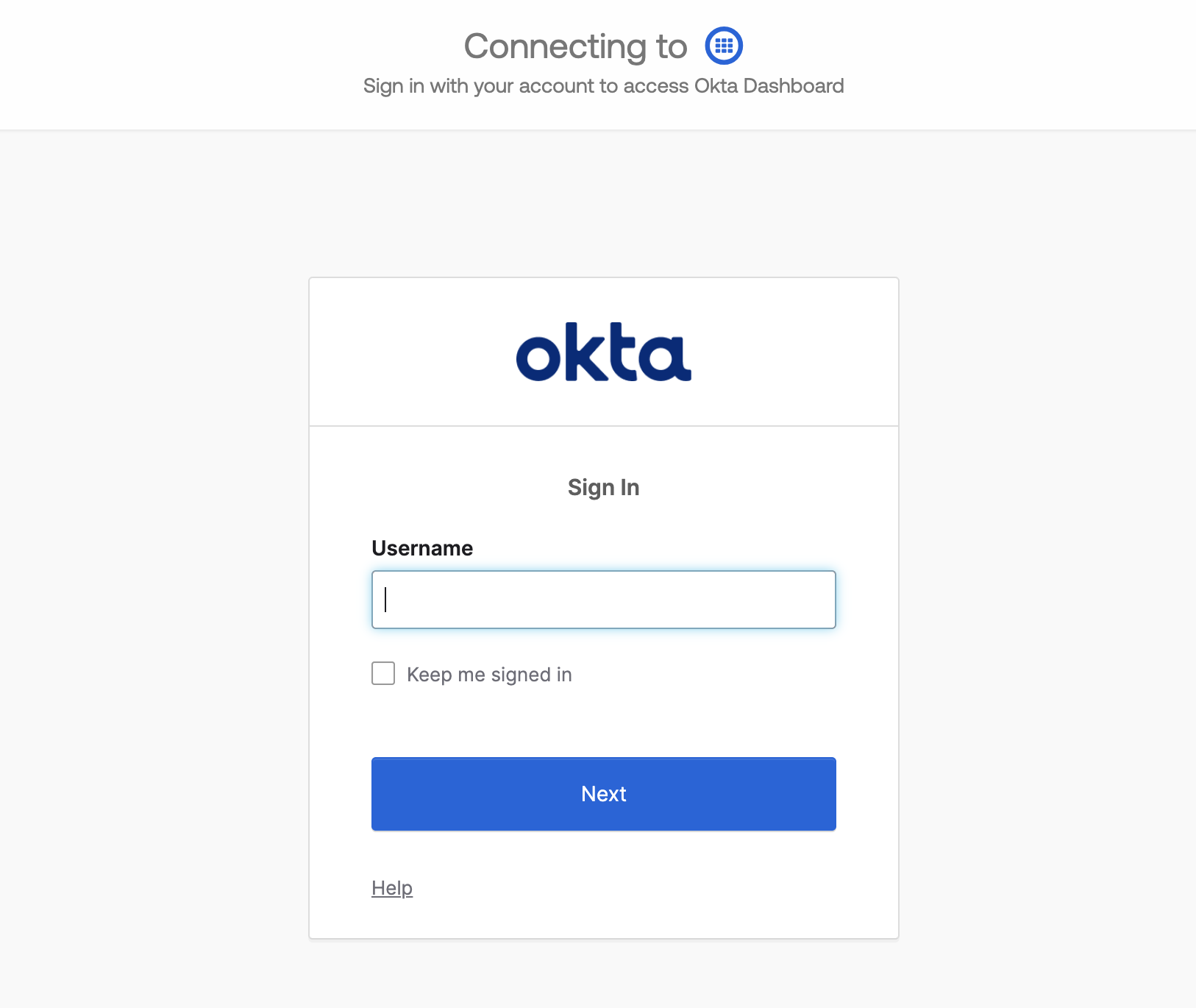
Example enterprise IdP login page; your customers will see their own IdP here.
3: Custom External IDP Login Page Request
After successful authentication, Wristband will redirect to the Custom External IDP Login Page URL you configured in Application Settings in the Wristband dashboard. You need to implement a server-side endpoint at that URL to handle this redirect. The redirect includes a code query parameter containing the external IDP auth code.
This endpoint should handle the following steps:
- Obtain an access token by calling the Wristband Token API using your OAuth2 client credentials.
- Introspect the external IDP auth code via the Wristband Introspect Login External IDP Auth Code API to validate it and retrieve tenant and IdP information.
- Fetch the verified user identity attributes via the Wristband Fetch External IDP Userinfo API, including the user's stable external ID, email, and any other relevant fields.
- Revoke the external IDP auth code via the Wristband Complete External IDP Login API so it cannot be reused. The code expires on its own after 60 minutes if not revoked. Wristband is no longer involved from this point on.
- Look up the user in your database by
external_id. If they don't exist yet, provision them by creating a new user record. - Mint a session in your existing auth system and redirect the user into the application.
// External IDP Login Page URL Endpoint
// GET "/auth/sso/callback?code=abc123..."
export async function GET(request: Request) {
  const { searchParams } = new URL(request.url);
  const externalIdpAuthCode = searchParams.get('code');

  // 1. Obtain an access token using your Wristband OAuth2 client credentials.
  const basicAuthCredentials = Buffer.from(
    `${process.env.CLIENT_ID}:${process.env.CLIENT_SECRET}`
  ).toString('base64');
  const tokenResponse = await fetch(
    `https://${process.env.APPLICATION_VANITY_DOMAIN}/api/v1/oauth2/token`,
    {
      method: 'POST',
      headers: {
        Accept: 'application/json',
        'Content-Type': 'application/x-www-form-urlencoded',
        Authorization: `Basic ${basicAuthCredentials}`,
      },
      body: new URLSearchParams({ grant_type: 'client_credentials' }),
    }
  );
  const { access_token: accessToken } = await tokenResponse.json();

  // 2. Introspect the external IDP auth code to validate it.
  const introspectResponse = await fetch(
    `https://${process.env.APPLICATION_VANITY_DOMAIN}/api/v1/external-idp-login/introspect`,
    {
      method: 'POST',
      headers: {
        Accept: 'application/json',
        'Content-Type': 'application/json',
        Authorization: `Bearer ${accessToken}`,
      },
      body: JSON.stringify({ token: externalIdpAuthCode }),
    }
  );
  const { active } = await introspectResponse.json();
  if (!active) {
    // This should not usually happen (defensive check). If the external IDP auth code is
    // invalid, surface an error to the user or send them to an error page.
    redirect('/error');
  }

  // 3. Fetch the verified user identity attributes from the IdP.
  const userinfoResponse = await fetch(
    `https://${process.env.APPLICATION_VANITY_DOMAIN}/api/v1/external-idp-login/fetch-userinfo`,
    {
      method: 'POST',
      headers: {
        Accept: 'application/json',
        'Content-Type': 'application/json',
        Authorization: `Bearer ${accessToken}`,
      },
      body: JSON.stringify({ externalIdpAuthCode }),
    }
  );
  const { externalId, email } = await userinfoResponse.json();

  // 4. Revoke the external IDP auth code so it cannot be reused.
  await fetch(
    `https://${process.env.APPLICATION_VANITY_DOMAIN}/api/v1/external-idp-login/complete`,
    {
      method: 'POST',
      headers: {
        Accept: 'application/json',
        'Content-Type': 'application/json',
        Authorization: `Bearer ${accessToken}`,
      },
      body: JSON.stringify({ externalIdpAuthCode }),
    }
  );

  // ...Wristband is no longer involved from this point onwards...

  // 5. Look up the user in your database by external_id. Provision if they don't exist yet.
  let user = await db
    .from('user')
    .select('id')
    .eq('external_id', externalId)
    .single();
  if (!user) {
    await db.from('user').insert({ external_id: externalId, email });
  }

  // 6. Mint a session in your existing auth system and redirect into your application.
  await yourAuthSystem.createSession({
    userId: user.id,
    email: user.email,
    companyId: user.company_id,
  });
  redirect('/dashboard');
}
With the session minted and the user redirected into your application, the SSO login flow is complete. From this point forward, all subsequent requests are authenticated entirely within your own auth system.
Updated about 7 hours ago